Configure Your Company Settings
 Converge Team
Company settings control how your workspace operates — from business hours and timezone to visitor retention, team roles, and security. This guide walks through every panel under Manage so you can tailor the platform to your team's workflow.
Permissions overview: Almost everything in this guide is owner work. Here's the split:
| Area | Who can open it |
|---|---|
| Everything under Manage — Company Info, working hours, data export, Visitors, Sessions, Employees, Billing | Owner |
| Banning and unbanning a contact | Any team member |
Some of these settings accept admins at the API level, but the Manage area sends anyone who is not the owner back to the inbox, so the owner does this work in practice.
Where to find these settings: Click Manage in the sidebar — the gear icon, marked with a star because it is owner-only. Its left column lists Company Info, Billing, CSAT Surveys, SLA Policies, Auto-Assignment, Employees, Sessions and Visitors.
Working Hours & Timezone
Owner OnlyYour timezone and business hours are the foundation for every time-sensitive feature. Auto-reply scheduling, SLA deadlines in business-hours mode, and agent shift checks all read these two values.
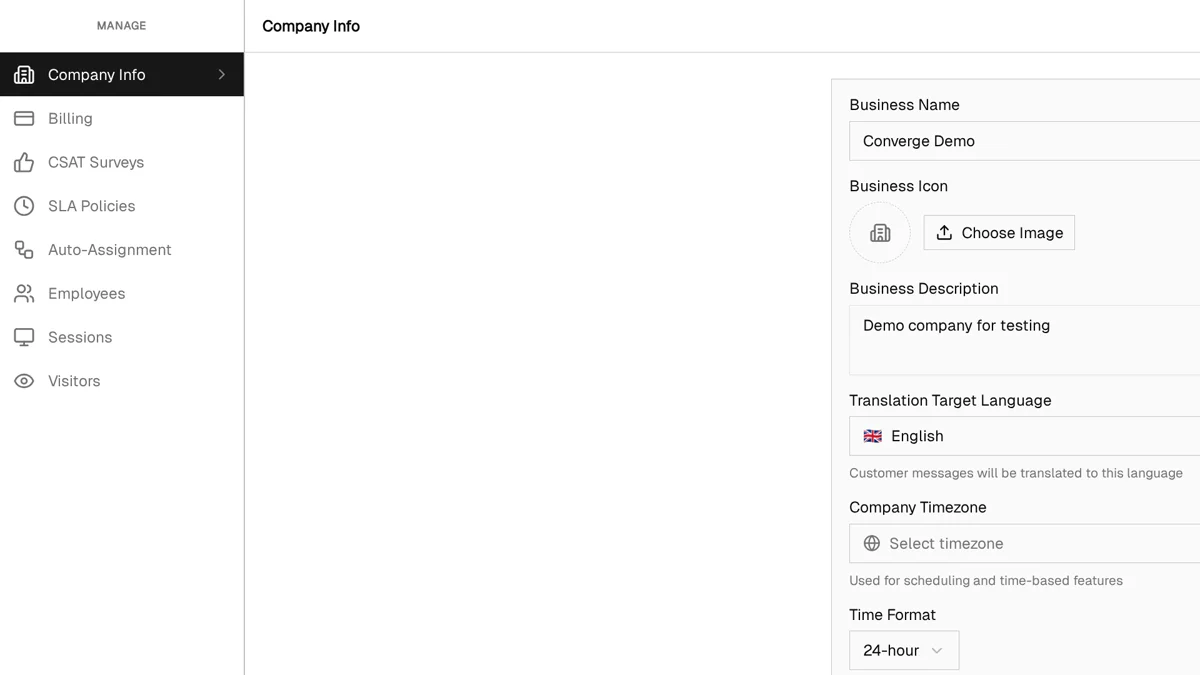
Company Info is two cards with two separate save buttons. The top card holds your business name, icon, description, translation target language, timezone and time format, and saves with Save Settings. Working Hours sits below it with its own Save Working Hours button. Editing hours and then pressing the upper button leaves the hours unsaved.
Configuring your timezone and hours
-
1
Open Manage > Company Info
Click Manage in the sidebar, then Company Info at the top of its menu.
-
2
Set Company Timezone
Search the dropdown for your company's primary timezone. It starts empty, and while it is empty the time calculations fall back to the server's clock rather than yours.
-
3
Choose your time format
Pick 12-hour or 24-hour. This changes how timestamps read in the chat, nothing else.
-
4
Click Save Settings
The timezone and format apply straight away; a toast confirms the save.
-
5
Set Start Time and End Time, then Save Working Hours
They default to 08:00 and 17:00. Inside this window, auto-replies use your handoff acknowledgment; outside it, they use your away message. SLA policies set to business hours only tick during the same window.
One window, seven days: there is no per-day schedule. The same start and end time apply on Saturday as on Tuesday, so a business-hours SLA clock keeps running across the weekend. If your team does not work weekends, set resolution targets with that in mind.
One more field on this card matters beyond scheduling: Translation Target Language is the language incoming customer messages get translated into when an agent asks for a translation.
Visitor Retention Settings
Owner OnlyVisitor retention controls how long anonymous widget visitors are kept before automatic cleanup. This keeps your contact list relevant and your database lean.
Choosing a retention period
-
1
Open Manage > Visitors
The card opens on Visitor Cleanup and shows your current visitor count above the setting.
-
2
Pick a Retention Period
New accounts start at 30 days. There is no save button — the choice applies the moment you pick it, and cleanup runs once a day.
| Period | Best For |
|---|---|
| 1 day | High-traffic sites with many one-time visitors |
| 7 days | Balanced — works well for most sites |
| 14 days | Gives visitors time to return before cleanup |
| 30 days | Low-traffic sites where every visitor matters |
Safe cleanup: A stale visitor is deleted only if you have no way to reach them—no email, no phone number, and nothing beyond the placeholder name the widget assigned. The moment someone leaves any one of those, the record is kept regardless of the retention period, and contacts who have exchanged a message are never in scope at all. Scraper and datacenter traffic is always removed once stale.
Manual cleanup: Need to start fresh? Clear All Visitors Now clears the anonymous ones immediately, without waiting for the retention period, after a confirmation dialog that names how many will go. It applies the same protection as scheduled cleanup, so anyone who left an email, a phone number or a real name stays on the list. The button is greyed out when the count is zero, and the deletion cannot be undone.
Banning Abusive Visitors
When a visitor or customer becomes abusive, you can ban them to protect your team. Any team member can issue a ban — no admin permissions required.
How to ban a visitor
There are two ways to ban someone:
From the contact list
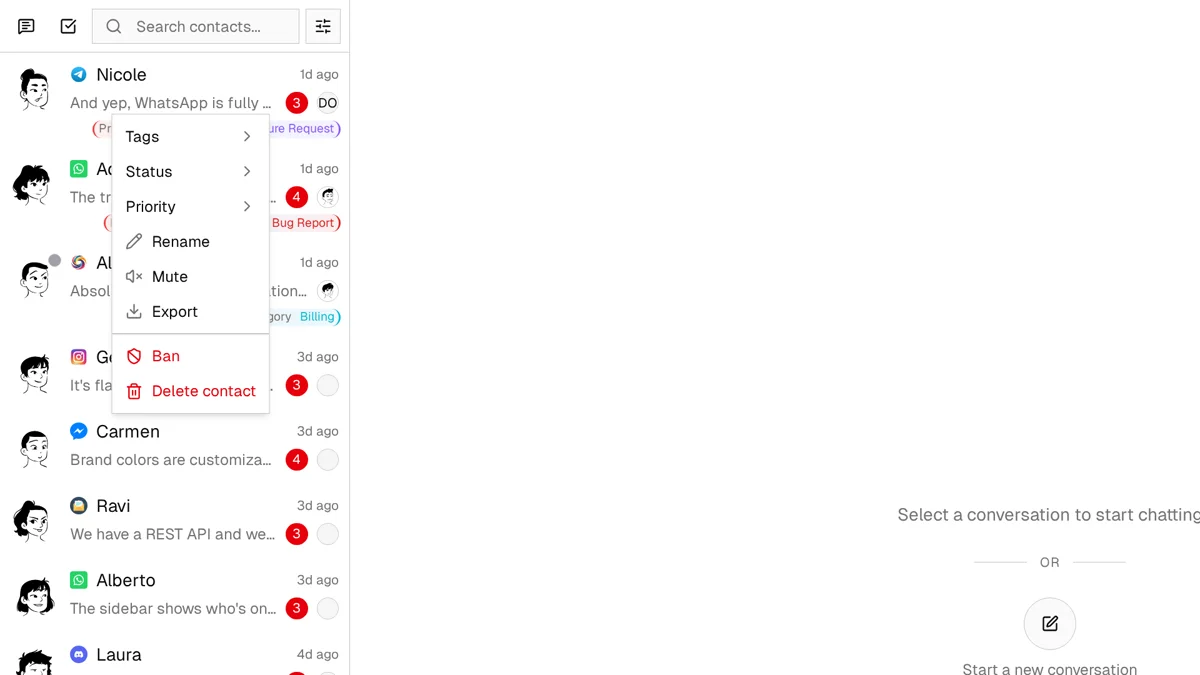
Right-click any contact to open the context menu, then select Ban. A confirmation dialog appears before the ban takes effect.
From the chat header
Open the conversation and click the shield Ban button in the header. On a narrow screen it lives in the three-dot menu instead. The same confirmation dialog appears, and its wording changes depending on the channel.
Platform-specific behavior
Widget visitors
Fully blocked. The visitor sees a "You have been blocked" message in the widget and cannot send further messages.
External platforms (Telegram, WhatsApp, etc.)
Marked as banned. The customer can still send messages through the third-party platform since blocking at that level isn't possible, but your team sees the indicator. The red shield appears next to every banned contact, widget visitors included.
Data handling on ban
- Retained: Messages and notes are kept for audit purposes
- Deleted: Analytics data, IP enrichment records, auto-reply logs, read receipts, and any mute your team had set on the contact
Unbanning
To unban, use the same locations — right-click the contact or use the chat header button. The ban lifts on our side immediately and their messages start reaching your inbox again.
One catch for widget visitors: the widget remembers the block in the visitor's own browser storage and does not clear it when you unban. That person keeps seeing the blocked screen until their browser data is cleared or they open your site in a different browser. If you unban someone you need to keep talking to, reach them on another channel.
Rate limit: Banning is rate-limited to 10 bans per company per hour to prevent accidental mass bans.
Session Management
Owner OnlyThe Sessions panel lists every login currently active across your team and lets you end any of them. It is the fastest way to cut off access without waiting for a login to expire on its own.
Viewing and revoking sessions
-
1
Open Manage > Sessions
The Active Sessions card lists every live login, with a count in its subtitle.
-
2
Read the row
Each row shows the team member's name, their email and the date the session started. One person can appear several times — that's one row per browser they logged in from.
-
3
Revoke a session
Click Revoke to end it. That browser is signed out on its next request and has to log in again.
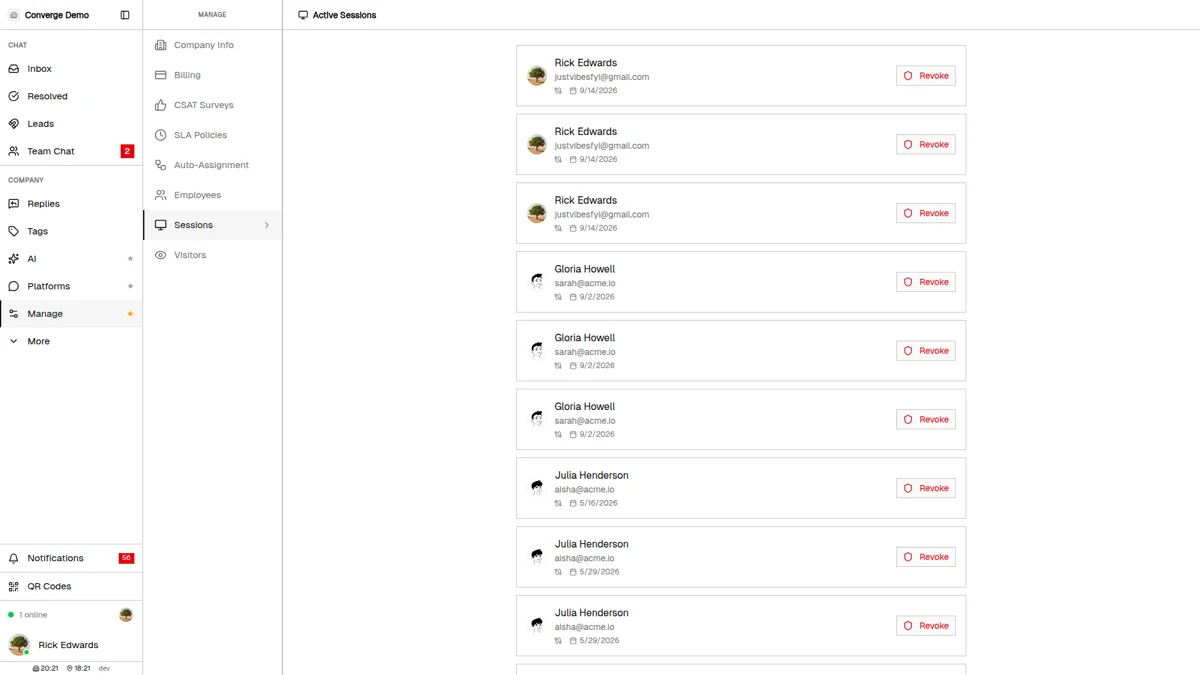
How sessions expire on their own: a login lasts 30 days, and each person can hold three at once. A fourth login silently ends their oldest session, so someone who signs in from a new laptop drops off their least recently used browser.
When to revoke sessions
Lost or stolen device
If a team member reports a missing laptop or phone, revoke their sessions. Because rows don't name the device, the safe move is to revoke all of that person's rows and have them log back in on the hardware they still hold.
Shared or borrowed computer
Someone who logged in on a front-desk machine or a colleague's browser and forgot to sign out leaves a live session behind. Revoking it is cleaner than asking them to go back and find it.
More rows than you expect
A person with three rows who only uses one computer is worth a conversation. Revoke the lot and watch which ones come back.
Departing team members are handled for you: removing someone from Employees ends every session they hold. You do not need to revoke them first.
Exporting Your Data
Owner OnlyData export gives you a ZIP archive of your company's records. Use it for backups, compliance requests, or moving your history somewhere else.
Running an export
-
1
Open Manage > Company Info
Scroll to the Data Export card below the working hours.
-
2
Click Export Data
The card switches to a processing state while the archive is built in the background. You can leave the page — a "Data Export Ready" notification arrives when it is done.
-
3
Click Download
The finished card shows the file size and an expiry. Download it within 72 hours — after that the link dies and you would need a new export.
What's inside the archive
The ZIP holds one JSON file per record type — company profile, contacts, messages, employees, notes, quick replies, Q&A entries, tags, tag assignments and connected integrations — plus a manifest listing what was included and when it was generated.
Two things the archive does not give you: file attachments sent in conversations are not bundled, and contact names, emails and phone numbers come out encrypted rather than as readable text. Treat the export as a backup of your records, not as a spreadsheet you can open and read straight through.
Cooldown: one export per 30 days. The button stays disabled until the cooldown ends and tells you when you can run the next one.
Managing Your Team
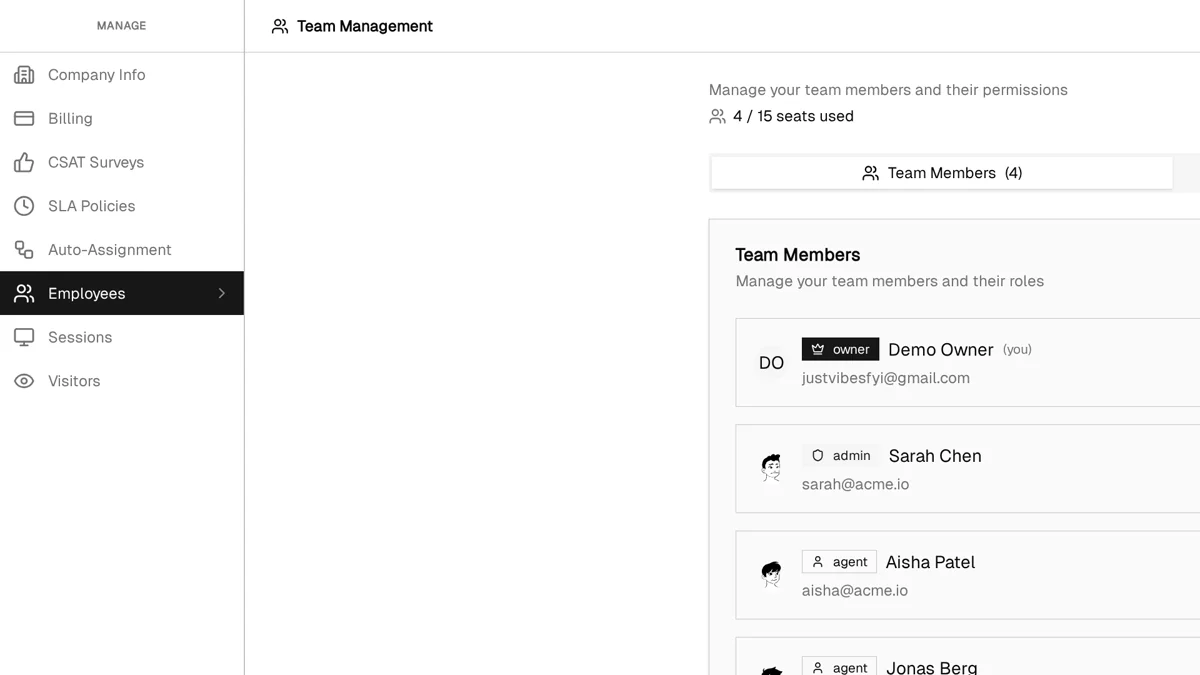
Owner OnlyManage > Employees is where you invite new members, set roles, configure shifts, and watch seat usage. The $49/month flat rate covers up to 15 team members, so growing the team costs nothing extra until you hit that ceiling.
Understanding roles
Owner
The account that created the workspace. Full access to everything, including billing and data export. There is exactly one, it cannot be changed from this page, and there is no way to transfer it to someone else — so keep control of that mailbox.
Admin
A senior agent. Admins carry extra permissions on the API — employees, visitor settings, sessions — but the Manage area is owner-only, so day to day an Admin works the inbox much like an Agent. An Admin cannot promote anyone else to Admin.
Agent
Day-to-day support — chat with customers, view contact details, add notes and tags, and ban abusive visitors. No access to the Manage area.
Inviting team members
-
1
Click Invite Member
The button sits at the top right of the Employees page, next to the seat counter.
-
2
Enter the email address
They get an emailed invitation link that is good for 7 days. An address that already belongs to a team member anywhere on the platform is rejected.
-
3
Track it under Pending Invitations
The second tab lists everyone who hasn't accepted yet, with a revoke button. Everyone joins as an Agent — change the role after they accept.
Managing existing members
Change roles
The dropdown next to each member switches them between Agent and Admin. Those are the only two options — the owner row has no dropdown at all.
Remove employees
The remove button ends their access and every session they hold. Their messages stay in the conversation history, their open conversations become unassigned, and their personal quick replies are deleted.
Configure employee shifts
The clock button sets a daily start and end time per member. Auto-routing prefers agents who are on shift, but falls back to the whole team when nobody is — a shift shapes the queue, it does not lock anyone out. A member with no shift set counts as always available.
Monitor seat usage
The counter at the top reads members plus pending invitations against your 15 seats. At the limit the Invite Member button greys out and shows "Limit reached" — revoke a stale invitation to free the seat.
Shifts are not notification settings: agents who don't want to be pinged outside their hours turn on "Silence notifications outside working hours" in their own Profile. You cannot set that for them from here.
Best Practices & Tips
Set your timezone before configuring anything else
Timezone is the foundation for business hours, SLA tracking, and auto-reply scheduling. Getting it wrong cascades into incorrect behavior across features.
Audit active sessions monthly
Skim Manage > Sessions now and then. Anyone holding more rows than the computers they actually use is worth a quick question — revoke the lot and let them log back in.
Use short retention periods for high-traffic sites
If your site sees thousands of visitors daily, a 1-day or 7-day retention period keeps your contact list manageable. Cleanup only ever removes visitors you have no way to reach, so a short window costs you nothing.
Document ban reasons in customer notes
Before banning someone, add a note explaining why. Notes are preserved after the ban, giving your team context if the situation is revisited.
Guard the owner's mailbox
Ownership sits with the account that created the workspace and cannot be reassigned, so if that person leaves, everything under Manage — billing included — leaves with their login. Use an address the business controls, not a personal one.
What's Next?
With your company settings configured, explore these related guides:
- Inbox Guide — Master your unified conversation hub for managing all customer messages
- Platforms Guide — Connect WhatsApp, Telegram, Instagram, and other messaging channels
- SLA Guide — Define response and resolution targets with automatic breach tracking
Need more help?
Our support team is here for you. Click the chat widget in the bottom right corner to start a conversation.
We typically respond within minutes during business hours.