How to Connect Telegram to Converge
Learn how to connect your Telegram bot to Converge so you can receive and reply to Telegram messages from your unified inbox.
 Converge Team
Get your Telegram bot token
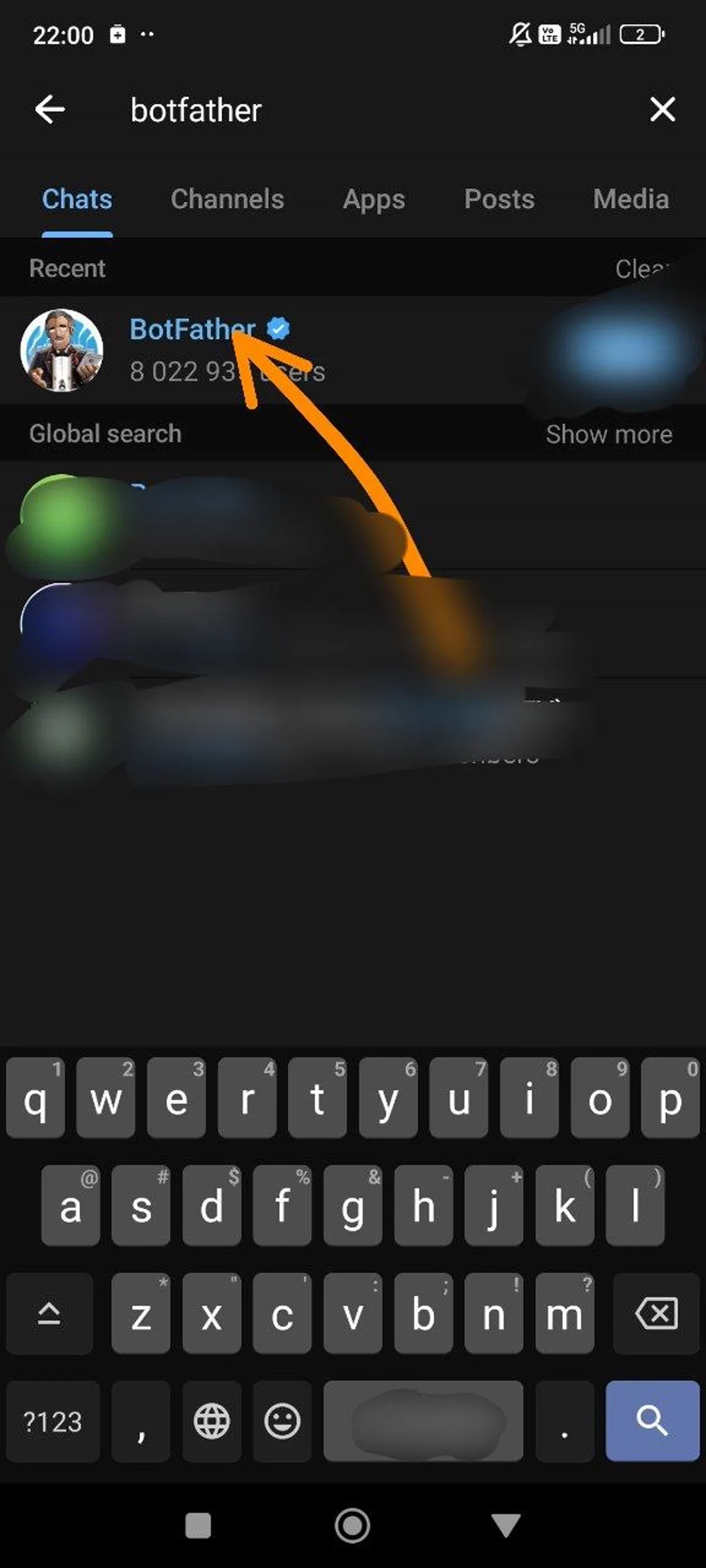
Before connecting Telegram to Converge, you'll need a bot token from BotFather. If you haven't created one yet, open Telegram, message @BotFather, send /newbot, and follow the prompts to receive your token.
Quick summary: Open Telegram, search for @BotFather, send /newbot, choose a display name and username (ending in "_bot"), and copy the token BotFather sends you. The token format is [bot_id]:[api_key].
Save your token somewhere secure — you won't be able to see it again in BotFather. If you lose it, you'll need to revoke it and generate a new one.
Open platform settings in Converge
In Converge, navigate to SettingsPlatforms from the sidebar. You'll see a list of all available messaging platforms that Converge supports.
What you'll see: Each platform shows its connection status (connected or not connected), a brief description, and a connect button. The platforms are organized by category: messaging apps (Telegram, WhatsApp, Messenger), social media (Instagram), community platforms (Discord), and website (Widget).
Why multiple platforms? Instead of switching between different apps and tabs for each channel, you can handle all conversations from Converge's unified inbox. This is especially powerful when the same customer reaches out via multiple platforms — you'll see their entire conversation history in one place.
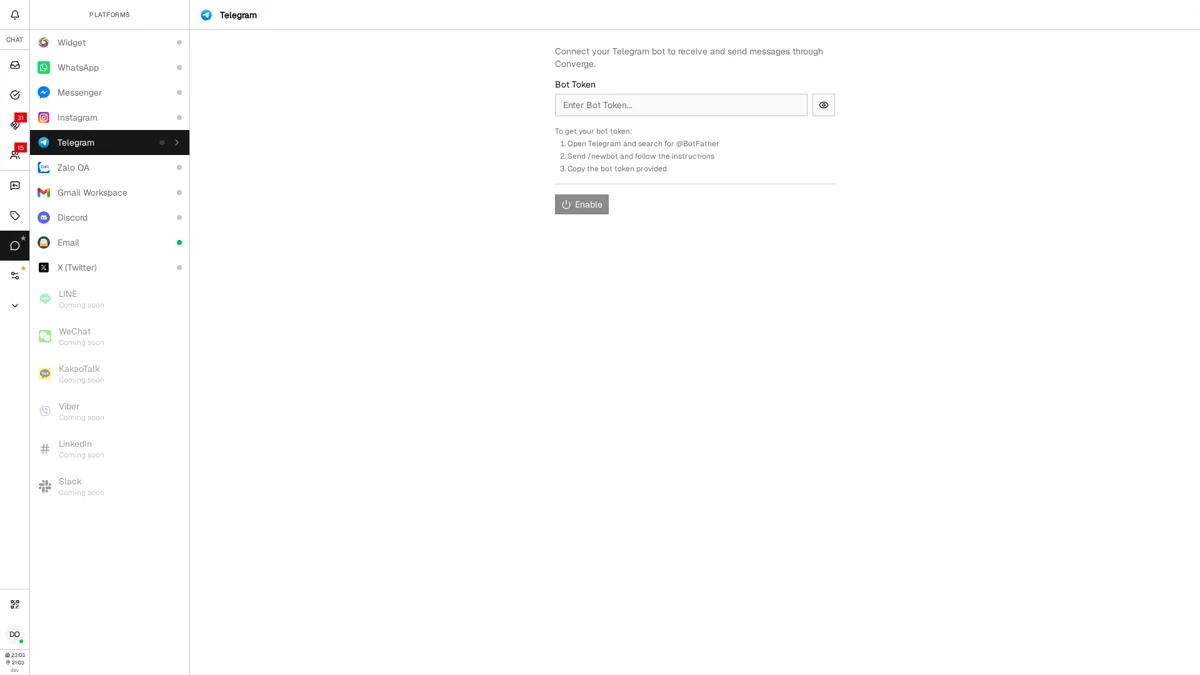
Find Telegram in the list and click on it to open the connection panel. Note that only Owners and Admins can manage platform connections — Agents don't have access to this section.
Paste your bot token and connect
In the Telegram connection panel, you'll see a single text field labeled Bot Token. Paste your token here and click Connect.
What happens next: Converge will verify your token with Telegram's servers. This usually takes 1-2 seconds. If the token is valid, you'll see a success message and the connection status will change to "Connected". If there's an error, you'll see specific feedback about what went wrong.
Common issues at this stage:
- Invalid token error: Make sure you copied the entire token, including the colon between the bot ID and API key. Don't include any extra spaces before or after the token.
- Token already in use: Each bot token can only be connected to one Converge workspace. If someone else already connected this bot, you'll need to create a new bot.
- Bot disabled in BotFather: If you accidentally disabled your bot in BotFather, the connection will fail. Re-enable it and try again.
Verify the connection works
Once connected, the best way to verify everything is working is to send a test message to your Telegram bot. Open the Telegram app, search for your bot by its username, and send it a message like "Hello from Converge!"
What you should see:
- The message appears in your Converge inbox within 1-2 seconds
- The customer profile shows the sender's Telegram username and user ID
- You can type a reply in Converge and it will be sent back through the bot
- The conversation history is saved and searchable
If messages don't appear: Check that your bot hasn't been blocked in Telegram, and that you haven't accidentally muted notifications in Converge. You can also disconnect and reconnect the platform to reset the webhook.
Success indicator: When you reply to a Telegram message from Converge and the customer receives it in their Telegram app within seconds, your connection is fully working. You can now handle all Telegram support alongside your other channels without ever leaving Converge.
Pro tip: Set up quick replies for common Telegram questions to respond even faster. Telegram users appreciate quick, helpful responses.
Frequently Asked Questions
Each Converge workspace supports one Telegram bot connection at a time. If you need to switch bots, disconnect the current one from Settings > Platforms > Telegram, then connect the new bot token. Each bot requires its own unique token from BotFather.
Converge only needs the bot token — no additional permissions or API keys. The token lets Converge receive incoming messages via a webhook and send replies through the Telegram Bot API. Your bot's privacy settings in BotFather control whether it can read group messages (disabled by default).
Go to Settings > Platforms > Telegram and click Disconnect. This removes the webhook and stops message delivery immediately. Your bot will still exist on Telegram — it just won't forward messages to Converge anymore. You can reconnect anytime with the same or a different token.
No. Any standard Telegram account can create a bot through BotFather and connect it to Converge. There is no Telegram Business plan or premium subscription required. The Bot API is free for all Telegram users.
Related Articles
Ready to try Converge?
$49/month flat. Up to 15 agents. 7-day free trial, no credit card required.
Start Free Trial