Respond Faster with Replies
 Converge Team
Your customers expect quick, personalized responses. Replies helps you deliver both—without typing the same message twice. In the next 10 minutes, you'll learn how to create templates, automate greetings, and personalize every message with dynamic variables.
Understanding Your Reply Toolkit
The Replies page has three tabs, and they do different jobs:
Quick Replies
Pre-written message templates your team can insert with one click. Organized into groups, up to 10 of them. Good for FAQs, policies, and common responses.
Auto Replies
Two acknowledgments: one sent during working hours when a conversation goes to a human, one sent outside them. They set expectations, they don't answer questions.
Variables
Dynamic placeholders like {{customer.first_name}} that automatically fill in with real customer data.
Who can do what? All team members can create and use Quick Replies. Auto Replies and custom Variables require Admin or Owner access.
Creating Your First Quick Reply
Quick Replies are the foundation of efficient support. Instead of typing "Thanks for reaching out! Let me look into that for you..." a hundred times a day, you create it once and use it forever.
Start with a group
Every quick reply lives in a group, so the Add Reply button stays greyed out until you have one. Click Add Group at the bottom of the list, type a name like "Sales" or "Billing", and confirm with the check. You can have up to 10 groups, rename or reorder them from the gear icon on the group header, and delete one once it's empty.
Building a template that works
-
1
Open Replies
Click the Replies icon in the sidebar (the speech bubble icon). You'll land on the Quick Replies tab.
-
2
Click "Add Reply"
Top right of the tab. The Create Quick Reply dialog opens.
-
3
Give it a clear title
This is what your team sees when selecting replies, and it's capped at 100 characters. Be specific: "Shipping Policy" is better than "Policy Info".
-
4
Pick the group
The Select group dropdown defaults to your first group. Whichever you choose is how agents will find this reply mid-conversation.
-
5
Write your message
The editor has bold, italic, underline, strikethrough, code and emoji, plus an Edit / Preview toggle. Up to 2,000 characters. Keep it conversational—this isn't a legal document.
-
6
Add a personal touch with variables
Click the Variables button above the editor and insert
{{customer.first_name}}at the start. Now every reply feels personal. -
7
Optionally attach one file
Click Add next to Attachments to pick a file from your library, upload a new one, or drop in a location pin. One attachment per reply.
Using Quick Replies in Conversations
Creating replies is only half the story. The payoff comes mid-conversation, when a two-paragraph answer is one click away.
The quick replies bar
When you open any conversation, look directly above the message input. You'll see one pill per group, each with the number of replies it holds. Groups with no replies in them are hidden.
Click a pill and its replies list opens above the composer—as a popover on desktop, a bottom sheet on mobile.
One click and the reply fills your message input, with its attachment already staged. A paperclip next to the title tells you which replies carry one.
Add a sentence, tweak the wording, or remove something that doesn't apply. The template is your starting point, not a straitjacket.
Hit Enter or click Send. Variables are replaced with real customer data as the message goes out.
Setting Up Auto Replies
Admin / Owner OnlyWhen a customer messages you, they're wondering: "Did they get my message? How long until someone responds?" Auto replies answer that in seconds. They acknowledge—the actual answering is the AI first responder's job, or a human's.
Two types of auto replies
Handoff Acknowledgment Messages
Tell the customer a human is picking this up. The dropdown offers:
- • Send during working hours
- • Disabled — Never send
Away Messages
Set response expectations when the team is offline:
- • Send outside working hours
- • Disabled — Never send
Which one fires depends on your company working hours, set under Manage. A customer gets at most one auto reply, ever—repeat conversations don't re-trigger it. And on channels where the AI first responder is answering, the AI handles the opening instead, so no auto reply is sent.
Creating your first auto reply
-
1
Go to the Auto Replies tab
Click the Replies icon in the sidebar, then select the "Auto Replies" tab.
-
2
Choose your mode
Each section has its own dropdown. Leave it on the "Send…" option to switch that message on, or set it to Disabled.
-
3
Add a variant
Click "Add Variant", name it ("Friendly", "Short"), and write the message. Set expectations: "Hi! Someone from the team is on this—expect a reply within 10 minutes." Variables work here too.
A/B testing your messages
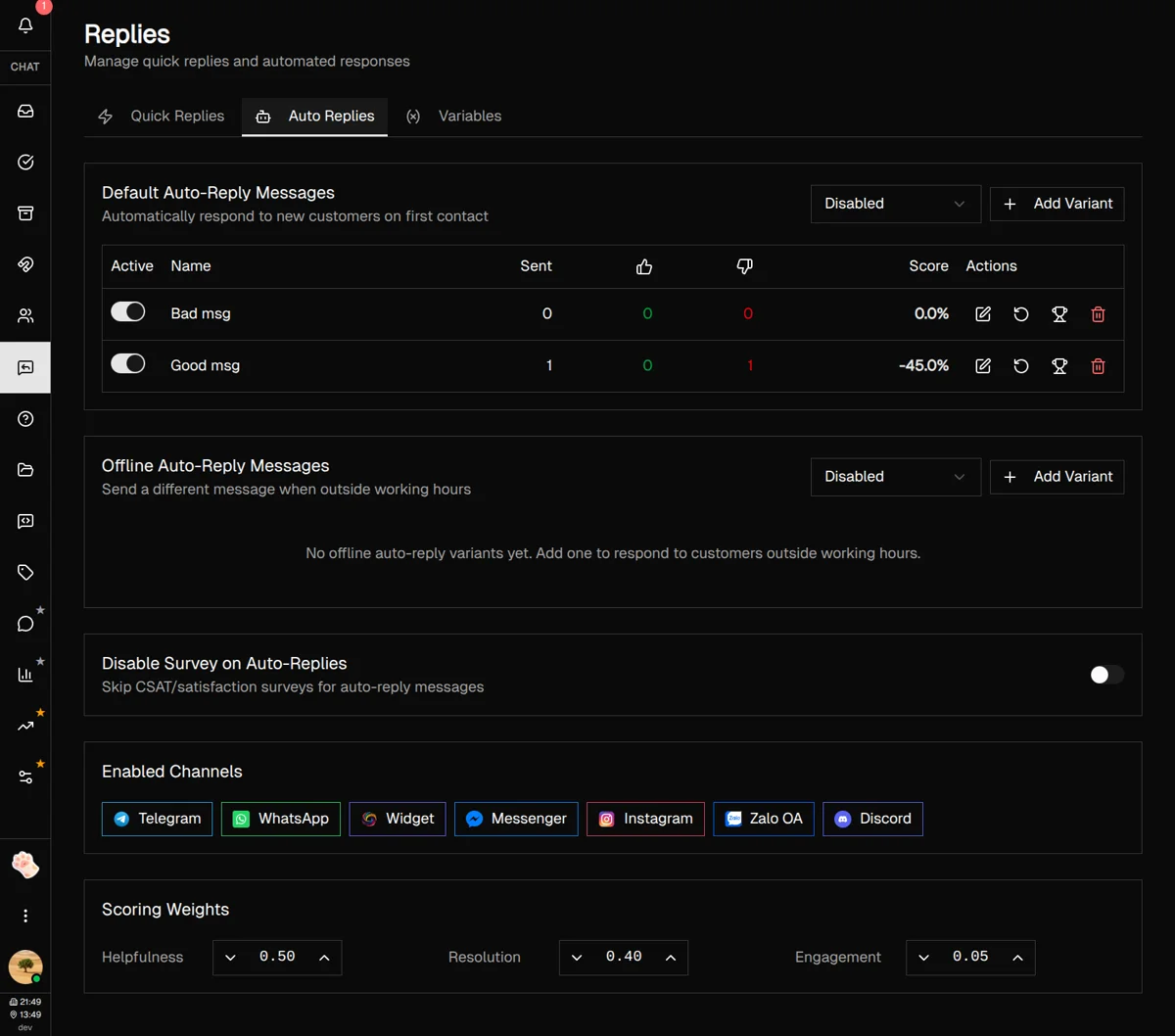
Not sure which wording works best? Create several variants per section and let the data decide. Each customer gets one at random, and the table tracks:
- Sent count — How many times each variant was used
- Thumbs up/down — Customer feedback, collected on every channel that can render buttons or reactions
- Score — Helpfulness, resolution rate and engagement combined into one percentage
The Scoring Weights box at the bottom of the tab decides how much each of those three counts toward the score. It ships weighted 0.40 helpfulness, 0.50 resolution, 0.10 engagement. Figures cover the last 90 days.
When you find a winner, click the trophy icon: that variant stays active and the rest are switched off. The counter-clockwise arrow resets one variant's stats, and the Active switch takes a variant out of rotation without deleting it.
Channels and surveys
Enabled Channels lists every messaging channel auto replies can go out on—click one to toggle it off. Your own mailbox and X aren't in the list. Below the variants, Disable Survey on Auto-Replies stops CSAT surveys from riding along with these automated messages.
Mastering Variables
Variables are what transform generic templates into personalized conversations. Instead of "Dear Customer," you write "Hi Sarah." Instead of "our support email," you write the actual email. Here's everything you can use:
Built-in variables
| Variable | Output Example |
|---|---|
{{customer.first_name}} | Sarah |
{{customer.full_name}} | Sarah Chen |
{{customer.display_name}} | Sarah C. |
{{customer.email}} | [email protected] |
{{customer.phone}} | +1234567890 |
{{customer.country}} | United States |
{{customer.city}} | New York |
{{customer.language}} | en |
{{customer.platform}} | telegram |
{{employee.first_name}} | Alex |
{{employee.last_name}} | Rivera |
{{employee.full_name}} | Alex Rivera |
{{employee.email}} | [email protected] |
{{company.name}} | Acme Inc |
{{company.timezone}} | America/New_York |
{{company.current_time}} | 2:30 PM |
{{company.current_date}} | Dec 20, 2025 |
Every card on the Variables tab has a copy button, so you can grab the exact syntax instead of retyping it. A variable with nothing behind it resolves to empty text—a contact with no name turns "Hi {{customer.first_name}}," into "Hi ,". Use the display name or a plain greeting when you can't be sure the field is filled.
Creating custom variables Admin / Owner Only
Need to reference your support email, business hours, or return policy URL in multiple replies? Create a custom variable once, use it everywhere.
-
1
Go to the Variables tab
-
2
Click "Add Variable"
-
3
Fill in Variable Key, Display Label and Value
Keys take letters, numbers and underscores only. Key
support_emailuse as{{custom.support_email}}
Now when your support email changes, update it in one place and every reply using that variable updates automatically.
Best Practices & Tips
Name replies descriptively
"Return Policy - 30 Day Window" is findable. "Policy" is not. Your future self will thank you.
Name groups the way agents think
The group pill is the first thing an agent picks mid-conversation, so name them by situation—Billing, Shipping, Refunds—not by department. Ten groups is the ceiling, so merge before you split.
Personalize the opening, with a fallback in mind
Starting with {{customer.first_name}} makes a template feel human. On channels that hand you no name, it renders as nothing—so keep the sentence readable without it. {{customer.display_name}} is the safer greeting: it falls back to the full name.
Keep auto replies short
Auto replies acknowledge receipt and set expectations. Save the detailed help for when a human takes over.
Test at least 2-3 auto reply variants
You might be surprised which tone resonates. Casual vs. formal, short vs. detailed—let the data decide.
Use custom variables for anything that might change
Promotion dates, pricing, policy links—if it might change, make it a variable. Update once, update everywhere.
What's Next?
You've set up your reply toolkit. Here are some related features to explore:
- Tags — Organize customers to know which replies to use
- Assets — Upload files to attach to your quick replies
Need more help?
Our support team is here for you. Click the chat widget in the bottom right corner to start a conversation.
We typically respond within minutes during business hours.