Capture and Convert Website Visitors
 Converge Team
Every website visitor is a potential customer. Leads helps you identify, score, and nurture these prospects before they slip away. In the next 8 minutes, you'll learn how to capture leads from your chat widget, understand their intent, and convert them into paying customers.
What Are Leads?
When someone visits your website and interacts with your chat widget, Converge automatically creates a lead record. Unlike customers who reach out through WhatsApp, Telegram, or other platforms, leads are anonymous website visitors who haven't yet revealed their identity—but their behavior tells a story.
Don't need a leads pipeline? Then there's nothing to configure. A tracked visitor stays in the Leads view only until the first message exists—after that they move to your Inbox on their own, whether they wrote to you or one of your agents wrote to them first.
Automatic Capture
Install the widget and every visitor is recorded on their first page view. No form, no click. A browser sending Do Not Track becomes an unnamed Private Visitor with no page or campaign data, and traffic from known datacenter ranges is filed as a bot and never reaches this list.
Rich Context
See which page they came from, their UTM parameters, referrer, timezone, device, and more. Know exactly how they found you.
Intelligent Scoring
Each lead gets a quality score (0-100) based on their behavior and profile. Focus your energy on the hottest prospects.
Leads vs. Contacts
There is one line that matters, and it's whether a message exists. Everything a visitor did before that first message is context; the message itself is what changes where they live in the app.
Leads — tracked, never messaged
The widget saw them, so you have their source page, referrer, campaign parameters and a lead score. Nobody has written anything yet, in either direction. They get an auto-generated name and avatar, and they stay in the Leads view.
Contacts — at least one message exists
They wrote to you, or an agent or automation wrote to them. Either way they leave the Leads view immediately and appear in your Inbox, or in Resolved once the conversation is closed. Their lead score and attribution data travel with them.
The move happens on the first message and needs no approval step. A visitor you cold-message from the Leads view is a contact from that moment on, exactly like one who opened the chat themselves.
How Lead Scoring Works
Every lead carries a score from 0 to 100, set on their first page view. It reads where they arrived from and what they volunteered—not how long they have been sitting in the list, and not their position in any pipeline.
What affects the score?
| Signal | Weight |
|---|---|
| Left an email address in the widget | 25 |
| Landed on /pricing, /demo or /book | 20 |
| Arrived with any UTM tag | 20 |
| Landed on /contact | 15 |
| Paid medium (utm_medium of cpc or paid) | 15 |
| Referred by ProductHunt or LinkedIn | 15 |
| Referrer outside your own domain | 15 |
| Landed on /features | 10 |
| utm_source of google or linkedin | 10 |
| Timezone detected | 10 |
| Country detected | 10 |
A Google Ads click counts even without UTM tags: the gclid on the landing URL is stored as source google, medium cpc.
Why website leads rarely score above 55
Those weights are added up and divided by the highest total any contact could reach—and that maximum includes signals only a contact on WhatsApp, Telegram or another messaging app can earn. A website visitor is measured on a scale they cannot top out. Six leads captured on a test site scored:
| Lead | Score |
|---|---|
| Pricing page, Google Ads click, LinkedIn referrer, email left in the widget | 51 |
| Demo page, from ProductHunt | 31 |
| Features page, from a newsletter | 22 |
| Contact page, from Hacker News | 16 |
| Blog post, from Google search | 10 |
| Home page, no referrer | 4 |
One more thing moves the number after the fact: the IP lookup. An IP registered to a business adds 15, government 10, education 5, while a VPN or proxy takes off 10, a hosting provider 15 and a known abuser 20. That business bonus is usually what pushes a website lead into the green band—read the score as a ranking against your other leads, not as a percentage of anything.

Viewing and Managing Leads
Access your leads by clicking the Magnet icon in the sidebar. This opens a dedicated view showing only website visitors—separate from your other inbox conversations.
The leads list
Anonymous visitors get a generated name and avatar, written as # | Maroon Walrus. The # marks it as a placeholder rather than something they typed, which is also what the cleanup job looks for later.
A dot on the corner of the avatar shows whether the visitor is on your site right now. Green means they're reading a page as you look at the row; gray means they've gone.
Where a contact's last message would sit, a lead shows the site they were captured on—context before you open the conversation.
A thin vertical bar to the left of the avatar fills in proportion to the score and is color-coded by warmth. Hover it to read the exact number out of 100. The bar is drawn in this list only—once they become a contact, the score moves to the Activity tab of their profile.
Quick filter toggle
At the top of the leads list sits a two-way toggle: All Contacts and Online Now. The second tab narrows the list to visitors currently on your site and sorts them to the top; when at least one is live, the tab label is replaced by the count. Catching someone while they're still reading your pricing page is the whole point of the Leads view.
Filtering your leads
Click the sliders icon at the right of the list header to narrow down by:
- Assignment — All, assigned to me, or unassigned
- Priority — Urgent, high, normal, or low
- Tags — Any tag you've applied; several tags match a lead carrying any of them
Nothing takes effect until you click Apply, and closing the panel discards what you ticked. Once a filter is live the icon turns dark and carries a badge with the number of active filters; Clear empties the panel, then Apply puts the full list back.
Lead Details and Attribution
Click any lead to open their profile. The right sidebar has two tabs. Details holds the editable contact record—name, email, phone, assigned agent, language, country, city, device and IP address. Activity holds everything the widget recorded, starting with the Lead Info block.
Attribution data (Activity tab)
The exact URL the visitor was on when the widget first saw them, as a clickable link. "/pricing" vs "/blog" tells very different stories.
Where they came from before landing on your site. Google search? LinkedIn post? A competitor's blog?
The UTM breakdown—source, medium, campaign, content and term—each as its own row. Only the tags that were present are shown, so the block is absent for organic traffic.
Other lead information
- Timezone & Local Time — Know what time it is for them before reaching out
- Device — Browser, operating system and device type in one line ("Chrome macOS 10.15.7"), over on the Details tab
- First Visit — When they first appeared on your site
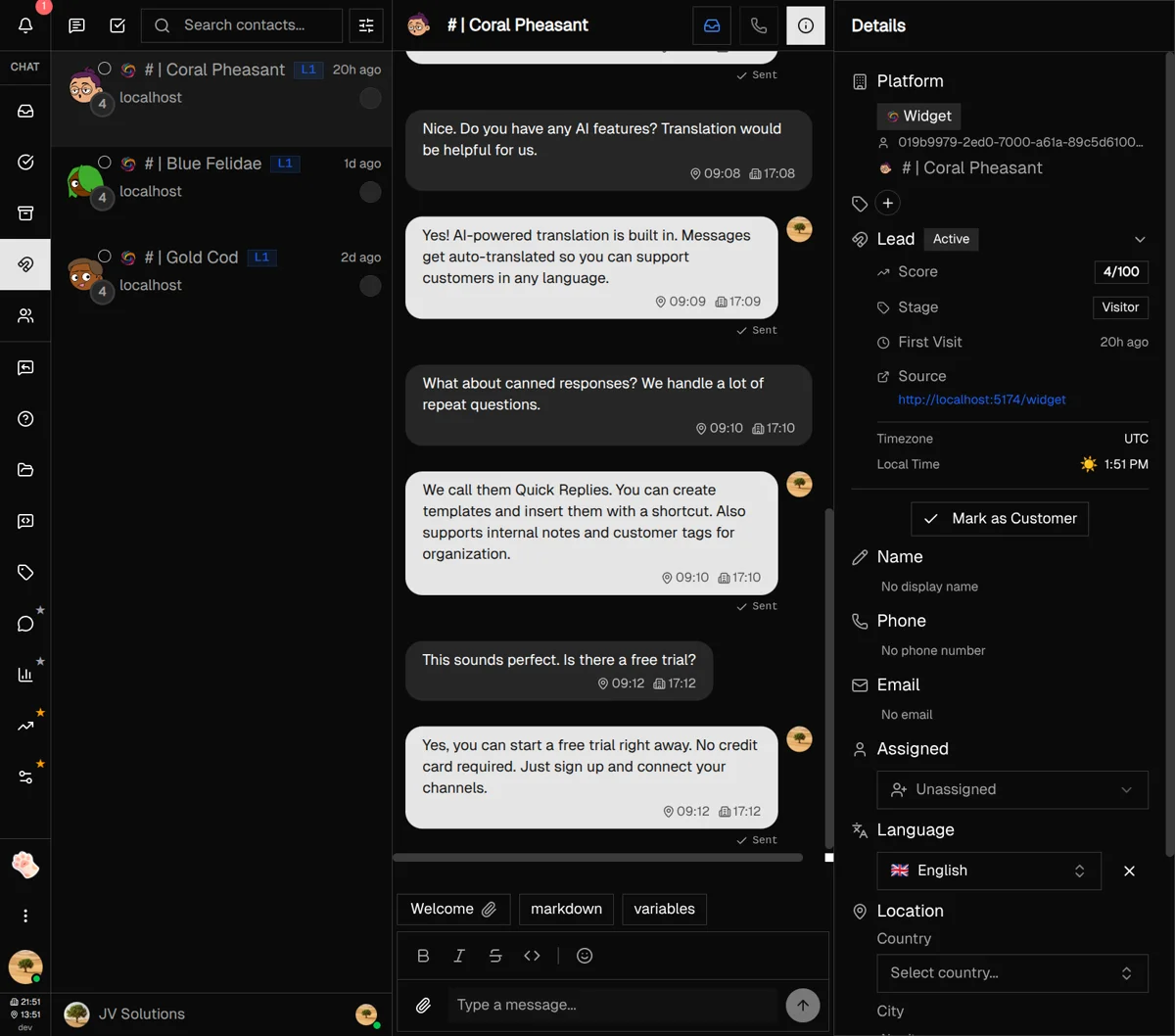
Converting Leads to Customers
Most of the time you never touch this. The first message moves a lead into your Inbox on its own, so the manual button is for the case where no message exists yet and you still want them out of the Leads view—a walk-in who bought over the phone, or a visitor you've been working by email.
You usually don't need this: messaging a lead from the Leads view already moves them to your Inbox. Reach for Mark as Customer only when you want the move without sending anything.
How to convert a lead
-
1
Open the lead's profile
Click on the lead in your leads list to open their conversation and profile sidebar.
-
2
Open the Activity tab
In the right sidebar, switch to Activity. The Lead Info block sits at the top, above the session and page-view stats.
-
3
Click "Mark as Customer"
At the bottom of the Lead Info section, click the button to convert them.
-
4
Confirm the conversion
A dialog asks whether the deal is closed; the confirm button reads Convert to Customer. Once you click it, the app drops you into their conversation in the Inbox.
Lead Retention Settings
Owner OnlyVisitors who never messaged and never left a way to reach them are cleaned up after a retention period. This keeps your leads list focused on real prospects.
Configure this in ManageVisitors, which also shows your current visitor count. Choose how long to keep inactive visitors:
- 1 day — Aggressive cleanup for high-traffic sites
- 7 days — Balance between cleanup and opportunity
- 14 days — Give visitors more time to return
- 30 days — Maximum retention for lower-traffic sites
Cleanup runs on a nightly schedule. Clear All Visitors Now, at the bottom of the same page, skips the wait and empties the list immediately—it applies the same protections described below, so it cannot drop a visitor who left an identity.
Note: Cleanup asks whether you can still act on the row, not how long it sat there. A stale visitor is deleted only if they are still fully anonymous—no email, no phone number, and nothing beyond the placeholder name the widget generated. Leave any one of those behind and the record is kept for good, whatever the retention window says. Contacts who have exchanged a message are never touched, and scraper traffic is always removed once stale.
Best Practices & Tips
Prioritize by score
Work the top of your own list rather than a fixed threshold. On a website-only pool, anything in the 40s and 50s already means a pricing or demo page plus a campaign or an email address—the same signals a 70 would carry on a messaging channel.
Use tags for segmentation
Tag leads based on their source page or campaign. "Pricing Visitors" and "Blog Readers" require very different follow-up approaches.
Check attribution before reaching out
Know which page they came from and what referred them. A personalized "I noticed you were looking at our enterprise plan" beats a generic greeting.
Respect timezones
The lead's local time is shown in their profile. Don't message someone at 3 AM their time—schedule your outreach for their business hours.
Assign hot leads immediately
When a high-score lead appears, assign them to a team member right away. Speed matters—the faster you respond, the higher your conversion rate.
What's Next?
You're now equipped to capture and convert website visitors. Here are some related features to explore:
- Replies Guide — Set up auto-replies to engage leads instantly
- Tags Guide — Organize leads for targeted follow-up
- Widget Guide — Customize your chat widget to capture more leads
Need more help?
Our support team is here for you. Click the chat widget in the bottom right corner to start a conversation.
We typically respond within minutes during business hours.