Assign Conversations Automatically with Auto-Routing
 Converge Team
When a message arrives and nobody owns the conversation, someone has to pick it up. Auto-routing removes that manual step by handing every unassigned conversation to a team member automatically, using either a round robin rotation or a load balanced strategy. The dashboard calls this feature Auto-Assignment. This guide covers turning it on, picking a strategy, controlling who is in the rotation, and reading the assignment logs.
Who can manage routing? Every screen in this guide lives under Manage, which is Owner Only — admins and agents are redirected back to the inbox and never see the settings or the logs. Agents only see the conversations that land in their queue.
How Auto-Routing Works
Auto-routing picks a team member for each unassigned conversation based on the strategy you select. There are two strategies to choose from, plus an optional filter that restricts assignments to online agents only.
Routing strategies
Round Robin
Rotates through everyone who is available for assignment, owners and admins included — not only people with the agent role. Each one gets the next conversation in turn, so the distribution stays even regardless of how quickly individuals resolve their conversations.
Load Balanced
Assigns the conversation to whoever currently holds the fewest open conversations, counted across the whole company and including ones assigned by hand. Busier people get a break while less loaded team members pick up new work.
Online-Only Mode
When the Online Agents Only toggle is enabled, routing skips anyone who is currently offline. This is useful for teams that handle real-time chat where an immediate response is expected.
No agents online? If every agent is offline and online-only mode is active, the conversation stays unassigned until someone comes online or an agent manually picks it up.
Round Robin
Load Balanced
When a conversation gets assigned
Routing runs on every inbound message from a contact who has no owner yet — not only on the first message a contact ever sends. Once someone is assigned, later messages leave that assignment alone.
Shift schedules are respected before the strategy runs. If any available team member is on shift right now, the conversation goes to one of them; if nobody is, the whole available pool is used instead. Team members with no shift times set count as on shift around the clock. Shifts are per person, set in ManageEmployees, and read against your company timezone.
If the AI answers first, assignment waits. On a channel where the AI first-responder is switched on, the AI owns the unassigned conversation and no human is assigned while it is handling the customer. The moment it escalates, routing runs, the chosen agent gets a notification, and the customer is told a person is taking over. If no agent can be found, owners and admins are alerted instead.
Enable and Configure Routing
Owner OnlyOpen the Auto-Assignment page, flip the toggle, pick your strategy, save. That is the whole setup.
-
1
Open the Auto-Assignment page
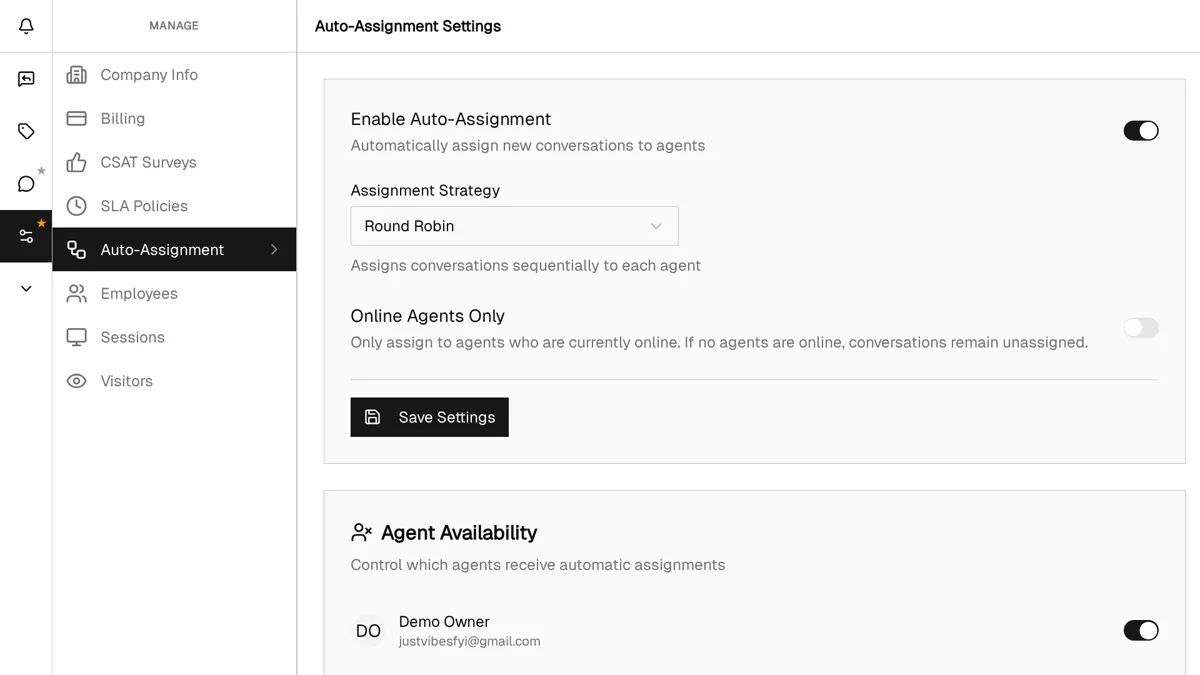
Click the Manage icon in the sidebar, then choose Auto-Assignment from the menu on the left. The page header reads Auto-Assignment Settings.
-
2
Enable auto-assignment
Flip the Enable Auto-Assignment toggle to on. Everything below it stays greyed out until you do.
-
3
Pick a strategy
Open the Assignment Strategy dropdown and choose Round Robin for sequential rotation or Load Balanced to assign by current open conversation count. A one-line description of the strategy you picked appears under the dropdown.
-
4
Decide on online-only
Toggle Online Agents Only if you want routing to skip offline team members. Leave it off to include everyone.
-
5
Save
Click Save Settings. A "Settings saved" confirmation appears, and unassigned conversations start routing from the next inbound message.
Choose Who Gets Assignments
Owner OnlyOnce auto-assignment is on, an Agent Availability card appears under the settings, listing every member of your team with a switch beside their name.
Switch someone off and their row dims, they get an Unavailable badge, and both strategies skip them until you switch them back on. Nothing to save — the change applies the moment you flip the switch. Use it for people who are on leave, working on something else, or who sit in the account for billing and admin rather than for handling conversations.
Exclude everyone and nothing gets assigned. With no available team members left, incoming conversations stay unassigned until someone picks them up by hand, exactly as if auto-assignment were off.
Review Assignment Logs
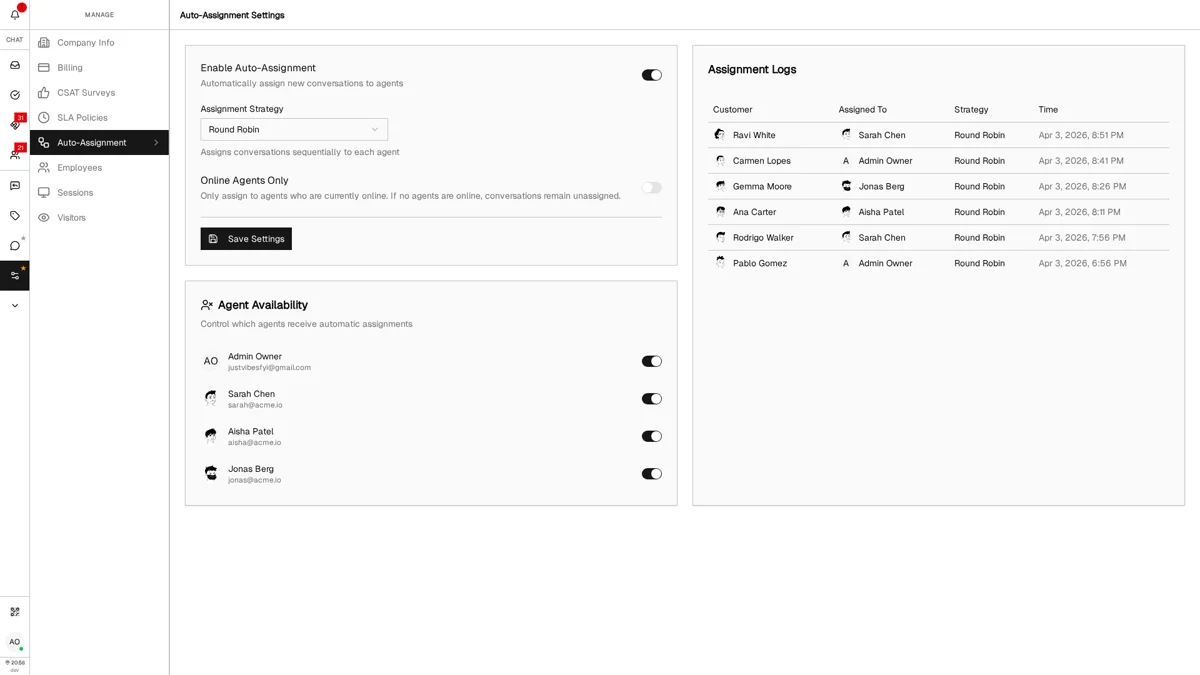
Owner OnlyEvery automatic assignment is recorded in the Assignment Logs table, beside the settings on the same page. Use it to verify that conversations are being distributed the way you expect, and to troubleshoot if something looks off. The table holds the 50 most recent assignments, ten to a page, and only appears once the first one has happened.
What the logs show
Customer
The contact whose conversation was routed. Click the name to open that conversation in the inbox.
Assigned To
The team member who received the conversation. Useful for spotting uneven distribution patterns.
Strategy
Whether the assignment used round robin or load balanced at the time of routing.
Time
When the assignment happened. Helps correlate with shift schedules and peak hours.
Best Practices & Tips
Resolve conversations to keep load balancing fair
Load balanced routing counts open conversations. If agents leave resolved issues in an open state, the algorithm assigns fewer new conversations to them than it should. Resolve completed conversations promptly.
Use online-only for real-time chat support
If your team provides live chat where customers expect a reply within minutes, enable online-only mode. This prevents conversations from sitting unread in an offline agent's queue.
Check routing logs during the first week
Review the logs daily for the first few days after enabling auto-routing. Confirm that assignments match your expectations and that no agent is being skipped or overloaded.
Give each agent a shift
Set per-agent shift times in ManageEmployees. Routing prefers whoever is on shift, so a team spread across timezones stops waking up to conversations assigned at 3am. Leave the times blank for anyone who should always be eligible.
Start with round robin, then consider load balanced
Round robin is the simplest starting point—every agent gets a turn. As your team grows and agents handle different volumes, switch to load balanced for a more adaptive distribution.
What's Next?
Auto-routing is set up. Here are some related features to explore:
- Inbox Guide — Master conversation management, filtering, and bulk actions
- Replies Guide — Speed up responses with quick replies and auto replies
- SLA Guide — Define response and resolution targets with automatic tracking
Need more help?
Our support team is here for you. Click the chat widget in the bottom right corner to start a conversation.
We typically respond within minutes during business hours.