Response and Resolution Targets with SLA Policies
 Converge Team
When customers reach out, response time matters. SLA policies let you define how fast your team should respond and resolve conversations, broken down by priority level. This guide covers creating policies, setting priorities, and reading the SLA status on a conversation.
Who can manage SLAs? The SLA Policies page sits inside Manage, which only the company owner can open Owner Only . Every agent sees the SLA status on the conversations they work on and can change a contact's priority, but cannot edit the policies.
How SLA Tracking Works
Tracking is automatic once a policy exists. Here's the shape of it before the details:
You define the rules
Create SLA policies that set first-response and resolution time targets for each priority level (urgent, high, normal, low).
The clock runs on its own
An inbound message starts the clock and both deadlines are fixed at that moment. The resolution clock pauses after an agent replies and resumes when the customer writes back.
Your team stays informed
The Details panel of a conversation shows a live countdown to each deadline. When one is missed, a breach notification goes to the assigned agent and to the owner and admins.
Creating SLA Policies
Owner OnlyEach SLA policy is tied to a priority level and defines how quickly your team should respond and resolve conversations at that priority. You can have one active policy per priority.
Setting up your first policy
-
1
Open SLA Policies
Click the Manage icon in the sidebar, then select SLA Policies from the Manage menu.
-
2
Find the priority level and click "Add"
The settings page lists all four priority levels (Urgent, High, Normal, Low) in rows. Click the Add button next to the priority you want to create a policy for. If a policy already exists, you'll see an Edit button instead.
-
3
Name your policy and set time targets
The row expands into a form with Policy Name (pre-filled with something like "Urgent Priority"), First Response Target and Resolution Target. Both targets are in minutes — up to 10,080 (7 days) for first response and 43,200 (30 days) for resolution.
-
4
Decide how the clock counts
Business Hours Only is on by default and calculates deadlines from the working hours in ManageCompany Info (08:00–17:00 in your company timezone until you change them). Turn it off and the clock runs around the clock.
-
5
Save and activate
Leave the Active toggle on — an inactive policy is ignored by tracking — and click Save. The row collapses and shows the targets you set.
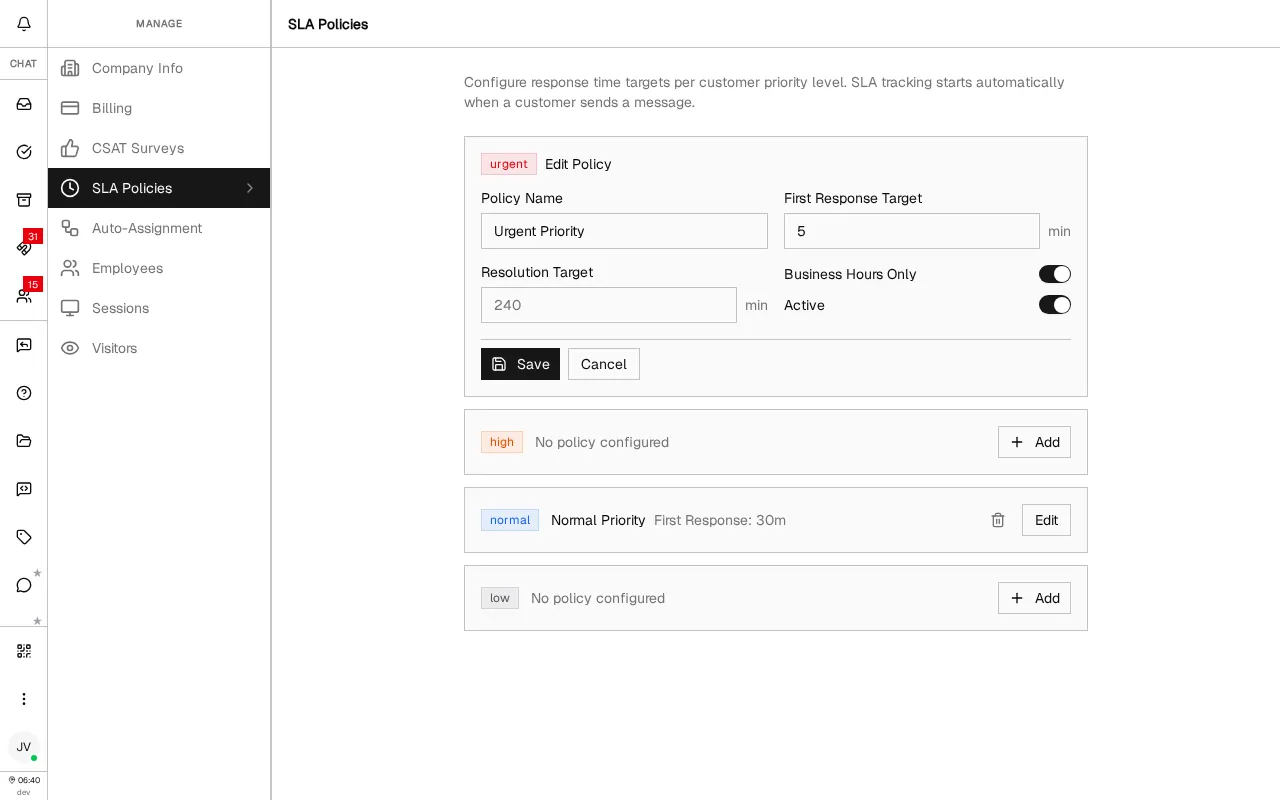
To remove a policy, click the trash icon on its row. There is no confirmation step, and conversations at that priority stop being tracked from that moment.
Understanding the two time targets
First Response Time
How quickly your team should send the first reply after a customer reaches out. The clock starts when the inbound message arrives and stops when any agent sends a response.
Resolution Time
How quickly the conversation should be marked Resolved. Its deadline is set when the clock starts; pausing stops the alerts while you wait on the customer, it does not push the deadline back.
Setting Customer Priorities
A policy is matched to a conversation by the contact's priority. Every contact starts at Normal, and any team member can change it — including agents, who cannot open the policy settings themselves.
The four priority levels
Urgent
Critical issues that need immediate attention. Use for outages, security incidents, or high-value customers with time-sensitive problems.
High
Important issues that should be addressed promptly. Use for VIP customers or complex problems that can't wait.
Normal
The default for all conversations. Standard support requests handled within your regular SLA targets.
Low
Non-urgent inquiries like feature requests or general feedback. Longer response windows keep your team focused on what matters.
Changing a customer's priority
-
1
Right-click the customer in the contact list
A context menu appears with a Priority submenu.
-
2
Select the new priority
Choose Urgent, High, Normal, or Low; the level the contact already has is greyed out. The change saves immediately.
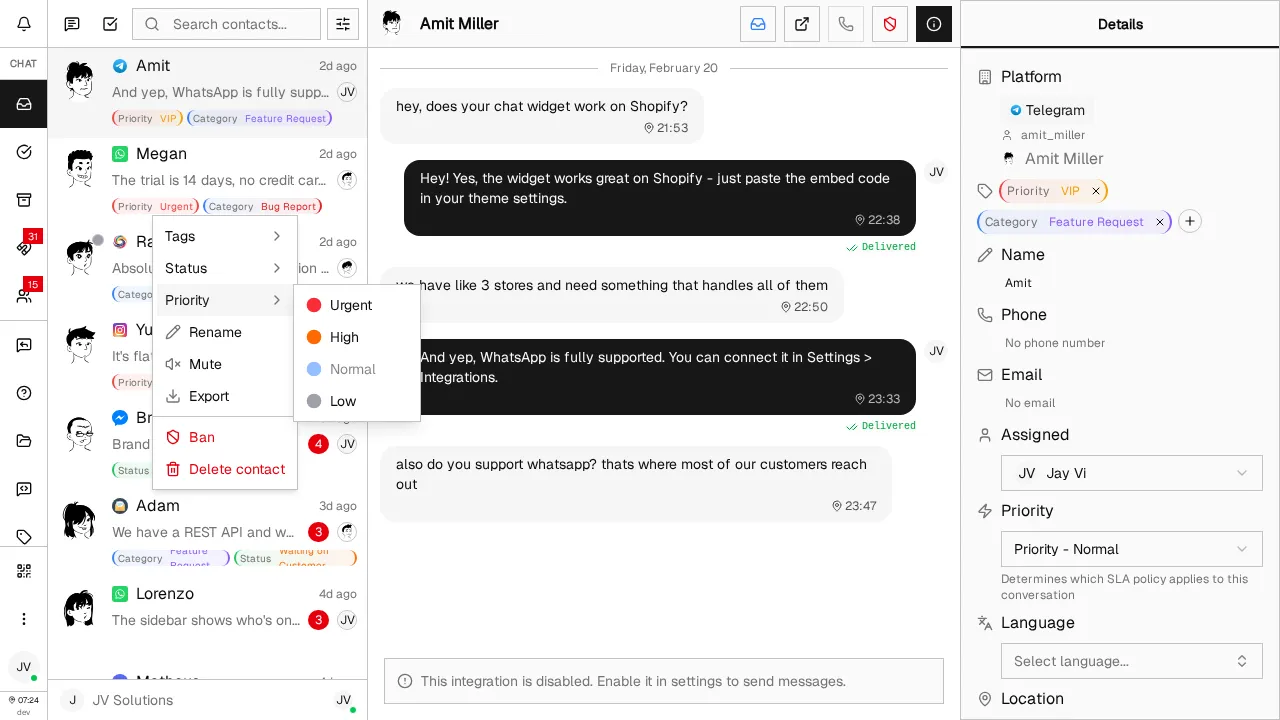
You can also change it from the open conversation: the Priority dropdown in the Details panel, directly above the SLA status. That dropdown only appears once at least one active policy has a target set.
A new priority does not reset a running clock. The deadlines already on the conversation stay as they are. The new level is picked up the next time tracking starts — when the customer writes again after both clocks have finished, or when you mark the conversation Resolved and then Open again, which rebuilds the record from scratch.
Filtering by priority
Need to see all urgent conversations at once? Click the filter icon in the contact list, tick one or more levels under Priority, then click Apply.
Understanding the Tracking Lifecycle
One tracking record lives per contact, and it moves through five states as the conversation goes back and forth.
Start
An inbound message arrives for a contact whose priority matches an active policy. Both deadlines are calculated at that moment and stored. If a record already exists and either clock is still pending, the existing deadlines are kept.
First Response
An agent sends the first reply and first response is marked Met or Breached against its deadline. A reply from the AI first-responder counts too; an auto-reply — an away message or a handoff acknowledgment — does not.
Pause
The same reply pauses the record. While it is paused, a passed resolution deadline raises no alert — the conversation is waiting on the customer, not on you.
Resume
The customer sends another message and the record un-pauses against the same deadline it started with. Paused time is recorded but never added back to the target.
Resolution
You mark the conversation Resolved and resolution is marked Met or Breached against its deadline. Moving it back to Open throws the record away and starts a fresh one from the contact's current priority.
Business hours mode: with Business Hours Only on, the deadline is pushed forward over the hours outside your daily window. A 30-minute target on a message at 16:50, with hours ending at 17:00, lands at 08:20 the next morning. Working hours are a daily time range, so weekends are not skipped — a Saturday deadline is still a Saturday deadline.
Breach Notifications
A background check runs every 2 minutes and looks for deadlines that have passed. A paused record is skipped for resolution, so only work that is genuinely sitting with your team raises an alert.
Who gets told
Assigned conversations
The assigned agent gets an in-app notification, plus a browser push if they have push notifications switched on. The owner and admins get the same in-app alert.
Unassigned conversations
With nobody assigned, the alert goes to the owner and admins only, marked "SLA Breached (Unassigned)" so it reads differently in the notification list.
A conversation alerts once per tracking cycle. If first response breaches and the resolution deadline passes later on the same record, no second notification is sent — the status catches up when you resolve the conversation.
Reading the SLA Status Card
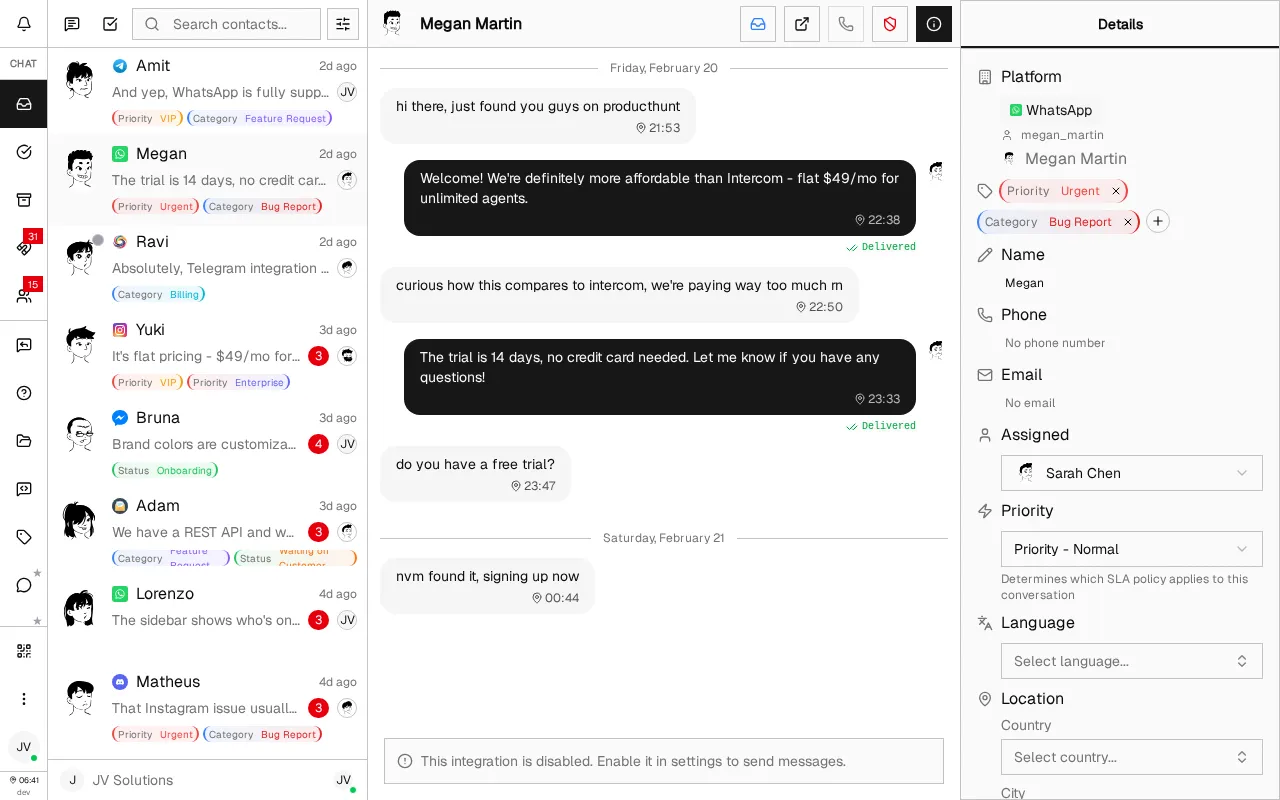
SLA status lives in one place: the Details panel of an open conversation, under the Priority dropdown. Open a conversation and click the info icon in the chat header if the panel is hidden.
What the card shows
Two rows, one per target
First Response and Resolution each read Pending (yellow clock), Met (green check) or Breached (orange warning). A target you left empty counts as met from the start and never appears as pending.
A live deadline
While a target is pending, a Deadline line counts down — "29m remaining", then "12m overdue" once it passes. It refreshes every 30 seconds. Once a target is met, the countdown is replaced by when it happened.
A Paused chip
Next to the SLA Status heading when the conversation is waiting on the customer. The deadline shown keeps counting down; what pausing stops is the breach alert.
The card is hidden in three cases: no active policy has a target, the contact's priority has no policy, or the conversation is already Resolved. Nothing is broken when you don't see it — nothing is being tracked.
Best Practices & Tips
Start with two policies
Create policies for Urgent and Normal priorities first. This covers most scenarios without overwhelming your team with too many tiers.
Keep Business Hours Only on
Unless someone is on duty overnight, leave it on so a 2am message isn't already late by the time your team logs in. Set the hours first in ManageCompany Info; the default window is 08:00–17:00.
Allow for weekends yourself
Business hours are a daily window with no weekday setting, so Saturday and Sunday count like any other day. If your team is Monday to Friday, pick targets long enough to absorb a weekend or accept the Monday-morning breach alerts.
Set realistic first-response targets
A 15-minute first response for Urgent and 60 minutes for Normal is a good starting point. Adjust based on your team's capacity and customer expectations.
Assign conversations promptly
An assigned conversation alerts the person holding it, on their phone too if they have push on. An unassigned one only reaches the owner and admins, who may each assume someone else has it.
Use priority filters in the inbox
Filter by Urgent or High priority to focus on the conversations that matter most. This helps agents triage their queue efficiently.
Read the numbers in Employee Analytics
The owner-only Employee Analytics page has an SLA Compliance figure, an eight-week trend and a per-agent breakdown. It scores replies against the first-response target of the matching policy, so setting a Normal policy is what makes that number mean anything — without one it falls back to 5 minutes.
Frequently Asked Questions
What happens if I don't create a policy for a priority level?
Can I have multiple policies for the same priority?
Does the SLA clock run outside business hours?
What happens when I change a customer's priority?
Why is the resolution clock paused?
Do I need to set both first response and resolution targets?
Does an auto-reply count as the first response?
Why did a resolved conversation still breach?
What's Next?
You've set up SLA tracking for your team. Here are some related features to explore:
- Inbox Guide — Master conversation management, filtering, and bulk actions
- Replies Guide — Speed up responses with quick replies and auto replies
- Analytics Guide — Track response times, SLA compliance, and team performance metrics
Need more help?
Our support team is here for you. Click the chat widget in the bottom right corner to start a conversation.
We typically respond within minutes during business hours.