Write Better Replies with AI
 Converge Team
AI in Converge works at two levels. Beside your agents, it drafts replies, tightens rough notes, and translates in 18 languages. In front of your customers, it can answer unassigned conversations by itself using facts you approved, and hand the thread to a human the moment it is unsure. This guide covers both, plus the knowledge base that keeps the answers accurate.
Who can do what? Every team member can use AI suggestions, polish, transform, and translation from the chat window. The AI section in the sidebar (the sparkles icon) opens for Admin / Owner Only roles, and saving AI settings or an API key is Owner Only .
How Do You Get AI Reply Suggestions?
When your message input is empty and the last message is from the customer, AI can draft a reply for you. It reads the last 10 messages in the conversation and generates a contextual response that matches your company's tone settings and any approved knowledge base facts that fit the question.
How to get a suggestion
-
1
Open a conversation with a customer message
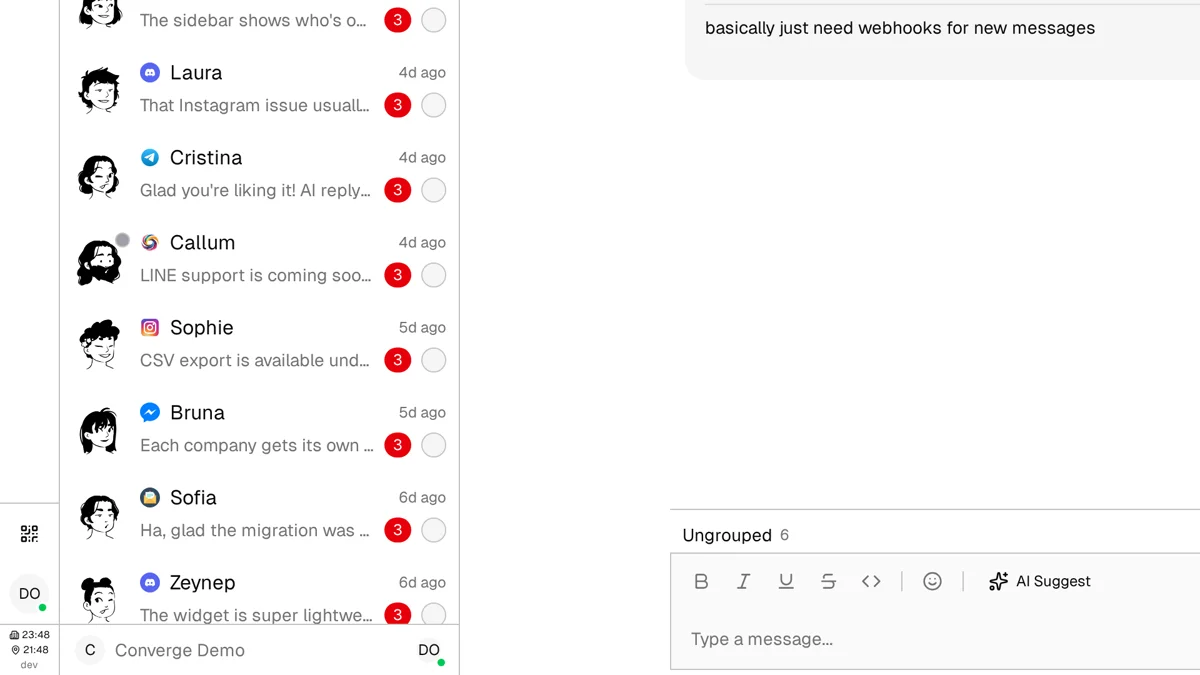
The button reads AI Suggest while your input is empty and the last message came from the customer. Start typing and the same button switches to Polish or Transform.
-
2
Click AI Suggest, or press the shortcut
The button sits in the message toolbar, labelled and marked with a sparkles icon. Or use the keyboard shortcut: Cmd+Shift+S on Mac, Ctrl+Shift+S on Windows and Linux.
-
3
Review and edit the suggestion
The AI-generated text fills your input field. Read it, adjust anything that doesn't sound right, and send when ready.
Quick Reply matching and caching
While generating a suggestion, AI also checks your Quick Reply library. If one of your existing templates fits the customer's question, it is suggested instead of newly generated text, which keeps responses consistent with your pre-approved messaging.
Caching: Suggestions are cached for 5 minutes per conversation. If you open the same conversation twice within that window, you'll get the same suggestion without a new API call. The cache resets when a new message arrives.
How Do Polish and Transform Work?
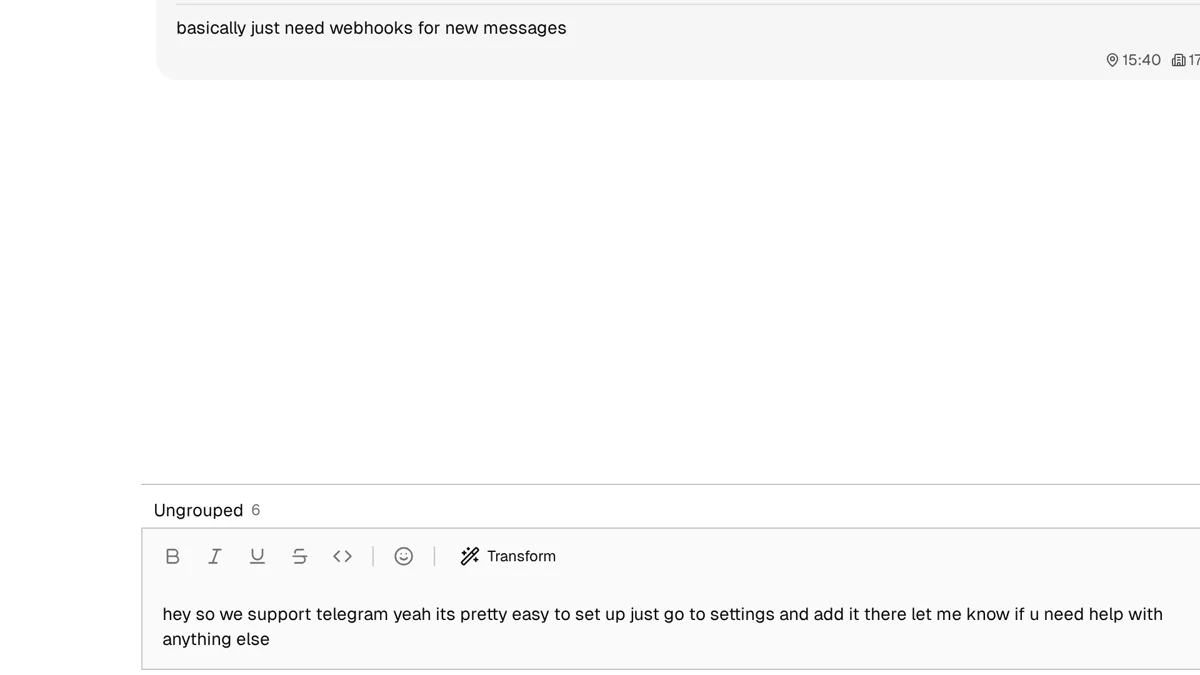
Polish and Transform edit what you already typed. Once there is text in the input, the same button relabels itself — sparkles become a wand — and the behavior depends on how much you've written. Both modes keep your draft in the language you wrote it in.
Polish Mode
When your draft is ≤100 characters
Light touch improvements. Fixes grammar, spelling, and minor tone issues. Your structure and length stay the same. Think of it as a quick proofread before hitting send.
Transform Mode
When your draft is >100 characters
Full restructure into a professional support reply: it acknowledges the issue, explains the cause, and lays out next steps, following your Formatting and Custom Instructions settings.
Using Polish or Transform
-
1
Type your draft in the message input
Write whatever comes to mind. The AI will handle the polishing or restructuring.
-
2
Click Polish or Transform
The button renames itself as you type: Polish while the draft is short, Transform once it passes 100 characters. The shortcut is the same one that fetches a suggestion.
-
3
Review the result
The processed text replaces your draft. Check that it captures your intent, then send.
How Does the AI Answer Customers on Its Own?
Owner OnlyBeyond drafting for agents, the AI can answer customers directly. Two settings decide it: Autonomy says how boldly it answers, and Reply automatically on says which channels it may answer on. Everything below applies to conversations nobody has claimed yet.
The three autonomy modes
| Mode | What the AI does |
|---|---|
| Off | Drafts suggestions for agents on request and nothing else. It never sends a message to a customer. |
| Conservative | Replies automatically only when the answer comes from an approved knowledge base fact, the model is confident, and it hasn't flagged the message as needing a person. Everything else goes to a human. |
| Balanced | Also answers confident general questions that have no knowledge base match. It still hands off when unsure or when the customer asks for a person. |
Only unassigned conversations
The AI answers a thread only while no agent is assigned to it. The moment somebody is assigned — by you, by auto-routing, or by the AI's own handoff — the AI stops replying on that conversation and it belongs to the person holding it. There is no AI agent seat and no AI row in your team list; an unassigned conversation is the only thing the AI ever owns.
Customers can tell an AI wrote it
Every message the AI sends on its own carries a 🤖 marker at the front, so the customer knows a machine answered. Replies that an agent generated, read, and sent are not marked, because a person reviewed those words and chose to send them. Inside the inbox, autonomous messages also carry a small "AI" badge so your team can see at a glance which turns it handled.
What happens at handoff
When the AI is not confident, when the customer asks for a human, or when a limit is reached, it hands the conversation over rather than guessing. Three things happen together: an available agent is assigned, the team is notified (the assigned agent gets the same notification as a manual assignment; if nobody is available, owners and admins get the alert instead), and the customer receives a short message in their own language telling them they're being transferred. That transfer notice is fixed wording, not model output, so it works even when the model produced nothing usable.
The limits that keep it honest
10 AI replies in a row, then a person
After 10 consecutive AI replies with no agent stepping in, the conversation is handed to a human. Any agent reply resets the count, so the limit bounds an uninterrupted AI-only stretch, not the length of the relationship.
30 AI runs per customer per day
A daily ceiling per customer, counted separately for each one so a single noisy thread cannot exhaust the budget of a legitimate one.
Off-topic requests get declined
Homework, creative writing, coding help, and general chat get a short, polite decline in the customer's language instead of an answer. Your support inbox does not become a free general-purpose assistant.
One answer per burst
A customer firing off four messages in a row gets one reply covering all of them. If an agent takes over or the customer changes the question mid-generation, the half-written reply is dropped rather than sent.
Choosing which channels it answers on
Autonomy decides how boldly the AI answers; a second setting decides where. Pick anything other than Off and a Reply automatically on checklist appears directly beneath it, with every channel you can connect: Widget, WhatsApp, Messenger, Instagram, Telegram, Zalo OA, Discord, Email and X. Tick the ones the AI is allowed to answer by itself.
Email starts unticked, on purpose. A support mailbox also receives cold sales pitches, vendor spam and newsletters nobody subscribed to, and an automatic reply to any of those confirms that a human reads the address. The messaging channels start ticked because a message there was sent by someone who deliberately opened your widget or wrote to your account.
Unticking a channel does not switch AI off for it. Agents still get suggestions, polish, transform and translation on that channel; the AI just stops sending anything on its own there.
No schedule, no quiet hours
On the channels you ticked there is no time window: the AI answers at 3am, because out-of-hours is exactly when nobody is there to reply. It knows your working hours and who is online, so it won't promise an immediate transfer when the office is closed. If you want it quiet everywhere, set Autonomy to Off — that is the master switch.
What Is the AI Knowledge Base?
Admin / Owner OnlyThe knowledge base is the set of company facts your AI is allowed to answer from — check-in times, refund windows, which plans include which features. When a customer asks something, matching facts are pulled in and the AI answers from them instead of inventing a plausible-sounding response. It lives under the AI icon in the sidebar, in the Knowledge tab.
Facts reach the knowledge base three ways: you type them, the AI proposes them from a real conversation, or you upload a document. Only the first lands live immediately. The other two land in a review queue, and nothing the AI proposed grounds a single reply until a person approves it.
Adding a fact by hand
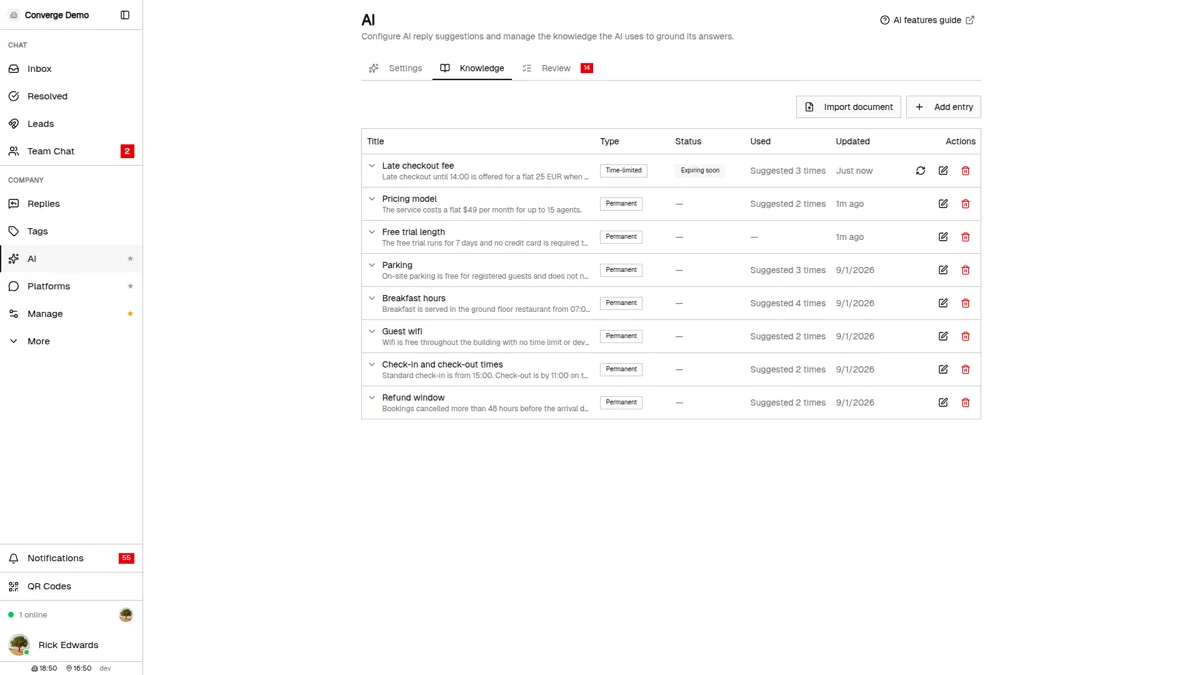
Open the Knowledge tab and click Add entry. Give the fact a short title (the topic) and a one-to-three-sentence body (the answer an agent would reuse). Facts you write yourself are approved on the spot and start grounding answers straight away.
Each fact is either Permanent or Time-limited. Permanent is for things that stay true — check-in time, refund window. Time-limited takes an end date and suits anything with a shelf life: a lift out of service until Friday, a seasonal rate, a temporary phone number. A time-limited fact retires itself when the date passes instead of quietly going stale.
Keeping facts honest over time
The list doubles as a health check. A time-limited fact turns Expiring soon in its last days and Expired after that, so nothing silently outlives its date. If it is still true, Mark as re-verified clears the expiry and makes it permanent again — one click instead of retyping it. The Used column shows how many times each fact has actually grounded an answer, which is the fastest way to spot the entries earning their place and the ones nobody has ever needed. Click a row to expand it in place and read or edit the full text.
An amber notice at the top of the tab means the search index is behind — a few entries not yet indexed, or semantic search unavailable on this deployment. Facts still work while it shows; they are matched on keywords until indexing catches up.
Scanning a conversation for reusable facts
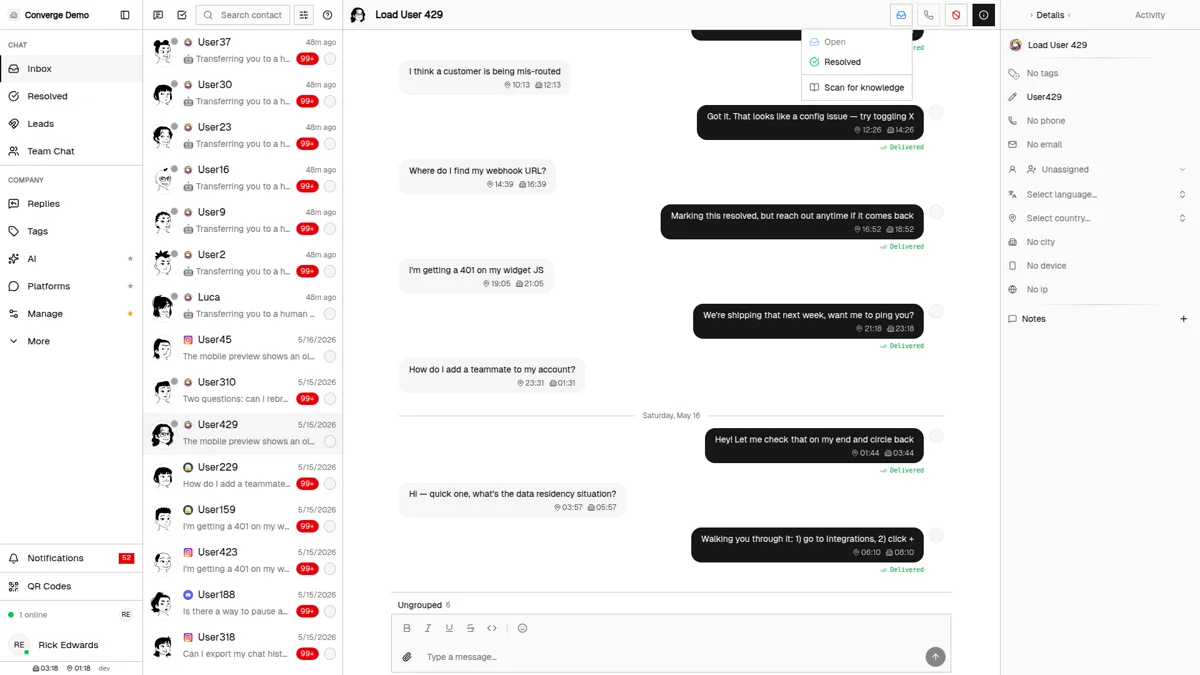
Good answers are already being typed by your team every day. Open any conversation, click the menu in the chat header, and choose Scan for knowledge. The AI reads both sides of the thread and proposes up to three reusable facts. You'll also be offered a scan when you resolve a conversation, with a "Don't ask again" option if you'd rather trigger it yourself. Proposals land as pending — nothing is added to the knowledge base by scanning alone.
Importing a document
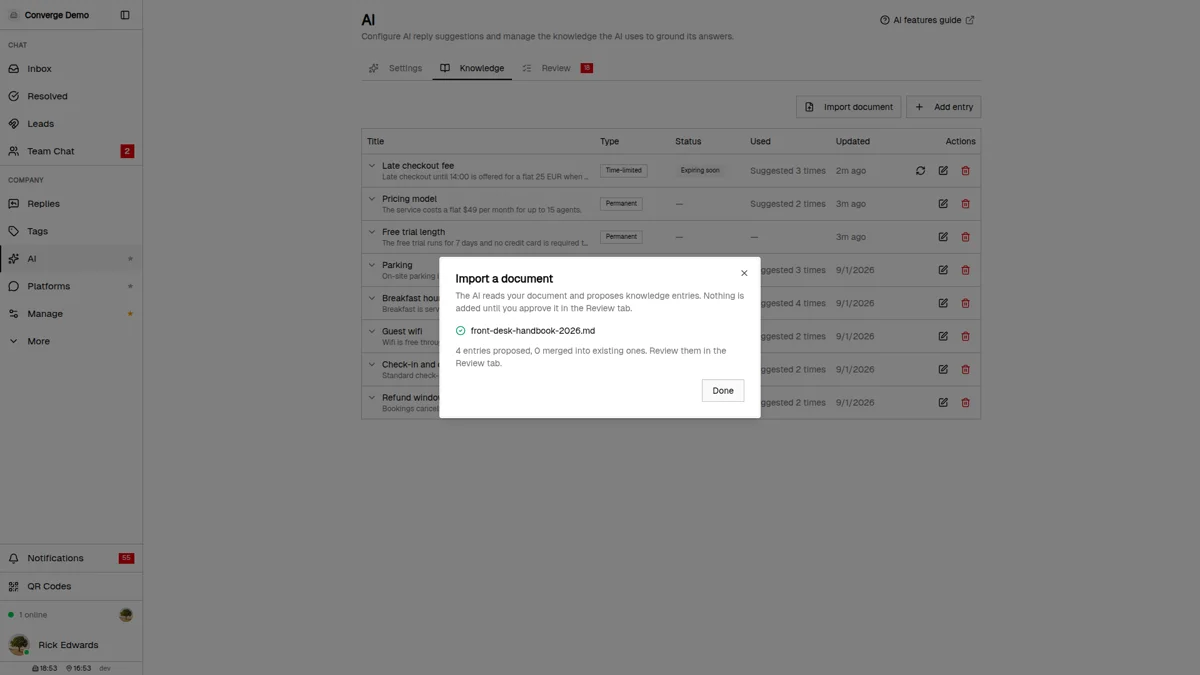
If your policies already live in a handbook, upload it. Click Import document in the Knowledge tab and pick a PDF, Word (.docx), plain text, or Markdown file up to 10 MB. Converge reads the text, splits it into sections, and distills each one into candidate facts, tracking its progress section by section. When it finishes it reports how many facts it proposed and how many it merged into entries you already had. One import runs at a time per company, up to 10 per day.
Your file is never stored. The upload is parsed in memory and discarded — only the distilled facts are kept. File type is checked against the actual contents rather than the extension, so a renamed binary is rejected instead of parsed.
Working the review queue
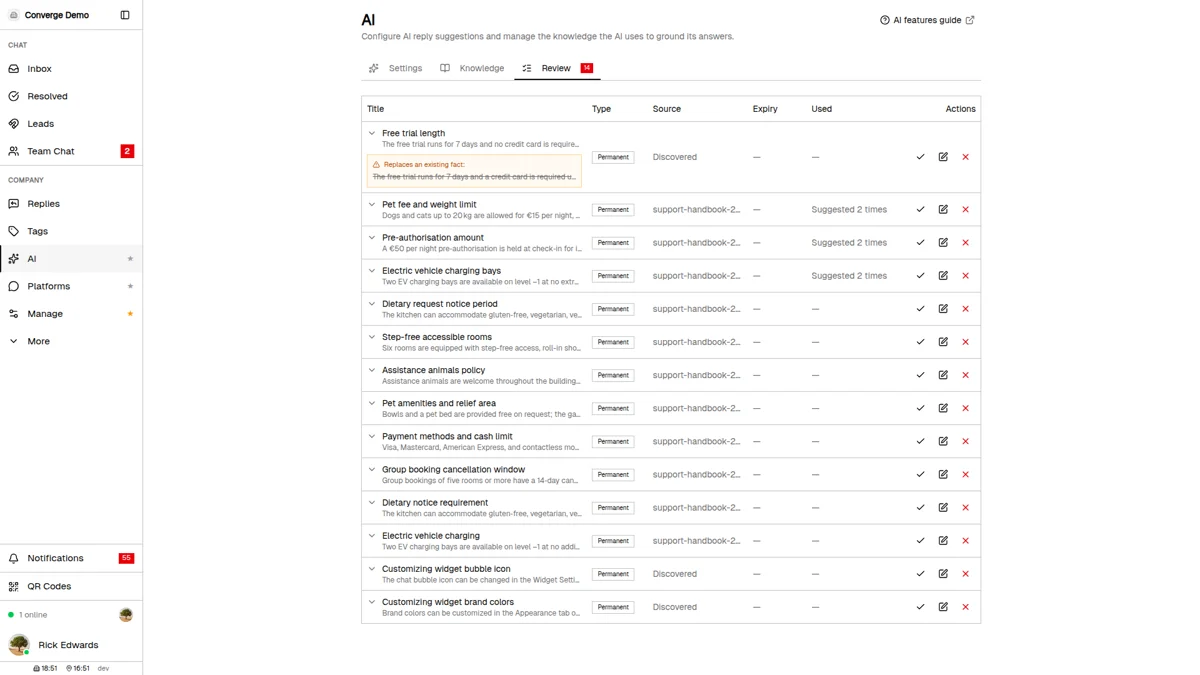
Scanned and imported facts wait in the Review tab, which carries a badge with the number pending. Each row shows the proposed title and body, where it came from (a conversation, or the filename it was distilled from), and any expiry date. Approve it, edit it first if the wording needs work, or dismiss it. Approving is the step that lets a fact ground an answer.
When a new fact contradicts an old one
Policies change and two staff members answer the same question differently. When an incoming fact disagrees with one already stored — "we close at 16:00" against "we close at 17:00" — Converge flags it as a replacement rather than merging the two or discarding the correction. The review row shows the old fact struck through beneath the new one, and Approve & replace the old fact retires the outdated version in the same click. Adding a fact by hand that contradicts an existing one raises the same question before saving: Replace old fact, or Keep both when both are true (two branches, two sets of hours).
How Do You Translate with Context?
When a customer writes in a language you don't read, you translate their message in place rather than pasting it somewhere else. Translation is context-aware — it uses your company name and the conversation history to produce accurate, natural translations across 18 supported languages.
Inbound and outbound translation
Customer messages
Hover a customer message (or right-click it) and choose Translate to your own language — the menu item names it. The translation appears under the original, separated by a line naming the direction — Vietnamese to English. Translate into several languages and that line becomes a dropdown you can switch between. The original text is always kept.
Your replies
When the customer's language differs from yours, a translate button appears on the send bar with a flag for the target language. Type your reply in your own language and translate it before sending.
The translate action is offered only where it helps: on customer messages, when a translation into your preferred language isn't already there, and it stops being offered once a message has been translated three times. Your own outbound messages are never translated after the fact — you translate those before sending.
Translation works independently from suggest, polish, and transform. You can generate a suggestion with AI, then translate it before sending — the features compose naturally.
Where Do You Configure Tone and Style?
Owner OnlyAI output follows your company's style settings. Configure these once and every suggestion, transform, and autonomous reply will match your brand voice.
Finding AI settings
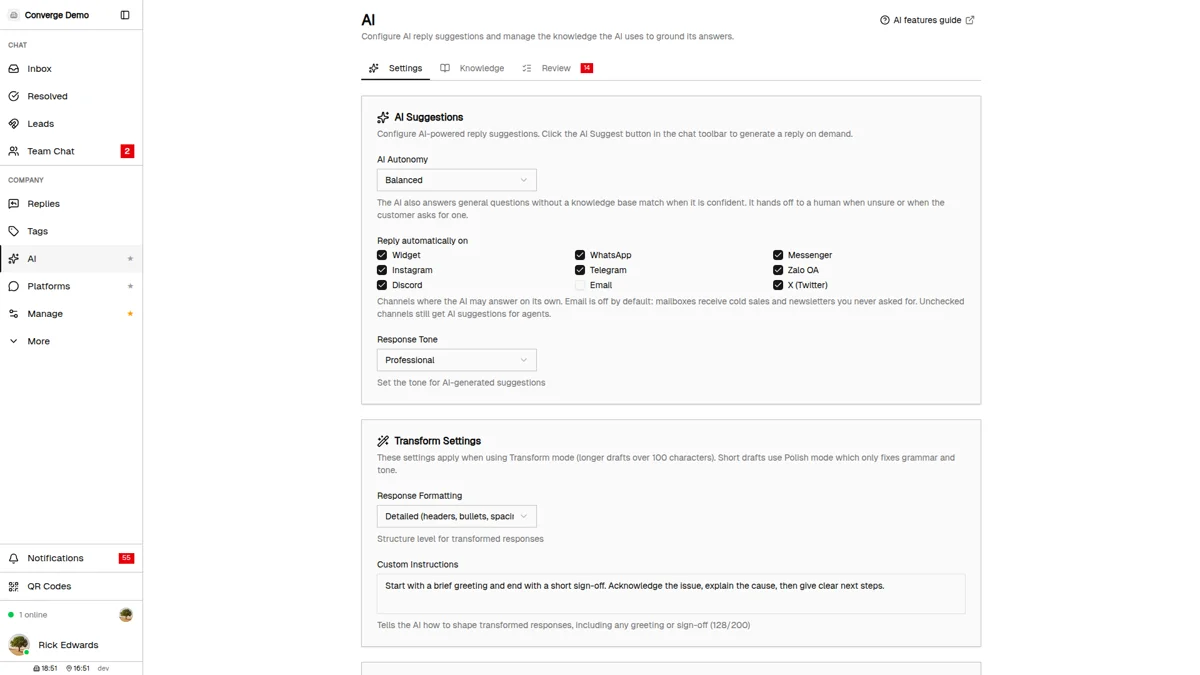
Click the AI icon in the sidebar (the sparkles icon) and stay on the Settings tab, the first of three alongside Knowledge and Review. Admins and owners can open the page; only an owner can save changes, and Save Changes stays hidden until something is edited.
The five settings
| Setting | Options | What it affects |
|---|---|---|
| Autonomy | Off, Conservative, Balanced | Whether the AI replies to customers itself, and how cautiously |
| Reply automatically on | Checkboxes, one per channel | Which channels the AI may answer on by itself. Email is off by default. Hidden while Autonomy is Off |
| Tone | Professional, Friendly, Casual | Overall voice of every AI response |
| Formatting | Detailed, Minimal | Structure depth in Transform mode — paragraphs and lists, or short and direct |
| Custom Instructions | Free text, up to 200 characters | Extra style guidance, including your greeting and sign-off wording |
Writing good Custom Instructions
Greeting and sign-off are not separate fields. Every company starts with a default instruction that opens with a brief greeting, ends with a short sign-off, and moves from acknowledgement to cause to next steps — reword it and the AI's openings and closings change with it. Add recurring rules here too: "Always mention our 24-hour support guarantee", "Keep replies under 3 sentences", "Never mention competitor products". You have 200 characters, so keep each rule short.
Why Bring Your Own API Key?
Owner OnlyBy default, AI features run on a shared key, which carries a platform-wide ceiling of 2,000 AI calls per company per day. Supplying your own API key removes that ceiling — your calls are billed to your provider account and are no longer counted against the Converge daily cap. It also gives you direct cost control, your own model choice, and a paper trail for compliance.
Setting up BYOK
-
1
Get an API key from any OpenAI-compatible provider
Converge works with any provider that exposes an OpenAI-compatible
/chat/completionsendpoint. Examples: OpenAI, OpenRouter, Cerebras, Groq, Together AI, or a self-hosted model. -
2
Open AI Settings and tick "Use my own AI provider"
Click the AI icon in the sidebar, stay on the Settings tab, and scroll to the AI Provider card. The credential fields stay hidden until that checkbox is on, and unticking it later clears them on the next save.
-
3
Fill in the three fields
Enter your API Key, then the Base URL — your provider's API base, such as
https://api.openai.com/v1, without/chat/completions— and the Model identifier your provider uses. A base URL without a key is rejected. -
4
Save Changes
Saving sends one tiny test request to your endpoint first. If the provider rejects it, nothing is stored and you see why — a typo never turns into conversations that silently escalate days later. Once it passes, your key is encrypted at rest and every AI request uses your provider instead of the shared one.
When something goes wrong with your key
A key that has been revoked, an account that has run out of credit, and a provider throttling you all used to look identical from the agent's seat: a spinner that stopped. Each now produces its own message in the chat window, naming the cause, so an owner learns their key was rejected in seconds instead of days. A missing base URL or model is reported the same way. The same distinctions are recorded for autonomous replies, so a broken key never hides behind "the AI escalated".
Security: API keys are encrypted with per-company encryption keys before storage. They are never logged, never sent to the frontend, and are only decrypted server-side when making AI requests.
Best Practices & Tips
Feed the knowledge base before raising autonomy
Grounded answers are the difference between a helpful first responder and a confident guesser. Approve your most-asked facts first, then move Autonomy up from Off.
Review before sending, every time
A suggestion is a starting point. Verify facts, links, and promises before you hit send — once you send it, it is your message, not the AI's, and it carries no disclosure marker.
Work the review queue weekly
Pending proposals ground nothing. A short weekly pass through the Review tab turns the answers your team already wrote into answers the AI can reuse.
Build your Quick Reply library
AI matches against your Quick Replies before generating new text. A larger library means more consistent, pre-approved responses and less generated content to edit.
Set Custom Instructions to reduce edits
If your agents keep editing the same thing out of AI responses, write it as an instruction instead. One line there saves a correction on every interaction.
Rate limiting is per company
AI requests are throttled to one every 5 seconds per company to manage costs, and agent-facing requests jump the queue ahead of background work like document imports. BYOK accounts run on their own provider limits.
What's Next?
You're now equipped to use AI across your conversations. Here are some related features to explore:
- Replies Guide — Build the Quick Reply library AI matches against, and turn auto-replies into handoff acknowledgments
- Auto-Routing Guide — Decide which agent receives a conversation when the AI hands it off
- Inbox Guide — Master conversation management, where you'll use AI most
Need more help?
Our support team is here for you. Click the chat widget in the bottom right corner to start a conversation.
We typically respond within minutes during business hours.