Stay Connected with Team Chat
Team Chat is one company-wide channel for your support team: ask how to handle a refund nobody has seen before, warn the shift that a platform is down, hand over at the end of the day. Everyone in the company sees it, and nobody has to switch tabs to use it.
Why Team Chat Exists
Support work throws up questions that belong to the team, not to a customer: which policy applies, who is covering the afternoon, why a platform is quiet. Team Chat keeps those in the same tab as the inbox.
No app switching
Your team chats in the tab they already answer customers in, instead of a separate Slack workspace or WhatsApp group.
The inbox is one click away
Messages cannot link to a conversation yet, so name the customer in your message and your teammate finds them from the sidebar in one click.
See who's available
The member list shows who is connected right now, so you know whether asking will get an answer.
Who can access Team Chat? Every employee, whatever their role. There are no private channels and no direct messages: one channel, one history, readable by the whole company. Sent messages cannot be edited or deleted afterwards.
Accessing Team Chat
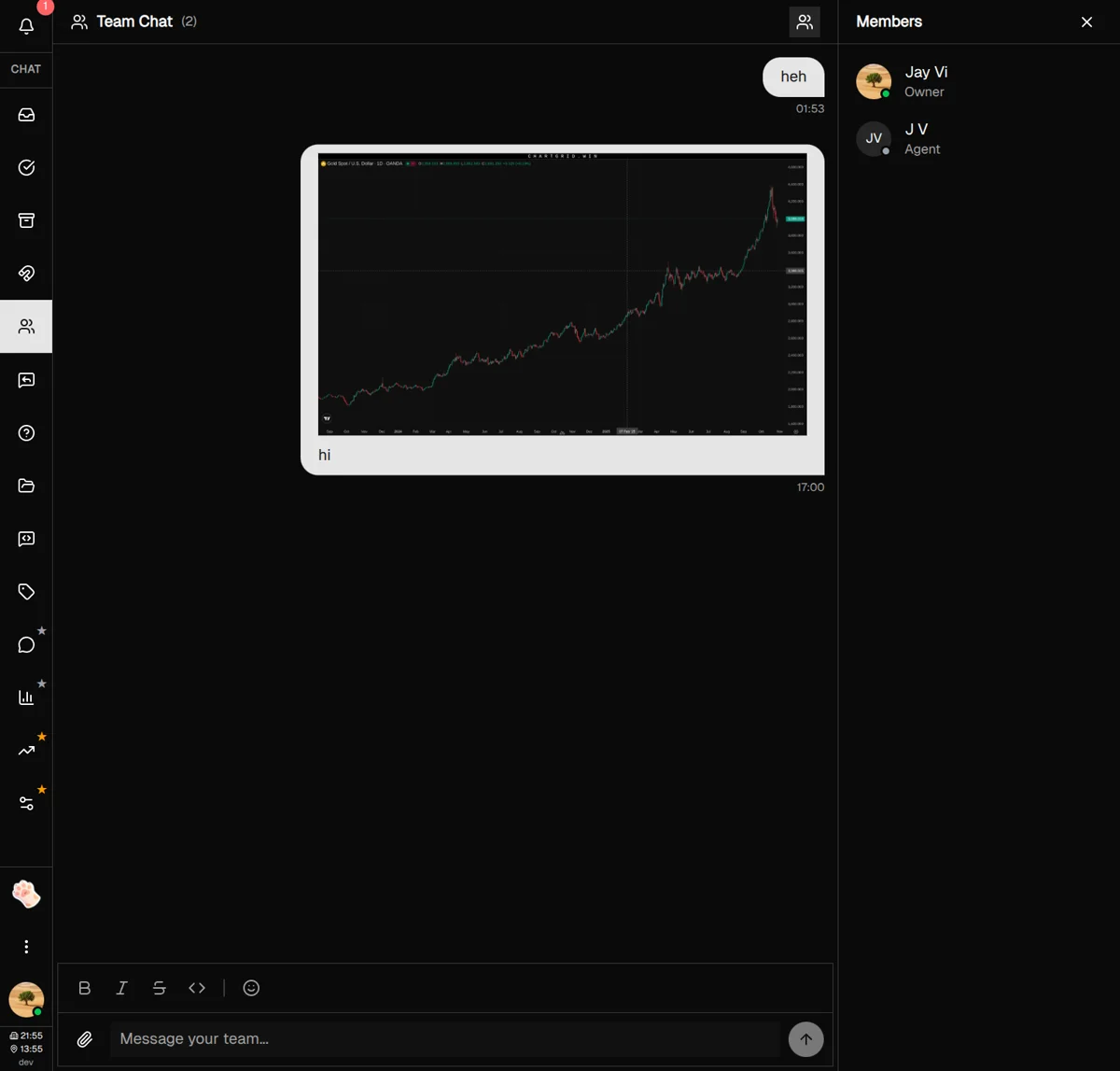
Team Chat has its own sidebar entry, next to the customer views.
-
1
Find Team Chat in the sidebar
It sits in the CHAT group under Inbox, Resolved and Leads, marked with a two-person icon.
-
2
Click to open it
The channel opens on the most recent message, with the message box at the bottom. Scroll up to load older history in batches of 50.
-
3
Toggle the member list
The two-person button on the right of the header shows or hides it. It is open by default on a desktop screen; on a phone it slides in from the right.
Sending Messages
Team Chat works like any modern messaging app. Type your message, hit Enter, and it reaches everyone on your team.
Basic messaging
-
1
Click the message input
The input field is at the bottom of the chat. Click to start typing.
-
2
Type your message
Write what you want to share with your team. The input expands as you type longer messages.
-
3
Press Enter to send
Your message reaches everyone immediately. Use Shift+Enter for a new line without sending.
Formatting your messages
The toolbar above the input wraps your selection in Markdown. Bold and italic also have shortcuts:
| Format | Shortcut | Result |
|---|---|---|
| Bold | Ctrl/Cmd + B | Bold text |
| Italic | Ctrl/Cmd + I | Italic text |
| Strikethrough | Toolbar button | |
| Inline code | Toolbar button | order_id |
The toolbar has a fifth, underline button. It inserts __like this__, which Markdown renders as bold rather than underlined, so reach for bold instead.
Adding emojis
The smiley button at the end of the toolbar opens the picker. Browse by category or search, and the emoji drops in at your cursor.
Real-time typing indicators
While a teammate types, a line under the message list reads "Sarah is typing…". Two or more at once collapses to a count, and the line clears itself after three quiet seconds.
Under every message sit two clocks: your own time, and company time when the two differ. On a distributed team that is the difference between "the sync at 2pm" landing and being missed.
How do I translate a teammate's message?
When a teammate writes in a language different from yours, a round translate button sits beside their message. One click and the translation appears under the original, which stays in place. The result is cached on the message and shared with every teammate, so nobody re-translates the same thing.
Distributed support teams often speak different first languages. In-thread translation keeps the channel readable without anyone pasting text into a separate tool.
How it works
-
1
Look for the translate button
It is always visible, no hovering needed, but only on other people's text messages and only when their language differs from yours. Your own messages never show it.
-
2
Click it
The translation appears under the original, separated by a line reading sourcetarget. Both stay visible so you can compare. Everyone else sees the translation appear too, in real time.
-
3
Switch between existing translations
Once teammates have translated one message into two or more languages, the divider turns into a dropdown that switches which of them you read. It picks from what is already cached rather than requesting a new language — the button always translates into your language.
Your target language is resolved from your profile preference, then your interface locale, then the company default. Change it on your profile page. A message holds at most three translations; once yours exists, or the third one is stored, the button disappears from that message.
Team Presence & Status
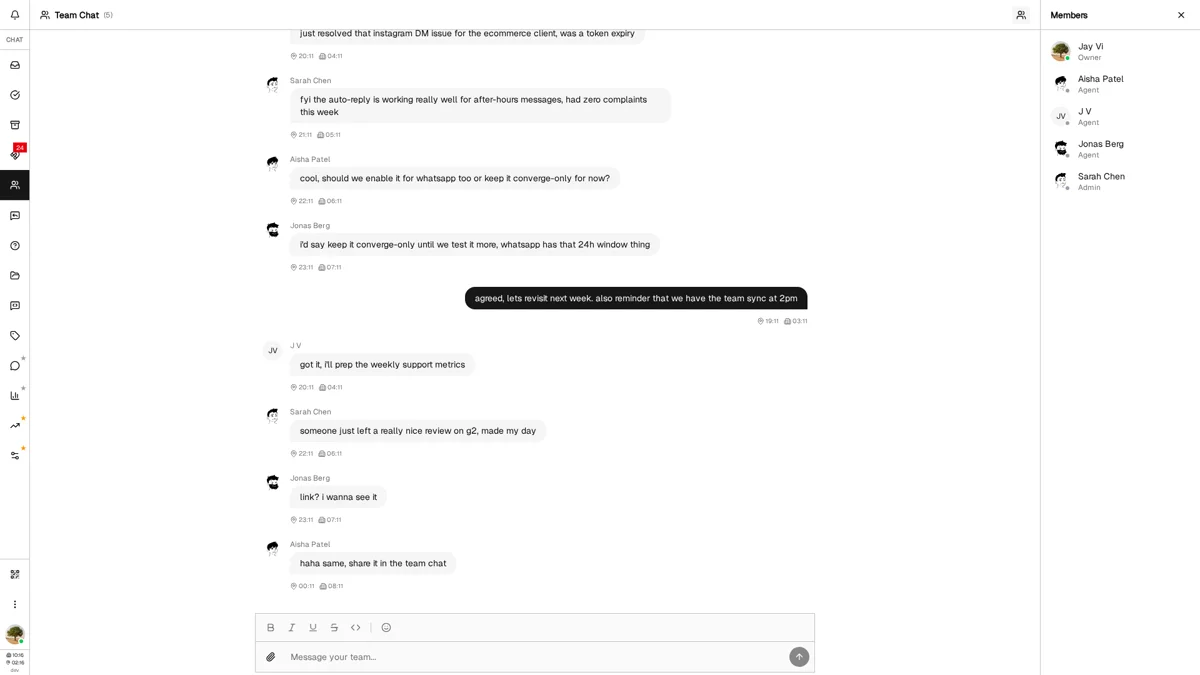
The member panel lists every employee in the company, online or not, with the role each one holds.
Understanding the member list
-
1
Toggle the member panel
The two-person button on the right of the Team Chat header shows or hides it.
-
2
Check online status
A green dot means the app is open and connected. A gray dot means it is not — a teammate who closed the tab reads gray even mid-shift.
-
3
Read the role under each name
Owner, Admin or Agent. That is a permission level, not a job title: it tells you who can change settings, not who knows the most about billing.
Sorted by availability: online members rise to the top, everyone else follows alphabetically by first name.
Best Practices & Tips
Use Team Chat for quick coordination
Team Chat is perfect for "Hey, can someone help with this?" or "FYI, the API is slow today." Keep messages focused and actionable.
Share context with screenshots
When discussing a customer issue, share a screenshot. It's faster than describing and eliminates confusion.
Remember there is no undo
Every employee reads this channel, and a sent message cannot be edited or deleted. Treat it as the permanent record it is.
Use formatting for clarity
Bold important details. It helps messages stand out when teammates are scanning through a busy chat.
What's Next?
Now that you're set up with Team Chat, explore these related features:
- Quick Replies Guide — Create templates to respond faster
- Settings Guide — Invite teammates and set their roles
Need more help?
Our support team is here for you. Click the chat widget in the bottom right corner to start a conversation.
We typically respond within minutes during business hours.