Organize Your Files with Assets
Stop searching through chat history for that PDF you sent last month. Assets gives your team a central library for all company files—images, documents, attachments, and media. Upload once, use everywhere.
Understanding Your Asset Library
Assets is your team's shared file cabinet. Every file that enters Converge—uploaded here or shared in a conversation—lands in this library, sorted by type and tagged automatically.
File Categories
Every file is sorted by its own type: images, video and audio become Attachments; PDFs, Word docs, spreadsheets and slide decks become Documents; profile pictures become Avatars; anything else lands in Assets.
Custom Tags
Add your own tags to files for easy filtering. Tag product images with "catalog" or support documents with "FAQ"—whatever makes sense for your workflow.
Storage Monitoring
Admins and owners see space used against the 10 GB company limit, a breakdown per category, and a warning once usage passes 80%.
Who can do what? Every team member can upload, tag, download and delete files. The storage bar and the Cleanup button are Admin and Owner only—agents open the same library without them.
Uploading Files
Upload straight from the Assets page, or let your conversations fill the library for you.
Direct upload
-
1
Open Assets
Expand More at the bottom of the sidebar, then click Assets. The folder icon sits inside that group, which stays collapsed until you open it.
-
2
Click "Upload Files"
Find the button in the top right corner. You can select multiple files at once.
-
3
Select your files
Choose images, documents, PDFs, videos, or audio files from your computer. Supported formats include JPG, PNG, PDF, MP4, and more.
-
4
Watch them appear
Files upload one after another, each with its own success toast. New files appear at the top of the library, encrypted on disk, tagged from their type and file extension.
Automatic from conversations
When you or a customer shares a file in a conversation, it is saved to the library and linked to that conversation. It gets the same type-based category as anything else: an image becomes an Attachment, a PDF becomes a Document.
Organizing with Tags & Categories
A library is only useful if you can find what you need. Files are categorized by type on arrival and tagged automatically; your own tags go on top of that.
Automatic categories
| Category | What's Included |
|---|---|
| Attachments | Images, video and audio—whether uploaded here or shared in a chat |
| Documents | PDFs, Word docs, spreadsheets, presentations |
| Avatars | Profile pictures for team members and the company |
| Assets | Everything else—archives, plain text, unrecognized types |
Adding custom tags
-
1
Click on any file to open the preview
-
2
Find the Tags section below the preview
-
3
Type a tag name and press Enter
Tags are automatically lowercased. Use short, descriptive names like "catalog", "pricing", or "how-to".
-
4
Click the X on any tag to remove it
Browsing & Searching Assets
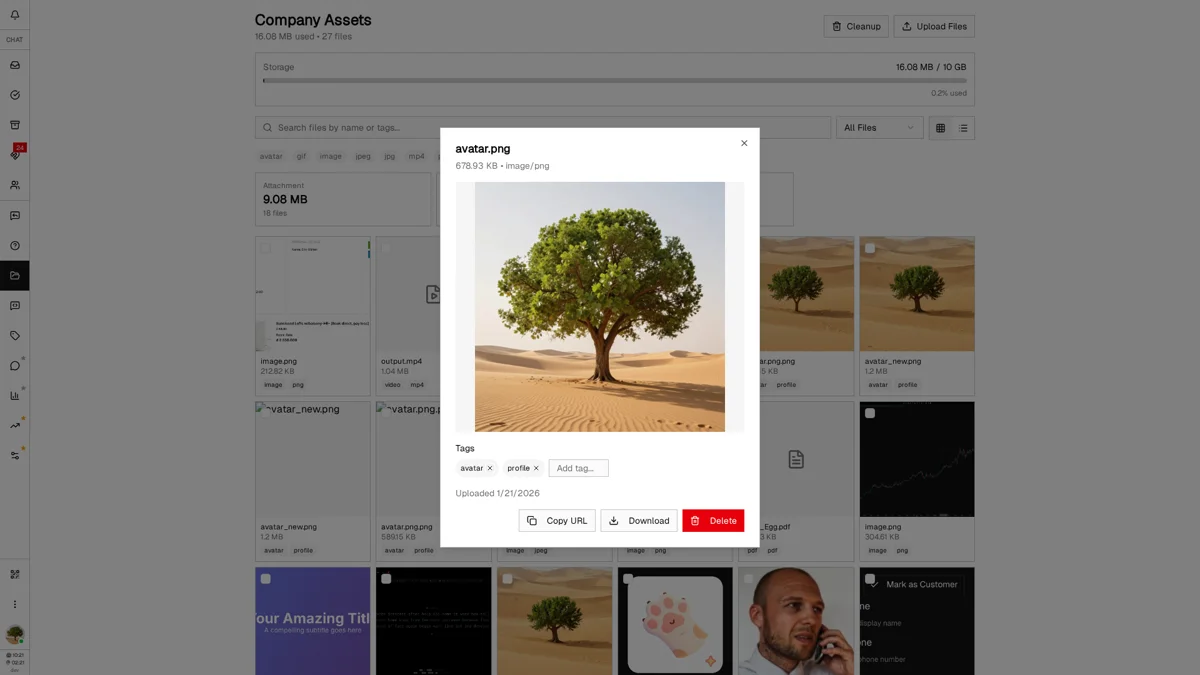
A few hundred files in, you need a way to narrow the grid. Assets gives you search, two filters, and two view modes.
Search by tag
The search box matches tags, not file names. Type a whole tag—pdf, image, or one of your own like catalog—and the grid narrows to files carrying it. To track down a file by its name, filter by category or tag first, then scan the results.
Filter by category
Use the dropdown next to the search bar to show only specific categories—Attachments, Documents, Avatars, or Assets. Select "All Files" to see everything.
Filter by tags
All your tags appear as clickable pills above the file list. Click a tag to show only files with that tag. Click it again or use "Clear filter" to reset.
Grid vs. List view
Grid View
See file thumbnails in a visual grid. Great for browsing images and quickly identifying files by their appearance.
List View
Compact rows with file details. Shows file name, size, upload date, and tags. Better for documents and detailed scanning.
Toggle between views with the grid and list buttons to the right of the category dropdown. Assets opens in grid view every time; the toggle does not persist.
Managing Individual Assets
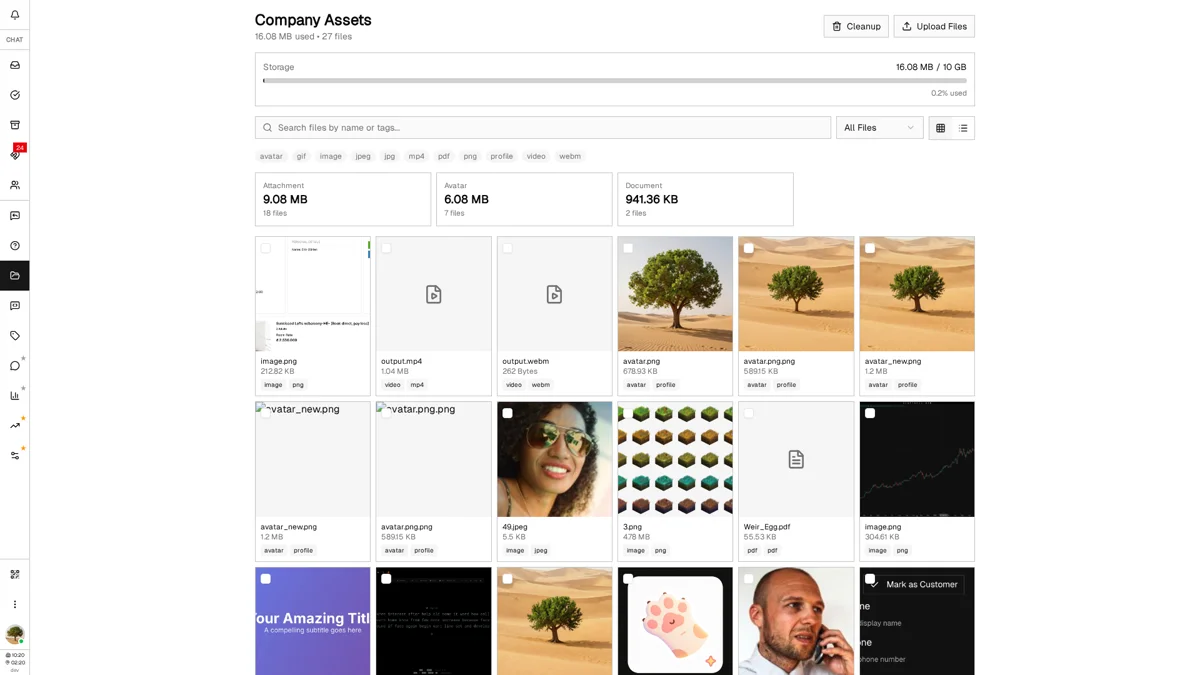
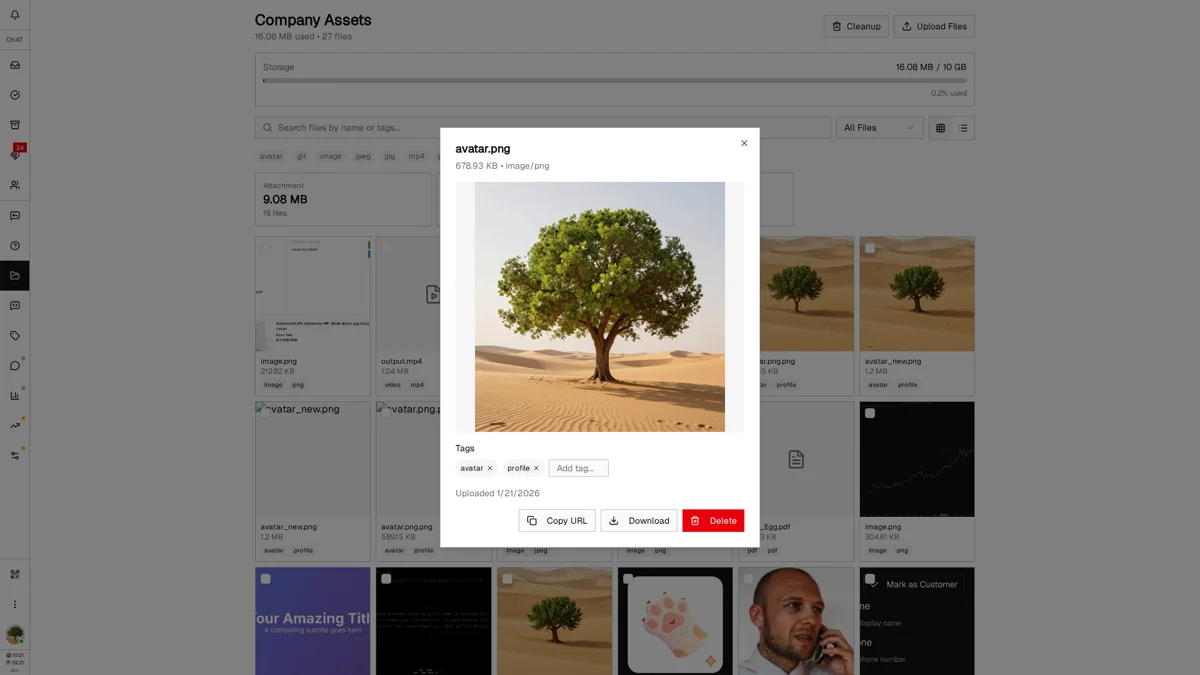
Click any file to open a detailed preview with options to copy, download, or delete. For images, videos, and audio, you'll see a full preview; for documents, you'll see file information.
Quick actions
Copies the file's URL to your clipboard. Opening it requires a signed-in account on your company, so the link works for teammates and fails for anyone else.
Downloads the original file to your device with its original filename.
Permanently removes the file. You'll be asked to confirm before deletion.
Bulk selection
Need to manage multiple files? Use the checkboxes on each file to select them. A selection bar appears showing how many files are selected, with options to clear the selection.
Storage Management & Cleanup
Admin / Owner OnlyEvery company gets 10 GB of file storage. The Assets view shows what you have used and lets you clear out what you no longer need.
Storage overview
The bar under the page header shows space used against the 10 GB limit, with the percentage on the right. The line under the title counts total size and files, and that line is the only part agents see.
Category breakdown
Cards above the file grid show the size and file count of each category. They tell you where the space went—usually images and video piling up under Attachments.
Manual cleanup
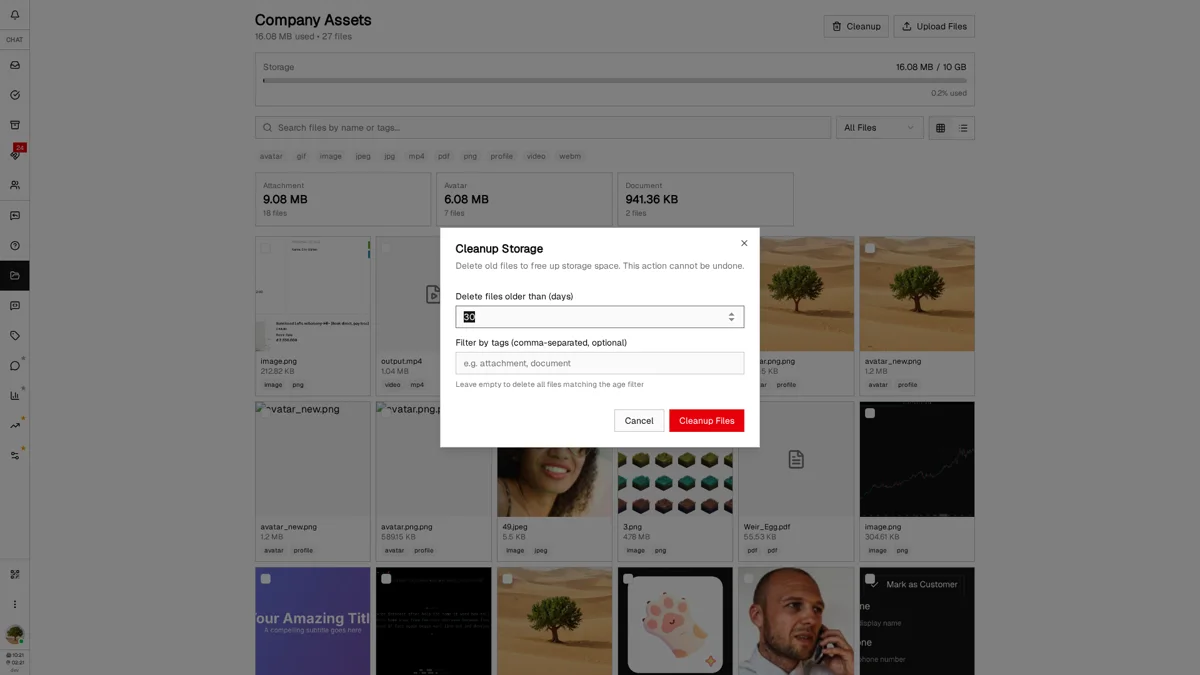
Click the "Cleanup" button to open the cleanup dialog. Here you can:
- Set age threshold — Delete files older than X days (30, 60, 90). Setting it to 0 drops the age condition entirely and deletes every file that matches the tag filter
- Filter by tags — Comma-separated, and a file goes if it carries any one of them. Use real tags, not category names: the automatic ones are image, video, audio, pdf, document, spreadsheet, presentation, plus the file extension
After cleanup, you'll see a summary of how many files were deleted and how much space was freed.
Best Practices & Tips
Tag consistently from the start
Establish a tagging convention with your team early. It's much easier to tag files as you upload them than to organize hundreds of files later.
Use Assets with Quick Replies
Upload frequently-shared files (price lists, setup guides, product images) to Assets, then attach them to Quick Replies for one-click sharing.
Monitor storage proactively
Don't wait for the 80% warning. Check your storage monthly and clean up old attachments to avoid auto-deletion surprises.
Use the right view for the task
Grid view for browsing images and visual content. List view for scanning documents and checking file details quickly.
Send customers files, not links
Asset URLs are access-controlled, so a customer opening one gets an authorization error. Attach the file to the conversation, or to a quick reply, instead.
What's Next?
Now that you have your file library organized, explore these related features:
- Replies Guide — Attach files from Assets to your quick reply templates
- Unified Inbox — See files shared in conversations automatically appear in Assets
- Tags — Use the same tags for files and customers to keep everything connected
Need more help?
Our support team is here for you. Click the chat widget in the bottom right corner to start a conversation.
We typically respond within minutes during business hours.