Know Exactly How Your Customers Feel with CSAT Surveys
 Converge Team
Marking a conversation resolved tells you the ticket is done. It doesn't tell you whether the customer left happy. CSAT surveys send a 5-star rating request through the same channel the customer is already messaging you on, and the ratings come back as scores you can read per agent. This guide covers turning surveys on, writing the prompt, sending them, and reading the results.
Who can manage CSAT? The CSAT page sits inside Manage, which only the company owner can open Owner Only . Every agent can send a survey from a conversation once CSAT is switched on — they just don't see the scores or the individual responses.
Enabling CSAT Surveys
Owner OnlyCSAT surveys are off by default. Once you turn them on, every agent sees the option to send a survey when they resolve a conversation.
Turning on surveys
-
1
Open CSAT Settings
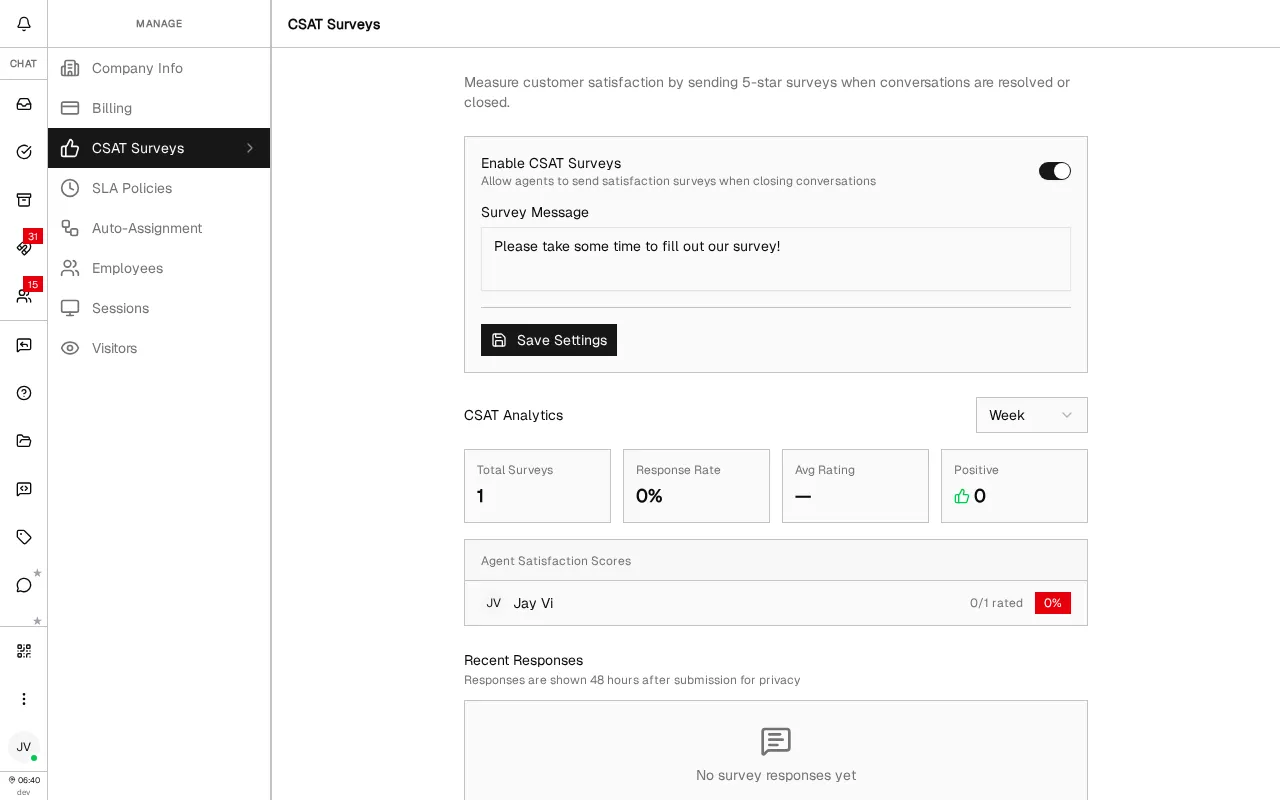
Click the Manage icon in the sidebar, then select CSAT Surveys from the Manage menu.
-
2
Toggle CSAT on
Flip the Enable CSAT Surveys toggle. Your agents will immediately start seeing the survey option when changing conversation status.
Customizing the survey message
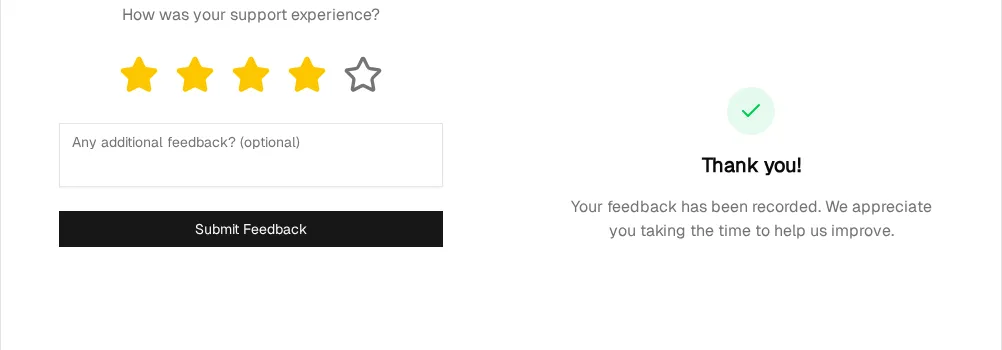
The survey message is the chat text sent with the rating link. Leave it empty and customers get "How was your support experience?"; write your own and it replaces that line. The rating page itself always asks "How was your support experience?" — the Survey Message never changes what the page says.
-
1
Find the Survey Message field
On the same CSAT settings page, look for the Survey Message text field below the enable toggle.
-
2
Write your prompt
Enter the text that goes out with the survey link, up to 200 characters. Something like "We'd love your feedback! How did we do?"
-
3
Save your settings
Click Save Settings. The new prompt is used for every survey sent from then on.
Sending Surveys to Customers
Surveys are triggered by agents, not sent automatically. This gives your team control over when to ask for feedback—usually right after resolving a support issue.
Method 1: The status change dialog
The most natural way to send a survey is right when you're wrapping up a conversation.
-
1
Change the conversation status
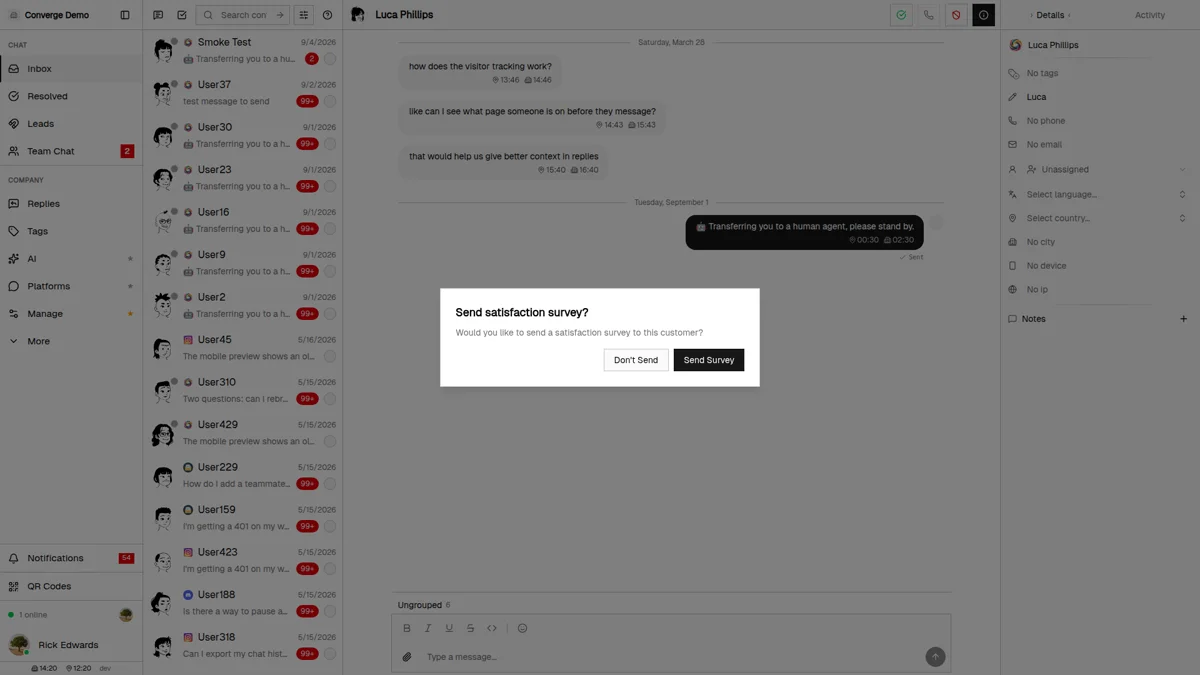
In the chat header, open the status dropdown — the status icon to the right of the customer's name — and select Resolved.
-
2
Confirm and send the survey
A "Send satisfaction survey?" dialog appears. The status change has already been saved at this point, so Send Survey sends the rating request and Don't Send skips it.
Method 2: The Send Survey button
Already resolved the conversation but forgot to send a survey? No problem.
-
1
Open the status dropdown
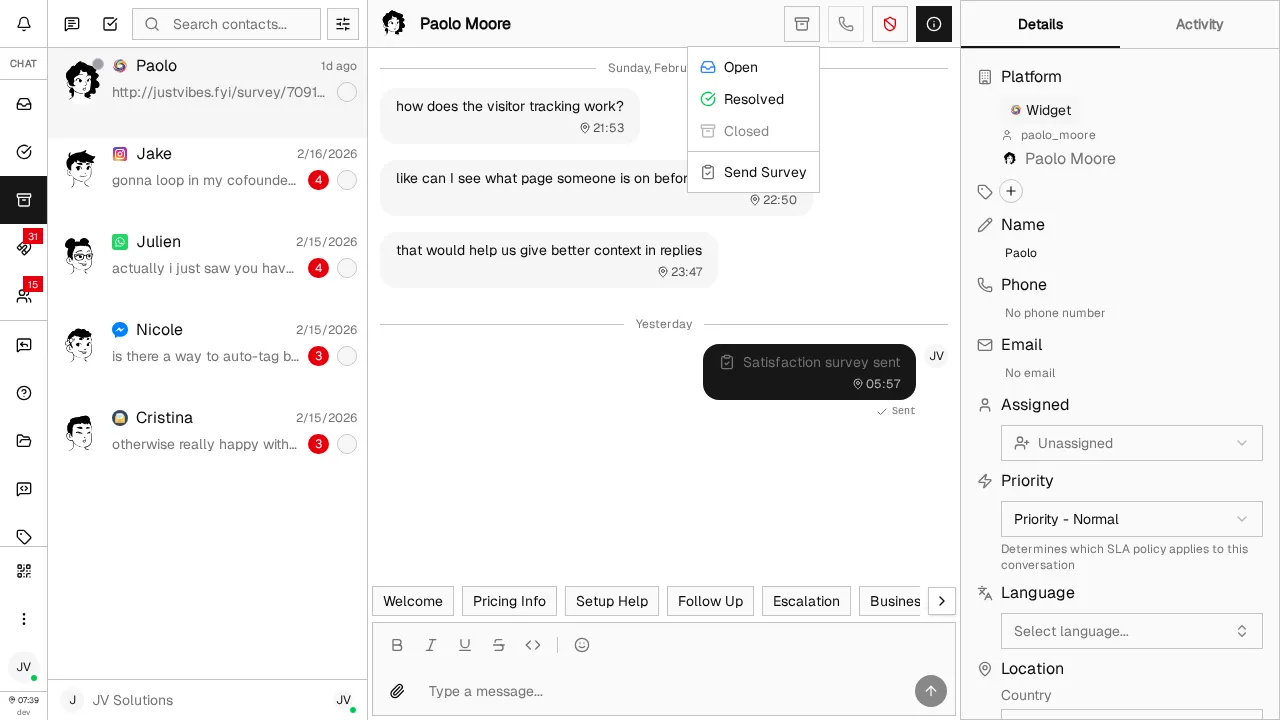
Open the same status dropdown on a conversation that is already resolved.
-
2
Click "Send Survey"
A Send Survey item appears below the two statuses. It shows up only on resolved conversations, and only while CSAT is enabled. Clicking it opens the same confirmation dialog.
One survey at a time: A customer holding an unrated survey cannot be sent a second one — the attempt returns a notice instead. The check is per customer, not per conversation, so resolving another thread with the same person won't produce a duplicate request.
The Customer Experience
Understanding what your customers see helps you set expectations and write a better survey prompt. Here's the full journey from their perspective.
The survey message in chat
Your agent sees the outgoing message collapse to a "Satisfaction survey sent" line with a clipboard icon, not the raw link. In the chat widget, the customer gets a card with a star icon, your prompt text and a "Rate your experience" button. On every other channel — WhatsApp, Telegram, Messenger, email — the customer receives your prompt text followed by the link as an ordinary message.
The rating page
Clicking the link opens a clean, branded page with your company name and icon. The customer picks a 1-to-5 star rating and can optionally leave a written comment. No account or sign-up required.
The thank-you confirmation
After submitting, the customer sees a thank-you message. If they return to the same link later, they see the confirmation again—no option to re-rate.
Viewing Satisfaction Analytics
Ratings are summarised on the same CSAT Surveys page, below the settings. Because that page sits inside Manage, the scores are visible to the owner only — agents and admins send surveys but never see the numbers.
Company-wide metrics
Four cards sit under the CSAT Analytics heading, with a Week / Month selector beside it. That selector drives everything below it: the cards, the agent scores and the response list.
Total Surveys
Surveys sent in the selected period, rated or not. Your feedback volume.
Response Rate
Share of those surveys that came back rated. Surveys sent late in the period drag this down before the customer has had a chance to answer.
Avg Rating
Mean star rating across the ratings received, to two decimals. Shows a dash while nothing has been rated.
Positive
Count of 4- and 5-star ratings. How many customers left happy.
Per-agent satisfaction scores
Under Agent Satisfaction Scores, each agent who had a survey attributed to them in the period gets one row: their name, a "rated / sent" count, and a percentage badge. The badge is the share of that agent's rated surveys that came back 4 or 5 stars, not an average — it is solid at 80% and above, grey between 50% and 79%, and red below 50%.
An agent with two ratings can swing from 100% to 50% on a single bad day, so read the rated count before the badge. Agents with no surveys in the period are left out of the table entirely.
Reviewing Individual Responses
Owner OnlyRecent Responses, at the bottom of the CSAT Surveys page, lists submitted ratings twenty at a time with a Load more button. Each entry shows the star rating, the customer's name, the agent credited with the survey, the comment if there is one, and the date and time it was submitted.
The 48-hour privacy embargo
A response only appears here 48 hours after the customer submits it. Customers hesitate to rate honestly when they expect the agent to read it immediately, and the delay breaks the link between a rating and the conversation that is still fresh in everyone's mind. The aggregate cards above are not delayed — a new rating moves them right away.
So an empty Recent Responses list with a non-zero response rate is normal: the ratings have landed, they are just still inside the embargo window.
Who sees what
| Role | Send a survey | Scores & responses |
|---|---|---|
| Owner | Yes | Yes (responses after the 48h embargo) |
| Admin | Yes | No — the Manage area is owner-only |
| Agent | Yes | No |
Best Practices & Tips
Send surveys only after resolution
Timing matters. Sending a survey mid-conversation or before the issue is truly resolved leads to lower ratings and frustrated customers. Wait until the problem is genuinely fixed.
Keep the survey prompt short and friendly
Your survey message appears in the same chat the customer is already using. A brief, warm prompt like "How did we do?" feels natural and gets more responses than a formal paragraph.
Don't send surveys for every conversation
Quick one-message answers or simple confirmations don't need a survey. Reserve them for meaningful interactions where the customer actually received support.
Use low scores for coaching, not punishment
A rating lands on whoever sent the survey, which is not always whoever caused the problem. Read the comments before reading the badge.
Send surveys consistently, or not at all
If agents only survey conversations that went well, the scores measure that choice rather than your support. Agree on a rule as a team — every resolved conversation over a certain length, say — and keep to it.
Frequently Asked Questions
Can customers receive multiple surveys at once?
Can customers change their rating after submitting?
Why can't I see individual survey responses?
What's the 48-hour embargo about?
Are CSAT surveys sent automatically?
Do surveys work on all messaging platforms?
Will the survey page appear in Google search results?
What's Next?
You're now collecting customer feedback through CSAT surveys. Here are some related features to explore:
- SLA Policies Guide — Set response and resolution targets to complement your satisfaction tracking
- Inbox Guide — Master conversation management for smoother resolutions
- Replies Guide — Speed up responses with quick replies and auto replies
Need more help?
Our support team is here for you. Click the chat widget in the bottom right corner to start a conversation.
We typically respond within minutes during business hours.