Master Your Inbox
 Converge Team
The Inbox is where your customer conversations come to life. Whether messages arrive via WhatsApp, Telegram, Instagram, or your website widget, they all land here in one unified view. In this guide, you'll learn how to navigate, filter, respond, and organize conversations like a pro.
Understanding the Layout
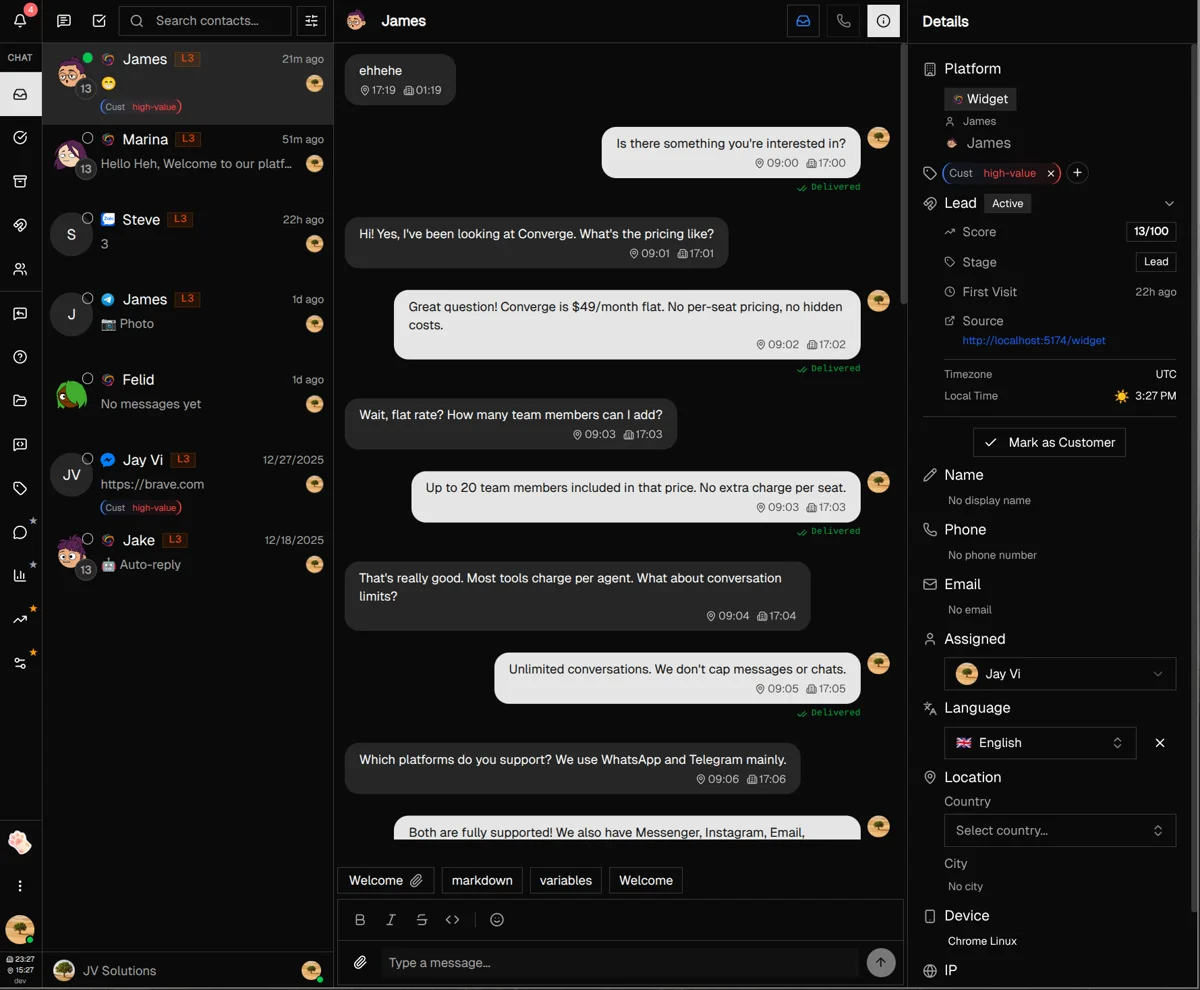
The Inbox uses a three-panel layout designed for efficiency. Once you understand where everything lives, navigating becomes second nature.
Contact List (Left)
All your active conversations appear here. You can search, filter, and select customers to view their messages. Unread counts and platform icons help you prioritize at a glance.
Conversation View (Center)
The main chat area where you read and respond to messages. Features real-time message loading, typing indicators, and rich media support.
Customer Details (Right)
A collapsible panel showing customer information, tags, notes, assigned agent, and lead data. Toggle it with the info button in the header.
Mobile View: On smaller screens, the panels become full-screen views that slide in and out. Use the back arrow to return to the contact list.
Navigating the Contact List
The contact list is your command center for finding and prioritizing conversations. With powerful search, filtering, and sorting options, you can quickly zero in on the customers who need attention.
Quick search
The search bar at the top filters contacts by name as you type. For deeper searches across message content, click the message search icon to open the unified search panel.
Filtering contacts
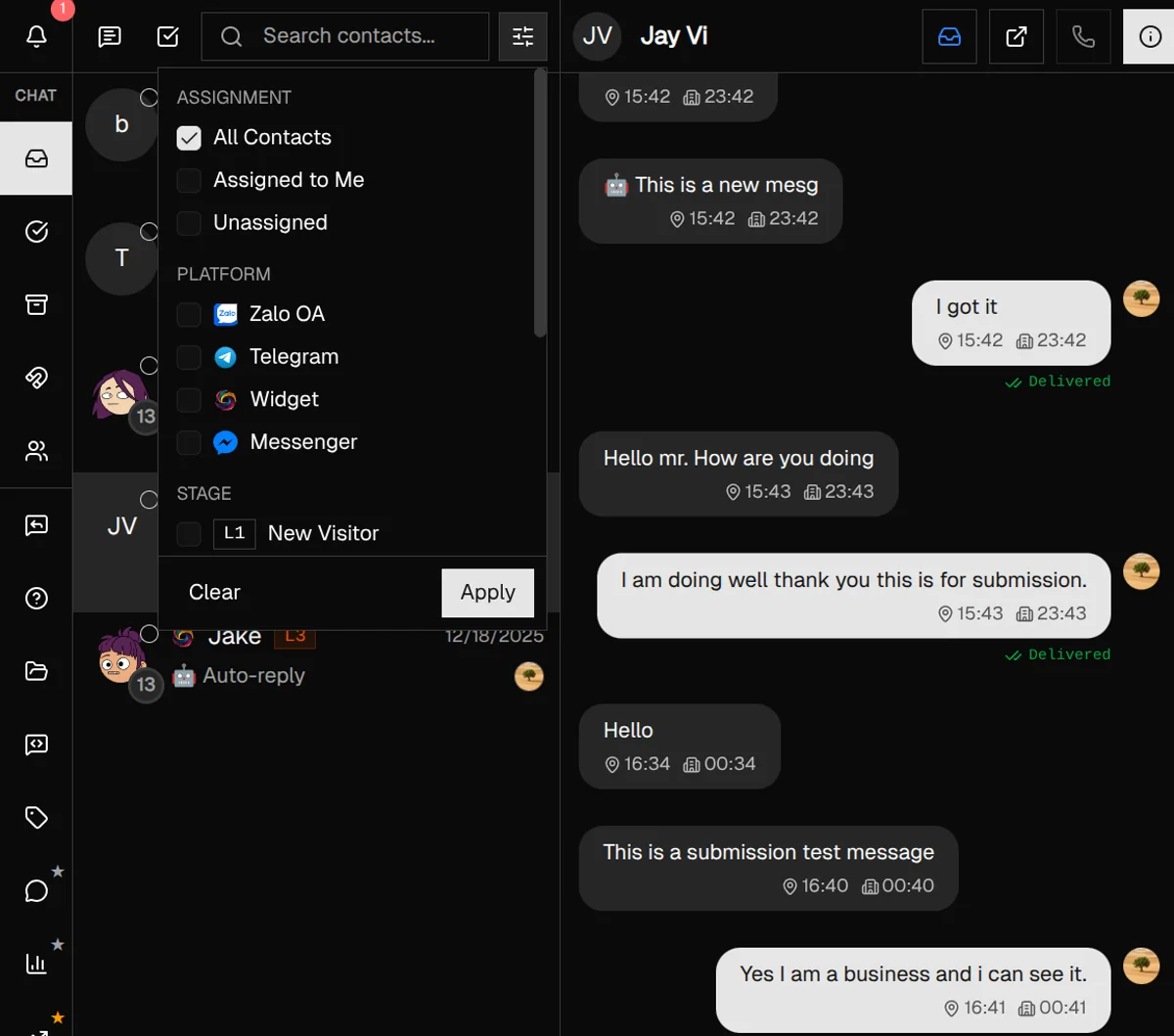
Click the filter icon to open the filter menu. You can combine multiple criteria:
- Assignment — Show all contacts, only those assigned to you, or unassigned ones
- Platform — Filter by WhatsApp, Telegram, Instagram, Widget, or other connected channels
- Lifecycle Stage — Focus on visitors (L1), engaged leads (L2), contacted leads (L3), or customers (L4)
- Tags — Filter by any tags you've applied to customers
Reading contact cards
Each contact card shows key information at a glance:
Visual indicators
- • Platform icon (WhatsApp, Telegram, etc.)
- • Online/offline status dot
- • Lead score badge (for leads)
- • Unread message count
Quick info
- • Customer name and avatar
- • Last message preview
- • Assigned agent avatar
- • Applied tags
Managing Conversations
Converge organizes conversations into three status categories: Open, Resolved, and Closed. Moving conversations through these statuses keeps your inbox clean and helps track your team's workload.
Open (Inbox)
Active conversations that need attention. New messages automatically appear here. This is your primary workspace.
Resolved
Issues that have been solved. Move conversations here when the customer's question is answered. They'll reopen if the customer messages again.
Closed
Archived conversations. Use this for spam, test messages, or conversations you don't want cluttering Resolved.
Changing conversation status
-
1
Open a conversation
Click any contact in the list to load their messages in the center panel.
-
2
Click the status button in the header
You'll see the current status icon (inbox, checkmark, or archive). Click it to open the status menu.
-
3
Select the new status
Choose Open, Resolved, or Closed. The conversation will move to the corresponding tab in the sidebar.
Customer Details Panel
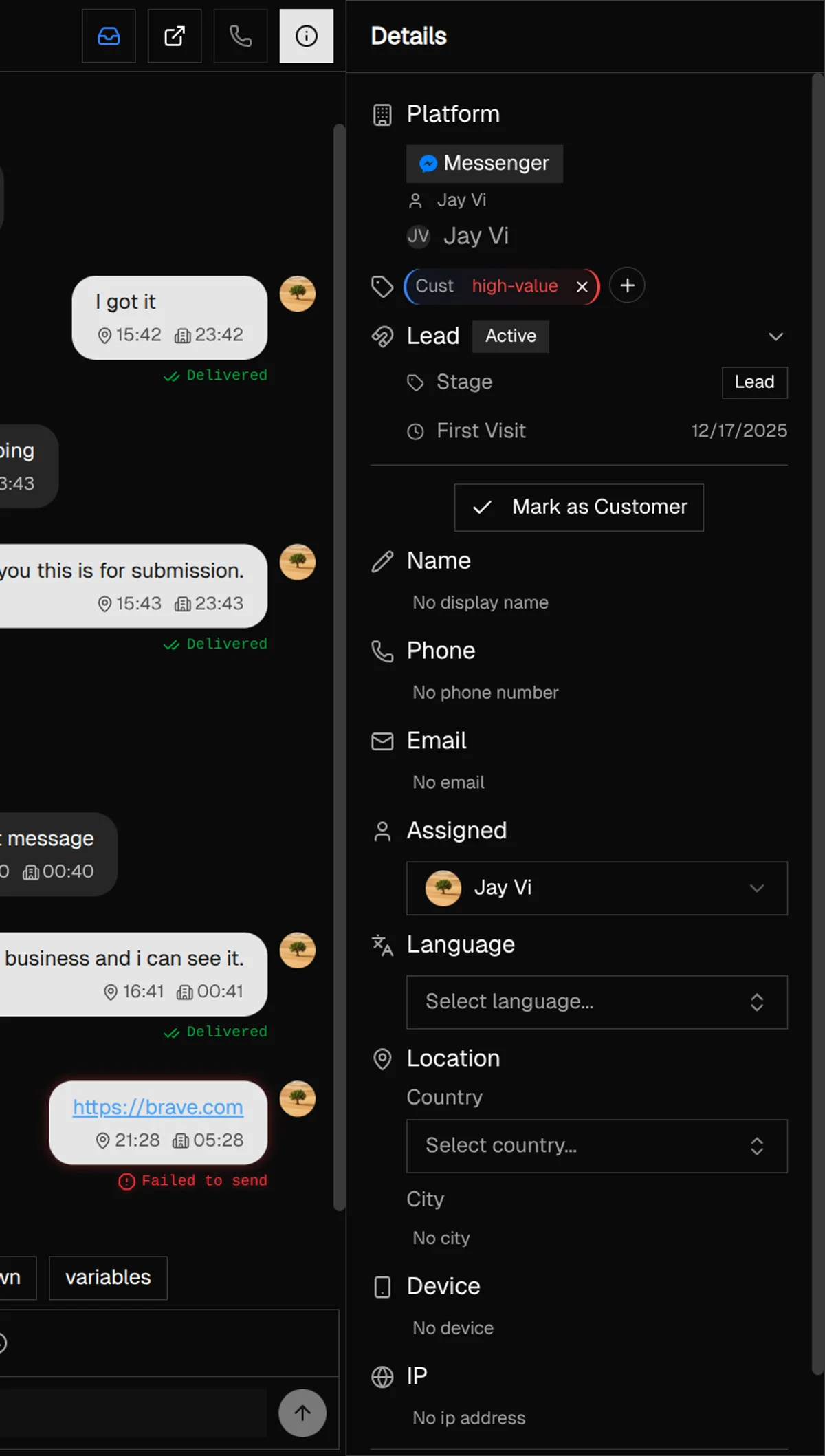
The right panel gives you a complete view of who you're talking to. Toggle it by clicking the info icon in the conversation header.
What you can see and edit
Platform & Identity
See which platform they messaged from, their username, avatar, and full name. Edit the display name to use a custom name in your system.
Contact Information
View and edit phone number, email, language, country, city, device, and IP address. Click any field to edit it inline.
Tags
Add or remove tags to categorize customers. Tags appear on contact cards and can be used for filtering.
Lead Information
For leads, see their score, lifecycle stage, source page, referrer, and UTM campaign parameters. Convert leads to customers when ready.
Assignment
Assign the customer to a specific team member using the dropdown. The assigned agent's avatar appears on the contact card.
Notes
Add internal notes about the customer. Notes are visible only to your team, never to the customer.
Sending Messages
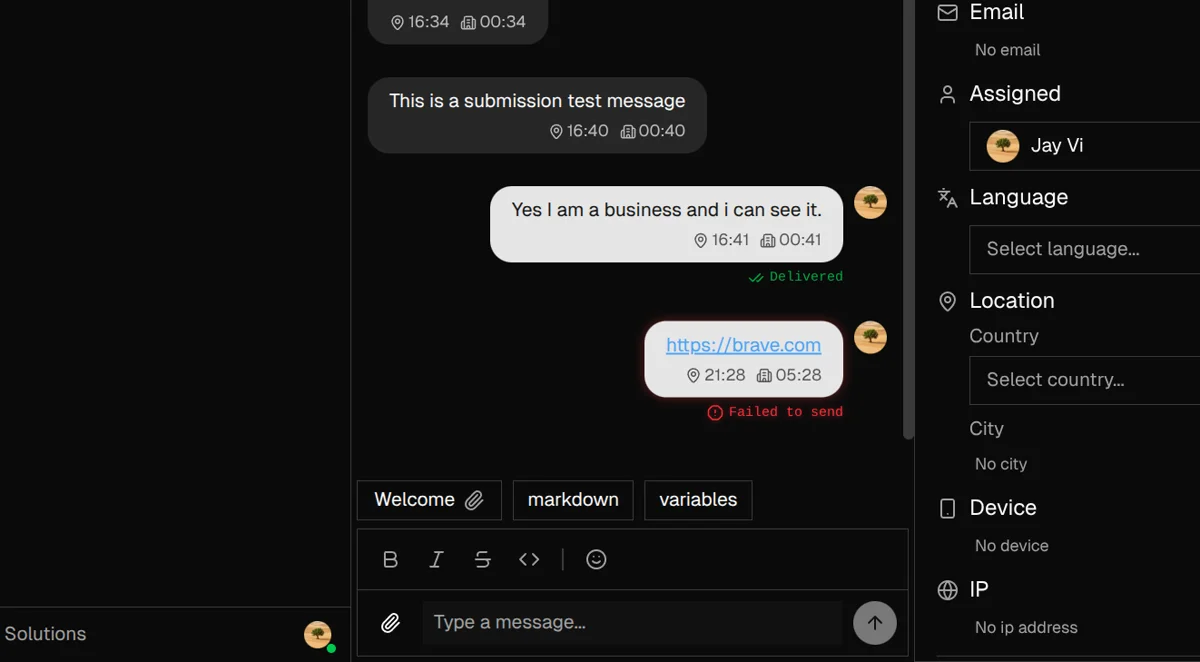
The message input area at the bottom of the conversation view is where you craft your responses. It supports rich formatting, attachments, quick replies, and even automatic translation.
Basic messaging
-
1
Type your message
Click in the text area and start typing. The box expands as you write longer messages.
-
2
Format if needed
Use the toolbar for bold (
Ctrl+B), italic (Ctrl+I), or underline (Ctrl+U). Add emojis from the emoji picker. -
3
Send
Press
Enteror click the send button. UseShift+Enterfor a new line without sending.
Attachments
Click the paperclip icon to attach images, videos, or files. You can also paste images from your clipboard or drag and drop files directly into the message area.
Platform limitations: Some platforms have restrictions on file types or sizes. Converge automatically validates attachments against each platform's requirements.
Quick Replies
Above the message input, you'll see a horizontal bar of Quick Reply titles. Click any title to instantly insert that template into your message. Learn more in the Replies Guide.
Translation
If you've set a target language in company settings and the customer's language differs, a translation button appears. Enable it to automatically translate your message before sending.
Bulk Actions
Need to update multiple conversations at once? Bulk actions let you change status, delete, or export up to 10 contacts at a time.
Entering selection mode
-
1
Click the checkbox icon
In the contact list header, click the checkbox icon to enter selection mode.
-
2
Select contacts
Click contact cards or their checkboxes to select them. Use the select all button to select the first 10 visible contacts.
-
3
Apply an action
Use the toolbar buttons to change status to Open/Resolved/Closed, delete contacts (Admin only), or export data.
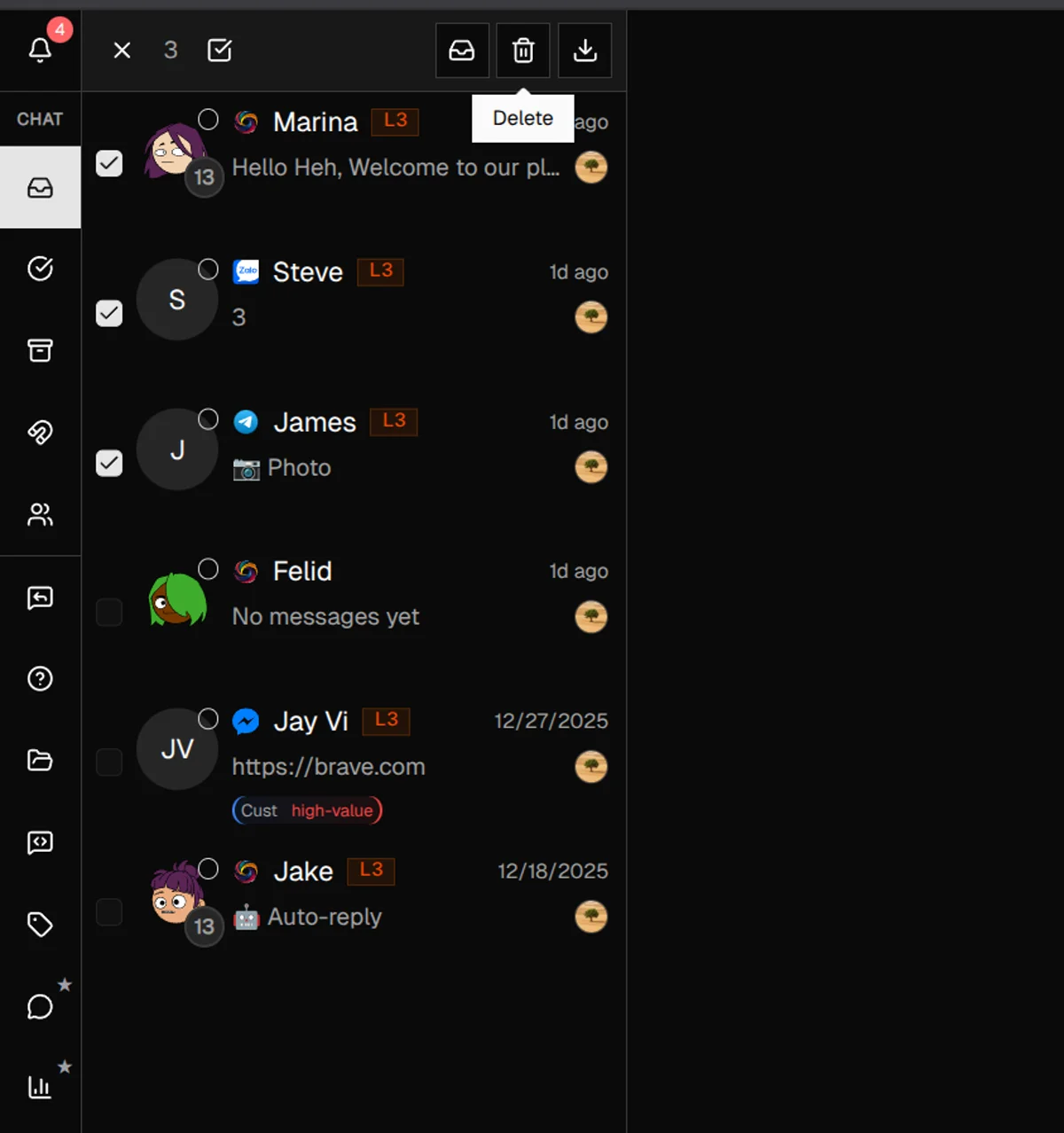
Admin Only: Deleting contacts and exporting data require Admin or Owner permissions. Regular team members can change statuses but not delete.
Best Practices & Tips
Resolve conversations proactively
After solving a customer's issue, mark the conversation as Resolved. This keeps your inbox focused on active issues and gives you accurate workload metrics.
Use tags to categorize
Create tags like "VIP", "Billing Issue", or "Feature Request". Filter by tags to find related conversations or prioritize high-value customers.
Assign ownership
Assign conversations to specific team members to avoid duplicate responses. Filter by "Assigned to me" to focus on your queue.
Add notes for context
Before handing off a conversation, add a note summarizing the issue and any actions taken. Future agents will thank you.
Mute non-urgent contacts
Right-click and mute contacts who send frequent but non-urgent messages. You'll still see their messages—just without notifications.
Use keyboard shortcuts
Press Enter to send, Shift+Enter for new lines, and Ctrl+B/I/U for formatting. These small efficiencies add up over hundreds of messages.
What's Next?
You've mastered the Inbox basics. Here are some related features to explore:
- Replies Guide — Speed up responses with Quick Replies, Auto Replies, and Variables
- Tags — Organize contacts with custom tags and tag groups
- Platforms — Connect WhatsApp, Telegram, Instagram, and more
- Analytics — Track response times, resolution rates, and team performance
Need more help?
Our support team is here for you. Click the chat widget in the bottom right corner to start a conversation.
We typically respond within minutes during business hours.