Stay Connected with Team Chat
Great customer support is a team effort. Team Chat gives your support team a dedicated space to communicate in real-time—ask questions, share knowledge, and coordinate on complex customer issues without leaving Converge.
Why Team Chat Exists
Customer support teams need to communicate constantly. Whether it's asking a colleague how to handle a tricky situation, sharing an update about a product issue, or simply staying in sync during a busy shift—quick internal communication makes everything smoother.
No more app switching
Instead of jumping between Converge and Slack or WhatsApp groups, your team can chat right where they work.
Context stays close
Discussing a customer issue? You're one click away from the actual conversation. No need to copy-paste details.
See who's available
The team member list shows who's online right now, making it easy to know who can help.
Who can access Team Chat? All team members with access to Converge can use Team Chat. Messages are visible to everyone on the team.
Accessing Team Chat
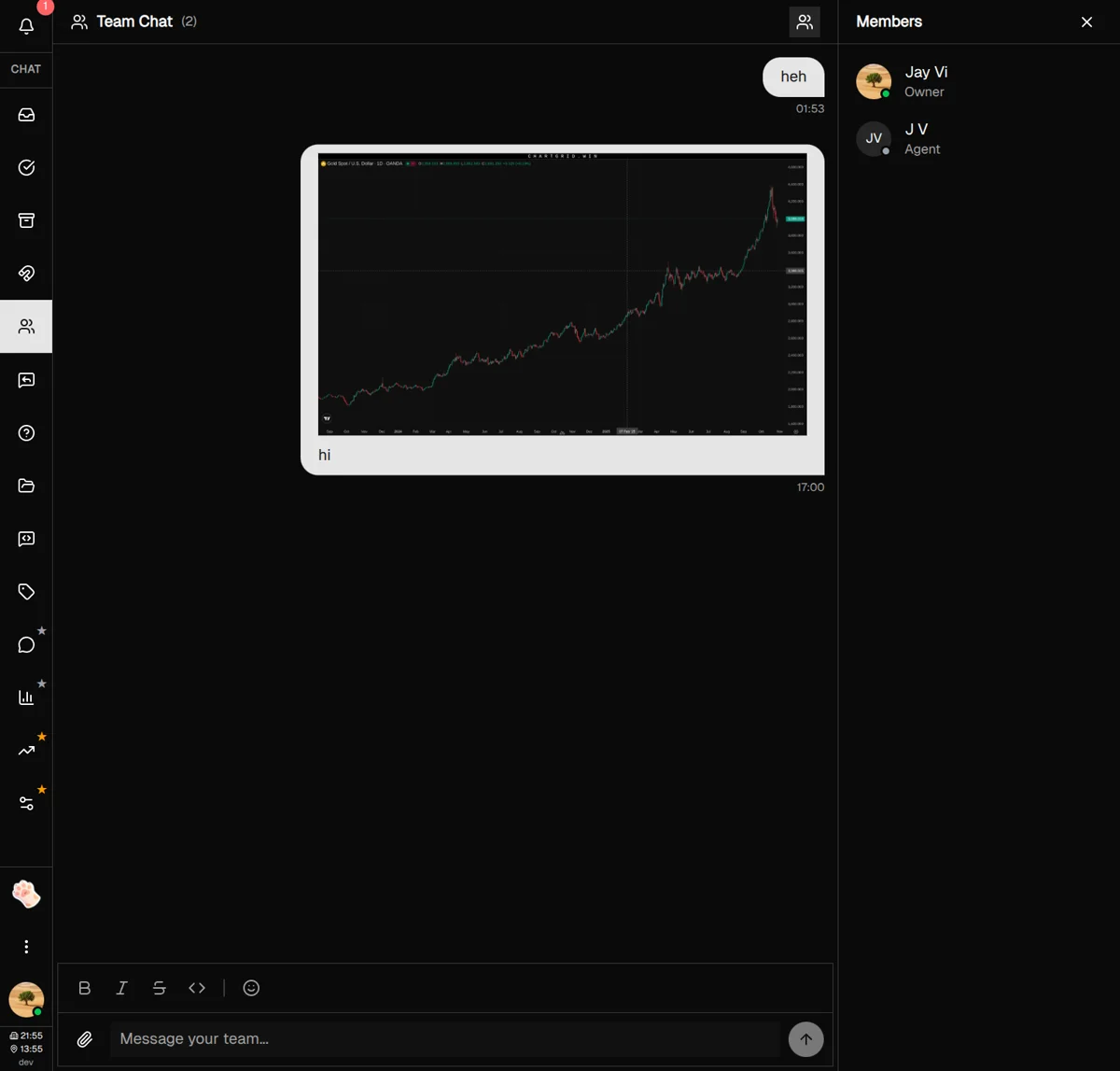
Team Chat lives in its own section of Converge, easily accessible from the sidebar.
-
1
Find the Team icon in the sidebar
Look for the Users icon (two people) in your sidebar navigation.
-
2
Click to open Team Chat
The chat interface opens, showing the conversation history and the message input at the bottom.
-
3
Toggle the team member list
Click the Users icon in the header to show or hide the list of team members and their online status.
Sending Messages
Team Chat works just like any modern messaging app. Type your message, hit Enter, and it's instantly delivered to everyone on your team.
Basic messaging
-
1
Click the message input
The input field is at the bottom of the chat. Click to start typing.
-
2
Type your message
Write what you want to share with your team. The input expands as you type longer messages.
-
3
Press Enter to send
Your message is instantly sent to everyone. Use Shift+Enter if you need to add a new line without sending.
Formatting your messages
Make your messages clearer with basic formatting. Use the toolbar above the input or keyboard shortcuts:
| Format | Shortcut | Result |
|---|---|---|
| Bold | Ctrl/Cmd + B | Bold text |
| Italic | Ctrl/Cmd + I | Italic text |
Adding emojis
Click the emoji button in the toolbar to open the emoji picker. Browse categories or search for the perfect reaction.
Real-time typing indicators
When a teammate is typing, you'll see their name appear below the message list. This helps you know someone is about to respond, so you don't accidentally talk over each other.
Team Presence & Status
Knowing who's available makes coordination easier. The team member panel shows everyone on your team along with their current status.
Understanding the member list
-
1
Toggle the member panel
Click the Users icon in the Team Chat header to show or hide the member list.
-
2
Check online status
A green dot means online and active. A gray dot means offline or away.
-
3
See roles at a glance
Each member's position is shown under their name, so you know who to ask about specific areas.
Sorted by availability: Online team members appear at the top of the list, making it easy to see who's around right now.
The team member panel showing a list of team members with green/gray status dots, avatars, names, and positions
Best Practices & Tips
Use Team Chat for quick coordination
Team Chat is perfect for "Hey, can someone help with this?" or "FYI, the API is slow today." Keep messages focused and actionable.
Share context with screenshots
When discussing a customer issue, share a screenshot. It's faster than describing and eliminates confusion.
Check who's online before urgent requests
If you need immediate help, glance at the member list first. You'll know if someone's available to respond quickly.
Keep it professional but friendly
Team Chat is visible to everyone. Keep conversations work-appropriate while maintaining a supportive team culture.
Use formatting for clarity
Bold important details. It helps messages stand out when teammates are scanning through a busy chat.
What's Next?
Now that you're set up with Team Chat, explore these related features:
- Quick Replies Guide — Create templates to respond faster
- Team Management — Add and manage team members in Settings
Need more help?
Our support team is here for you. Click the chat widget in the bottom right corner to start a conversation.
We typically respond within minutes during business hours.