Connect Your Messaging Platforms
Your customers are everywhere—Telegram, WhatsApp, Instagram, and your website. Instead of juggling multiple apps, connect all your channels to Converge and manage every conversation from one place. In this guide, you'll learn how to connect each platform step-by-step.
Supported Platforms
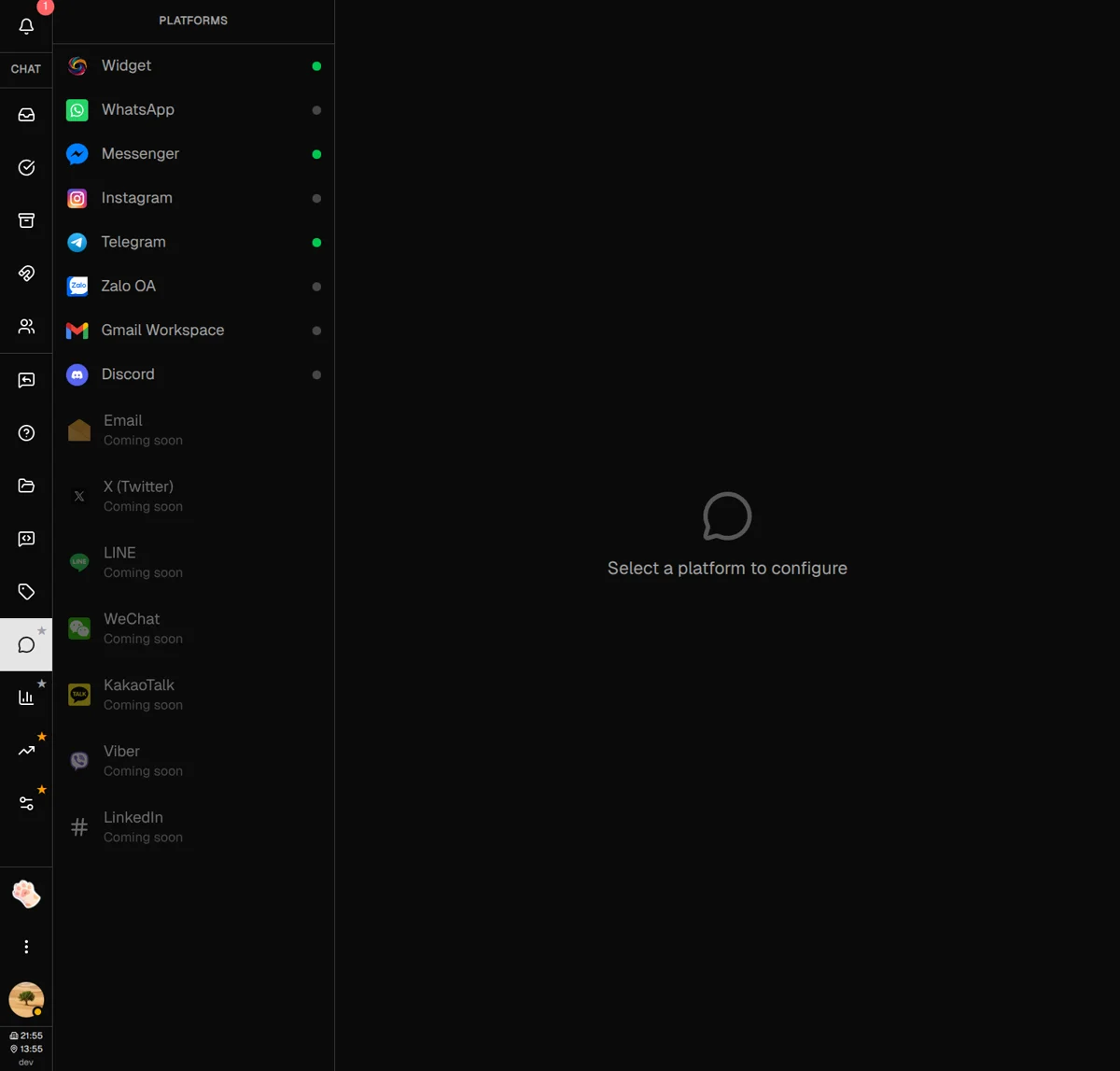
Converge integrates with the messaging platforms your customers already use. Each platform has its own connection process, but once connected, all messages flow into your unified inbox.
Telegram
Create a bot with BotFather and paste your token. Takes 2 minutes.
WhatsApp Business
Connect via Meta Business Suite with OAuth. Includes template management.
Connect your Business or Creator account via Facebook OAuth.
Messenger
Connect your Facebook Page to receive Messenger conversations.
Discord
Add a Discord bot to your server for community support channels.
Website Widget
Embed a chat widget on your website with one line of code.
More platforms coming soon: Zalo OA, Gmail Workspace, Viber, LINE, WeChat, and X (Twitter) are on our roadmap.
Connecting Telegram
Telegram is one of the easiest platforms to connect. You'll create a bot using Telegram's BotFather, then paste the token into Converge. The whole process takes about 2 minutes.
Step 1: Create your Telegram bot
-
1
Open Telegram and search for @BotFather
BotFather is Telegram's official bot for creating and managing bots.
-
2
Send /newbot to start the creation process
BotFather will ask you for a display name and username for your bot.
-
3
Choose a name and username
The display name can be anything (e.g., "Acme Support"). The username must end in "bot" (e.g., "AcmeSupportBot").
-
4
Copy the bot token
BotFather will send you a message with your bot token. It looks like:
123456789:ABCdefGHIjklMNO-pqrsTUVwxyz
Step 2: Connect in Converge
-
1
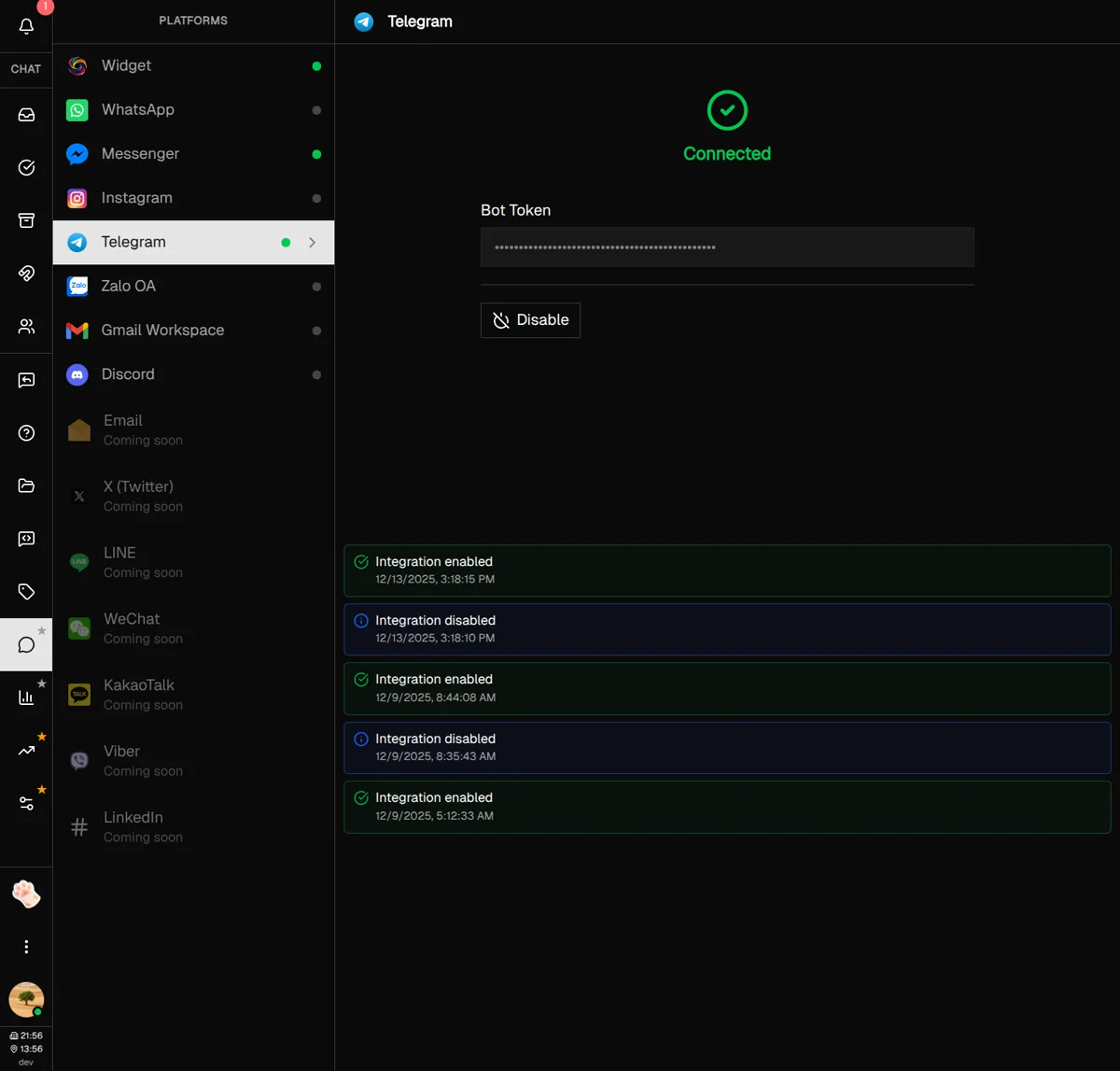
Go to Platforms and select Telegram
Click the Platforms icon in the sidebar, then click on Telegram in the list.
-
2
Paste your bot token
Enter the token from BotFather into the Bot Token field.
-
3
Click Enable
Converge will verify the token and start receiving messages.
Connecting WhatsApp Business
WhatsApp Business uses Meta's official API, which means you connect through Meta Business Suite with OAuth. This ensures reliable delivery and access to advanced features like message templates.
Requirements
- WhatsApp Business account — You need a business account, not a personal one
- Meta Business Suite access — Admin access to your organization's Business Suite
- Verified phone number — A phone number that can receive SMS or calls for verification
Connection process
-
1
Go to Platforms and select WhatsApp
Click "Connect WhatsApp Business" to open the Meta authorization popup.
-
2
Log in to Meta Business Suite
Use your Facebook account that has admin access to your business.
-
3
Select your WhatsApp Business account
Choose which business and phone number to connect.
-
4
Grant permissions and close the popup
The page will automatically refresh when the connection is complete.
Once connected, you'll see:
- • Your WhatsApp Business phone number displayed
- • A green "Connected" status indicator
- • Options to manage message templates
- • Activity logs showing connection events
Managing message templates
WhatsApp requires pre-approved message templates for starting conversations with customers. Once connected, you can create and manage templates directly in Converge.
{{1}}, {{2}}, etc. as placeholders.
Connecting Instagram & Messenger
Instagram Direct Messages and Facebook Messenger both connect through Meta's unified messaging API. The process is nearly identical—you authenticate with Facebook and select which accounts to connect.
Instagram requirements
- Instagram Business or Creator account — Personal accounts cannot connect
- Connected to a Facebook Page — Your Instagram account must be linked to a Page
- Admin access to the Facebook Page — You need to be able to grant permissions
Connection steps
-
1
Go to Platforms and select Instagram (or Messenger)
Click "Connect Instagram" to open the Facebook authorization popup.
-
2
Log in to Facebook
Use the account that has admin access to your Page.
-
3
Select your Page and Instagram account
Choose which accounts to connect to Converge.
-
4
Grant all requested permissions
These permissions allow Converge to receive and send messages on your behalf.
The Instagram connected state showing the username and avatar, with a Disconnect button
Installing the Website Widget
The Converge widget adds a chat bubble to your website, letting visitors start conversations without leaving your page. Installation requires adding one line of code.
Setup process
-
1
Go to Platforms and select Widget
Click on "Widget" in the platforms list.
-
2
Enter your website domain
Type your domain without https:// or paths. Example:
example.com -
3
Click Enable
Converge will generate a unique API key for your widget.
-
4
Copy the script tag
Click the copy button to copy the embed code to your clipboard.
-
5
Add to your website
Paste the script tag into your website's HTML, preferably in the
<head>section.
The Widget setup screen showing the domain input, the generated script tag with copy button, and the chat widget preview on a sample website
Script tag example:
<script async type="module" src="https://unpkg.com/@convergeapp/chat-widget/dist/widget.js" data-api-key="YOUR_API_KEY"></script>
Understanding Activity Logs
Every platform shows real-time activity logs on the right side of the settings panel. These logs help you monitor connection status, track messages, and troubleshoot issues.
Log types
Connection established, message sent successfully, webhook received
Routine status updates, incoming messages, configuration changes
Rate limits approaching, token expiring soon, temporary issues
Failed to send message, authentication error, connection lost
Logs update in real-time as events happen. If you see errors, they usually include details about what went wrong and how to fix it.
Best Practices
Start with one platform
Connect your busiest channel first. Get comfortable with the workflow before adding more platforms.
Test before going live
After connecting each platform, send yourself a test message to verify everything works correctly.
Set up Auto Replies first
Before connecting customer-facing channels, configure auto replies so new conversations get an instant response.
Monitor activity logs regularly
Check logs periodically for warnings or errors. Catching issues early prevents customer communication gaps.
Keep credentials secure
Bot tokens and API keys should never be shared publicly. If a token is compromised, regenerate it immediately.
What's Next?
Your platforms are connected. Here are some features to explore next:
- Replies Guide — Set up Quick Replies and Auto Replies for faster responses
- Unified Inbox — Learn how to manage conversations from all platforms in one view
- Team Settings — Invite team members and set up conversation routing
Need more help?
Our support team is here for you. Click the chat widget in the bottom right corner to start a conversation.
We typically respond within minutes during business hours.