Build a Self-Service Knowledge Base
Customers often have the same questions: "What are your hours?" "How do I return an item?" "Do you ship internationally?" Instead of answering these questions repeatedly, create a Q&A library that lets customers help themselves—right from your chat widget.
What is Q&A?
Q&A is your company's built-in knowledge base. It's a collection of frequently asked questions and answers that customers can browse directly in the chat widget—before they even start a conversation with your team.
Reduce Repetitive Questions
When customers can find answers themselves, your team spends less time on common questions and more time on complex issues that need a human touch.
Instant Answers, 24/7
Q&A entries are always available—even outside business hours. Customers get immediate help without waiting for an agent.
Searchable & Scannable
Customers scan a list of questions or search it by keyword, then open the one they need. The search covers the answers too, not only the question titles.
Who can access this? All team members can create, edit, and delete Q&A entries.
Creating Your First Q&A
Let's create a Q&A entry that answers one of your most common customer questions.
Step-by-step walkthrough
-
1
Open Widget Settings
In the sidebar, expand More and click the Widget icon. Scroll down past the widget builder to the Company Q&A section. If it's not visible, turn on the "Show Q&A page in widget" toggle in the Features section first — the editor appears the moment you flip it, but the FAQ tab only reaches your live widget after you click Save Changes.
-
2
Click "Add Q&A"
A dialog opens with two fields: Question and Answer.
-
3
Write your question
Phrase it exactly how a customer would ask. For example: "What are your business hours?" or "Do you offer free shipping?"
-
4
Write your answer
Answers are written in Markdown. The toolbar covers bold, italic, underline, strikethrough, inline code and emoji; links use the
[text](url)form. Switch to the Preview tab to read the answer back before you save it. -
5
Click "Create Q&A"
Your new entry appears in the list and is immediately available to customers in the chat widget.
Managing Your Q&A Library
As your business evolves, you'll need to update your Q&A entries. Policies change, hours shift, products launch—here's how to keep your knowledge base current.
Viewing & previewing entries
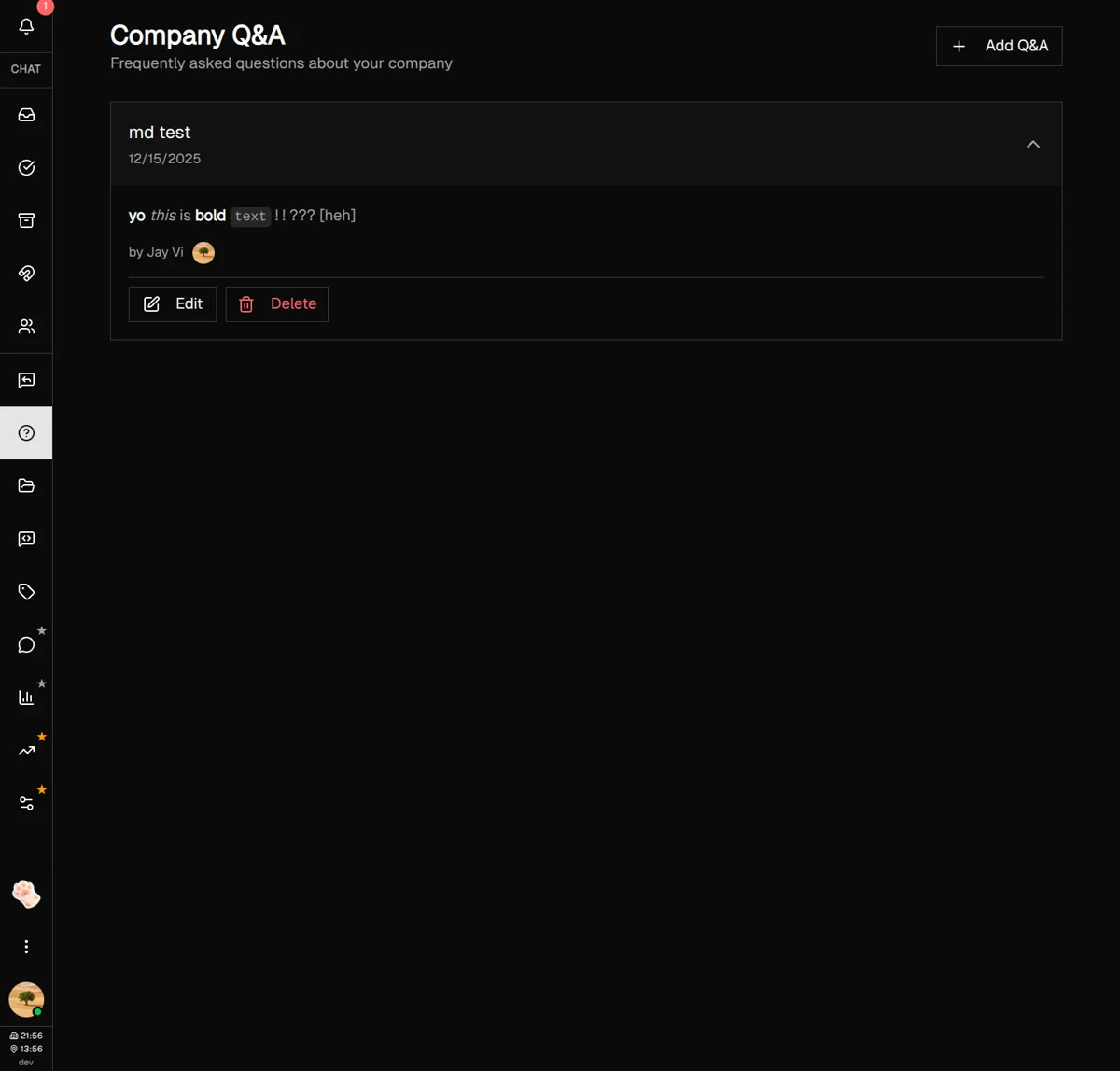
Each Q&A entry is a collapsible row. Collapsed, it shows the question and how long ago it was last updated. Click it to reveal the rendered answer, who created it, and the Edit and Delete buttons.
Editing an entry
-
1
Expand the Q&A entry
Click on the entry to reveal the full answer and action buttons.
-
2
Click "Edit"
The edit dialog opens with your existing question and answer pre-filled.
-
3
Make your changes and save
Click "Update Q&A" to save. Changes are immediately visible to customers.
Deleting an entry
Need to remove outdated information? Expand the entry and click "Delete." You'll be asked to confirm before the entry is permanently removed.
How Customers See Q&A
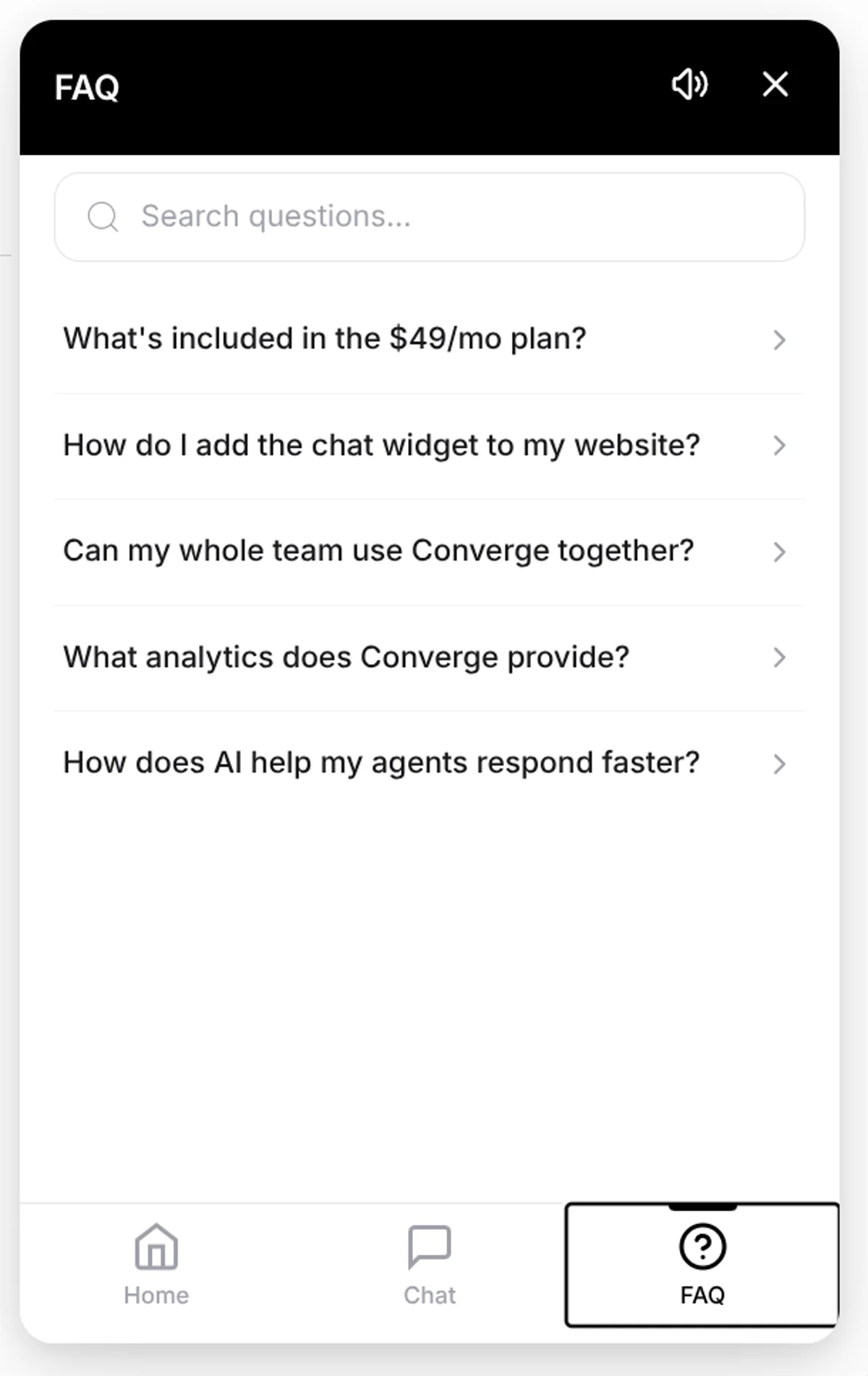
When customers open your chat widget, they can access your Q&A library through a dedicated FAQ tab. Here's what their experience looks like:
Searchable Questions
A search bar sits at the top of the FAQ tab. Two or more characters trigger a search across both questions and answers, so someone typing "refund" finds the entry even when that word only appears in the answer. Nothing matching shows a "No results found" message.
One Answer per Screen
The FAQ tab lists questions only. Tapping one opens its answer on its own screen inside the widget, and the back arrow in the header returns to the list.
Formatting That Carries Over
The widget runs a reduced Markdown renderer: bold, italic, links, inline code and headings render, bullet and numbered lists do not. Check an answer in the widget itself, not only in the editor preview, which renders full Markdown.
Controlling Q&A visibility
The "Show Q&A page in widget" toggle in Widget Settings controls two things at once: it shows or hides the FAQ tab visitors see in the widget, and it also shows or hides the Q&A editor on the same page. Turn it off if you're still building your knowledge base or prefer customers to chat with agents directly.
Best Practices
Write questions from the customer's perspective
Use natural language like "How do I return an item?" rather than internal jargon like "Return & Exchange Policy Overview."
Keep answers concise but complete
Answer in the first sentence, then add the detail. Bold the part the customer came for, and link to a fuller page when the whole answer doesn't fit.
Start with your top 5 questions
Look at your recent conversations. What questions come up most often? Those are your first Q&A entries — and create them in the order you want them read, because the widget lists entries oldest first and there is no way to reorder them afterwards.
Review and update regularly
Set a monthly reminder to review your Q&A entries. Remove outdated information and add new entries based on recent customer questions.
Format for the widget, not the editor
Bold the key information and give each option or step its own line. That reads the same in the editor preview and in the widget; a bullet list does not.
What's Next?
Your Q&A library is set up and ready to help customers help themselves. Here are some related features to explore:
- Quick Replies Guide — Create templates for when customers do need to chat
- Widget Guide — Customize the chat widget appearance and behavior
- Suggested Messages — Set up quick-start prompts for new visitors
Need more help?
Our support team is here for you. Click the chat widget in the bottom right corner to start a conversation.
We typically respond within minutes during business hours.