Capture and Convert Website Visitors
 Converge Team
Every website visitor is a potential customer. Leads helps you identify, score, and nurture these prospects before they slip away. In the next 8 minutes, you'll learn how to capture leads from your chat widget, understand their intent, and convert them into paying customers.
What Are Leads?
When someone visits your website and interacts with your chat widget, Converge automatically creates a lead record. Unlike customers who reach out through WhatsApp, Telegram, or other platforms, leads are anonymous website visitors who haven't yet revealed their identity—but their behavior tells a story.
Automatic Capture
Every visitor who lands on your site with the chat widget installed is tracked automatically. No forms required—just install the widget and start capturing.
Rich Context
See which page they came from, their UTM parameters, referrer, timezone, device, and more. Know exactly how they found you.
Intelligent Scoring
Each lead gets a quality score (0-100) based on their behavior and profile. Focus your energy on the hottest prospects.
Understanding Lead Stages
Leads progress through stages as they engage with your business. These stages help you quickly identify where each prospect is in their journey:
New Visitor
Just landed on your site. Anonymous browsing—no interaction with the widget yet. Generated name and avatar assigned automatically.
Engaged
Provided their name in the widget. They're interested enough to identify themselves—a strong buying signal.
Contacted
Started a conversation or your team has reached out. Active engagement is happening.
Customer
Converted! They're now a paying customer. You can manually mark leads as customers when they make a purchase.
How Lead Scoring Works
Every lead receives a quality score from 0 to 100. This score updates automatically as Converge learns more about the visitor. Higher scores mean higher intent—these are your hottest prospects.
What affects the score?
| Signal | Impact |
|---|---|
| Visited /pricing, /demo, or /book page | High |
| Came from paid ads (Google, LinkedIn) | High |
| Provided their name (L2 stage) | Medium |
| Reached from ProductHunt or LinkedIn | Medium |
| Has UTM tracking parameters | Medium |
| External referrer (not your site) | Medium |
| Timezone and country detected | Low |

Viewing and Managing Leads
Access your leads by clicking the Magnet icon in the sidebar. This opens a dedicated view showing only website visitors—separate from your other inbox conversations.
The leads list
Anonymous visitors get fun, auto-generated names (like "Purple Tiger") and colorful avatars. This helps you distinguish between visitors before they identify themselves.
Each lead shows their current stage (L1, L2, L3) so you can quickly gauge engagement level.
See which page the lead came from right in the list—helpful for understanding context before opening the conversation.
The quality score (0-100) appears as a small badge, color-coded by warmth.
Filtering your leads
Click the filter icon in the list header to narrow down by:
- Assignment — All, assigned to me, or unassigned
- Stage — L1 (visitor), L2 (engaged), L3 (contacted), L4 (customer)
- Tags — Filter by any tags you've applied
Lead Details and Attribution
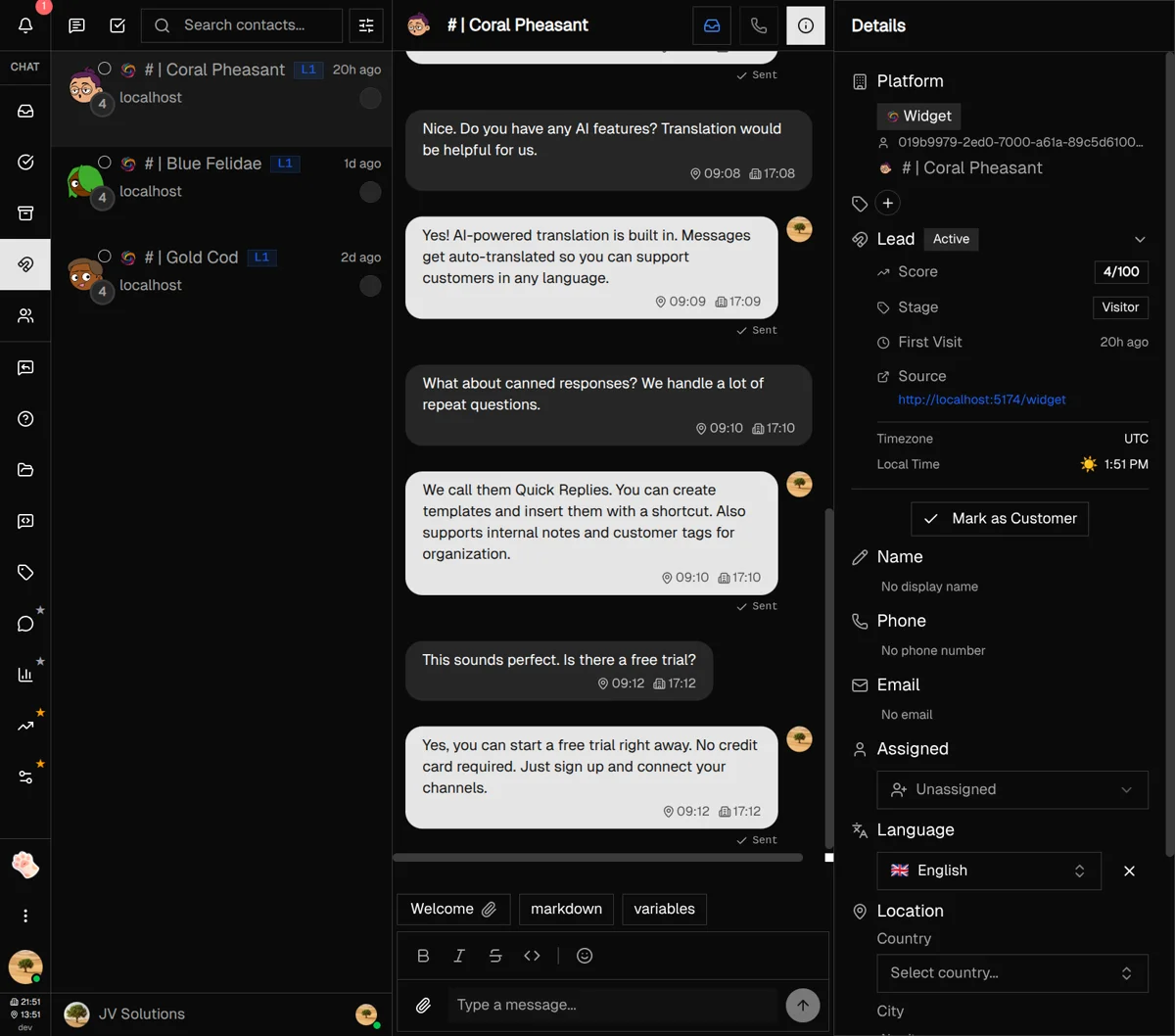
Click any lead to open their profile. The right sidebar shows everything Converge knows about this visitor, including powerful attribution data for understanding their journey.
Attribution data
The exact URL where this visitor first interacted with your widget. "/pricing" vs "/blog" tells very different stories.
Where they came from before landing on your site. Google search? LinkedIn post? A competitor's blog?
Full UTM breakdown: source, medium, campaign, content, and term. Perfect for tracking which campaigns drive conversions.
Other lead information
- Timezone & Local Time — Know what time it is for them before reaching out
- Device & Browser — Desktop, mobile, or tablet? Chrome or Safari?
- First Visit — When they first appeared on your site
Converting Leads to Customers
When a lead makes a purchase or becomes a paying customer, you can mark them as converted. This moves them out of the leads pipeline and updates their lifecycle stage to "Customer."
How to convert a lead
-
1
Open the lead's profile
Click on the lead in your leads list to open their conversation and profile sidebar.
-
2
Expand the Lead Info section
In the right sidebar, click on "Lead Info" if it's collapsed.
-
3
Click "Mark as Customer"
At the bottom of the Lead Info section, click the button to convert them.
-
4
Confirm the conversion
A dialog will ask you to confirm. Once confirmed, they're moved to your customer base.
Lead Retention Settings
Admin / Owner OnlyAnonymous visitors (L1 stage) who never engage are automatically cleaned up after a retention period. This keeps your leads list focused on real prospects.
Configure this in Settings → Visitors. Choose how long to keep inactive visitors:
- 1 day — Aggressive cleanup for high-traffic sites
- 7 days — Balance between cleanup and opportunity
- 14 days — Give visitors more time to return
- 30 days — Maximum retention for lower-traffic sites
Note: Engaged leads (L2+) are never automatically deleted, regardless of the retention setting. Only anonymous visitors who never interacted are cleaned up.
Best Practices & Tips
Prioritize by score
Focus on leads with scores of 70+ first. These visitors have shown strong buying signals—they visited pricing pages, came from paid ads, or provided their information.
Use tags for segmentation
Tag leads based on their source page or campaign. "Pricing Visitors" and "Blog Readers" require very different follow-up approaches.
Check attribution before reaching out
Know which page they came from and what referred them. A personalized "I noticed you were looking at our enterprise plan" beats a generic greeting.
Respect timezones
The lead's local time is shown in their profile. Don't message someone at 3 AM their time—schedule your outreach for their business hours.
Assign hot leads immediately
When a high-score lead appears, assign them to a team member right away. Speed matters—the faster you respond, the higher your conversion rate.
What's Next?
You're now equipped to capture and convert website visitors. Here are some related features to explore:
- Replies Guide — Set up auto-replies to engage leads instantly
- Tags — Organize leads for targeted follow-up
- Widget Settings — Customize your chat widget to capture more leads
Need more help?
Our support team is here for you. Click the chat widget in the bottom right corner to start a conversation.
We typically respond within minutes during business hours.